Transaction Report V1
The Transaction Report V1 provides a way for sites to look up a sales transaction for a site or multiple sites. It can be generated for a specific transaction type (sale, rewash, plan use, or recharge), for a specific customer, for a specific payment card, specific sale ID, or any combination of these parameters.
- Generate for Plan Use, Recharge Plan, Rewash, or Sale transactions
- Generate for a specific customer (name, RFID, license plate)
- Generate for a specific sale ID
- Generate for a specific payment card (last 4 digits)
- Generate for a single site or multiple sites
- Generate for a single date or date range
- Export a generated report to CSV, HTML, PNG, MHT, PDF, RTF, TXT, XLS, XLSX, or DOCX
Report Parameters and Tools
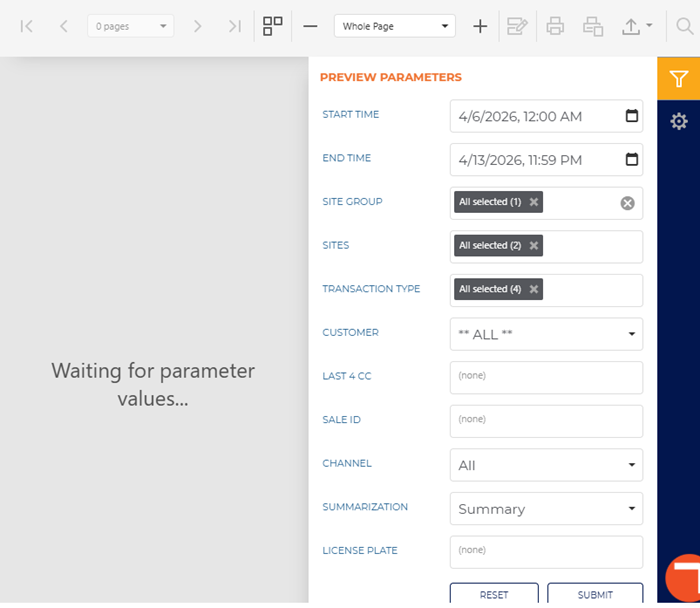
The Transaction Report V1 tools include the preview parameters (report time range, site groups, sites, transaction time, customer, sale ID, channel, details/summary, and license plate), export options, and search. The preview parameters section opens by default when the Transaction Report V1 is selected from the list of financial reports, instructing, Waiting for parameter values...
PREVIEW PARAMETERS
The preview parameters section provides the ability to specify the start time, end time, site group, sites, transaction type, customer, last 4 cc, sale ID, channel, details/summary, and license plate for a generated Transaction Report V1.
START TIME
The beginning date and time for the report. Select the calendar icon in the START TIME box to open a date and time modal.
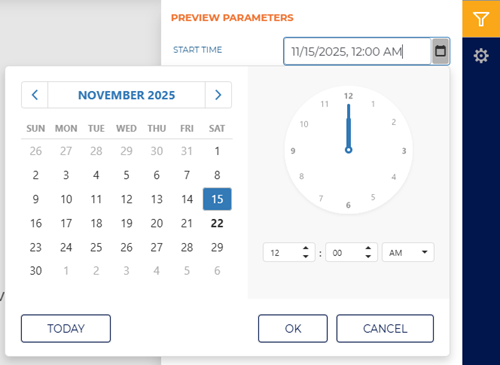
The default time for each day is 12:00 AM, but it can be changed to any hour and minute.
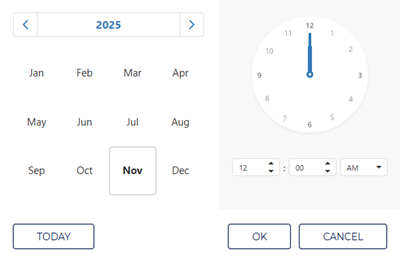
Two shortcut functions are available for selecting and setting the date: a month/year selector and a today (current date) selector.
MONTH | YEAR
The month and year above the calendar is a shortcut that changes the month view to a year view, from which any month in the year can be selected. Selecting a month that opens the month view so a specific day from that month can be selected.
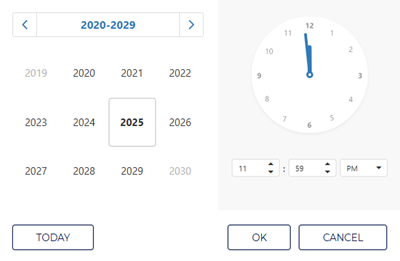
Selecting the year above the year view opens a decade view, from which any month in the decade can be selected. Selecting a year then opens the year view so a specific month from that year can be selected.
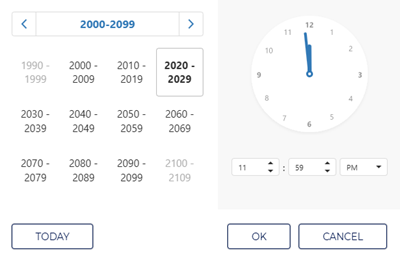
Selecting the decade above the decade view opens a century view, from which any decade in the century can be selected. Selecting a decade then opens the decade view so a specific year from that decade can be selected.
TODAY
Select the TODAY function to set the date and time to the current date and 11:59 PM.
END TIME
The ending date and time of the report. Select the date and time box to open a date and time modal.
Enter the same date as the START TIME to generate a report for a single day.
SITE GROUP
Select the site group box to open a drop-down list of site groups. Select a single site group, multiple select site groups, or all site groups to include for the report.
This setting includes all site groups (All selected) by default.
SITES
Select the site box to open a drop-down list of sites. Select a single site, multiple select sites, or all sites to include for the report.
This setting includes all sites (All selected) by default.
TRANSACTION TYPE
Select the transaction type box to open a drop-down list of transaction types. Select plan use, recharge plan, rewash, sale, or all transaction types to include for the report.
CUSTOMER
Select the customer box to open a drop-down list of customers.
LAST 4 CC
If applicable, enter the last 4 digits of a customer's credit card number in the LAST 4 CC box.
SALE ID
If applicable, enter the sale ID in the SALE ID box.
CHANNEL
Select the channel box to open a drop-down list of channels. Select retail only, ecommerce only, or all channels.
SUMMARIZATION
Select the amount of data to include on the report.
Summary
Select Summary to display summarized data for each section on the report.
- Transactions: The report displays summarized totals of transactions by type and status within the selected parameters.
- Sales: The report displays total sales amounts, including product and prepaid transactions, combined across all transactions.
- Taxes: The report displays total tax amounts, including item tax and sales tax, combined across all transactions.
- Payments: The report displays summarized payment totals by payment type, including cash and other tender types.
- Totals: The report displays overall totals for quantities, amounts, and extended amounts for all transactions included in the report.
Detail
Select Detail to display the specific transactions and financial entries that contribute to each section on the report.
- Transactions: The report lists each transaction by Sale ID and includes the completed date and time, transaction type, status, customer, and site.
- Line Items: The report expands to show each transactions associated line items, including product, payment type, quantity, amount, and extended amount.
- Categories: The report identifies each line item by category, such as sale, tax, or prepaid items, and displays the corresponding product or service.
- Financial Breakdown: The report displays category and account-level details, including debit and credit amounts where applicable.
LICENSE PLATE
The LICENSE PLATE box provides the ability to generate the report for a specific license plate.
RESET | SUBMIT
Use the function to return all preview parameters settings to their default settings. Use the function to generate the report for the preview parameters current settings.
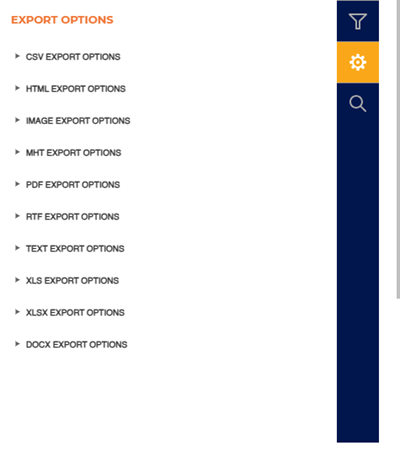
EXPORT OPTIONS
The Export Options section provides the ability to export a generated XPT Cash Audit Report to any of the following file formats:
- CSV
- HTML
- PNG
- MHT
- RTF
- TXT
- XLS
- XLSX
- DOCX
SEARCH
The Search section provides the ability to quickly locate a specific piece of text or data in the generated report.
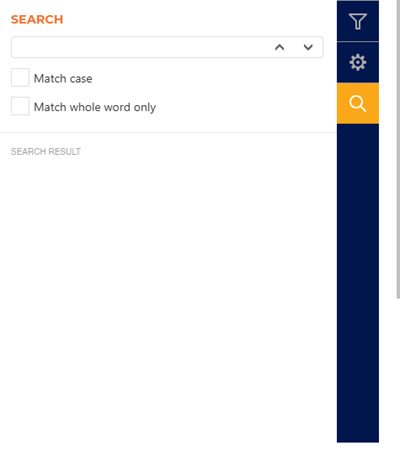
Text Box
The text box provides a field to input the search criteria. Select Enter on a keyboard or use the provided ^ function or v function to invoke the search.
^ | v
Invoke the search function for the generated report, up or down.
Match case
Select the Match case option to only identify exact uppercase and/or lowercase matches in the results.
Match whole word only
Select the Match whole word only option to only identify exact text matches in the results.
Search Result
The Search Result area lists all search matches in the report. Each match identifies the page on which it is located, and the match is a link that can be selected to highlight its location on the generated report (in the report viewer).
Report Header
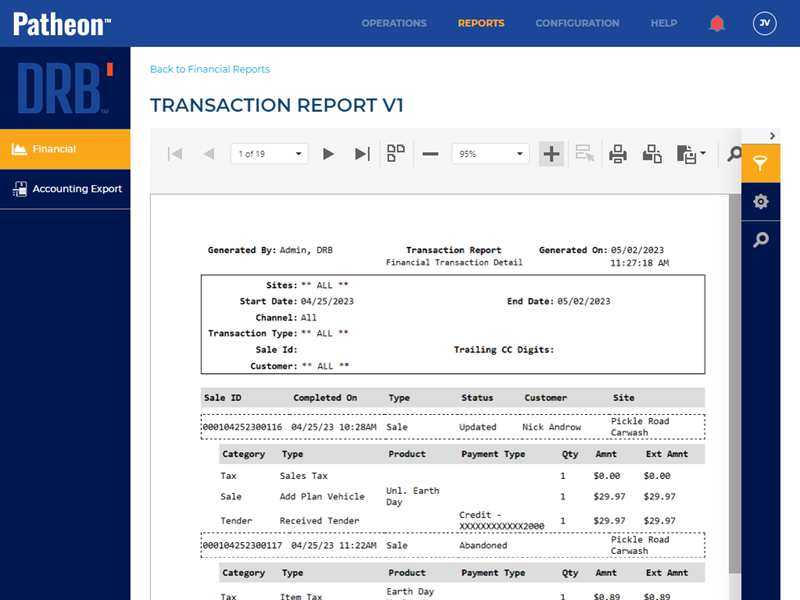
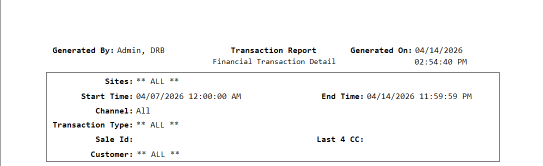
The first page header of the report includes a Generated By, Title, Generated On, Sites, Start Time, End Time, Channel, Transaction Type, Sale ID, Last 4 CC, and Customer. If the report spans multiple pages, the header for all subsequent pages includes the Generated By, Title, and Generated On.
Generated By
The employee who generated the report.
Title
The title of the report is Transaction Report.
Generated On
The date and time on which the report was generated, in mm/dd/yyyy, hh/mm/ss format.
Sites
The site(s) for which the report was generated.
Start Time | End Time
The start date and time and end date and time for which the report was generated.
Channel
The channel(s) for which the report was generated.
Transaction Type
The transaction type(s) for which the report was generated.
Sale ID
The sale ID(s) for which the report was generated.
Last 4 CC
The last 4 digits of the credit card for which the report was generated.
Customer
The customer(s) for which the report was generated.
Report Data
The Transaction Report V1 data consists of transaction details including sale IDs, completed date and time, transaction type, status, customer, and site, along with associated line item details (product, payment type, quantity, amount, and extended amount), categorized entries (sale, tax, prepaid), and financial account breakdowns (debit and credit), for all transactions within the selected parameters.
Sale ID
Unique identifier assigned to each sales transaction.
Completed On
Date and time the transaction was completed.
Type
Indicates the transaction type, such as plan use, recharge plan, rewash, or sale.
Status
Current state of the transaction, such as completed or abandoned.
Customer
Name of the customer associated with the transaction.
Site
The site where the transaction occurred.
Vehicle(s)
Displays any vehicles associated with the transaction, if applicable.
Category
High-level classification of the line item, such as sale, tax, or plan.
Type
Subcategory or specific classification within the category.
Product
Name of the product or service included in the transaction.
Payment Type
Method of payment used.
Qty
Quantity of the item purchased.
Amnt
Unit amount for the item.
Ext Amnt
Extended amount (quantity x unit amount).
Account
Ledger account associated with the transaction line.
Debit
Debit amount recorded for the account.
Credit
Credit amount recorded for the account.
Report Footer
Page numbers and the version of the report are provided at the bottom of the report.