GATE
The Gate diagnostics panel, accessible from the Diagnostics panel, provides status information about the gate, including its status, current state (Down or Up), and loop statuses (Unblocked or Blocked). It also includes functions to manually raise (open), lower (close), and reset this kiosk's gate.
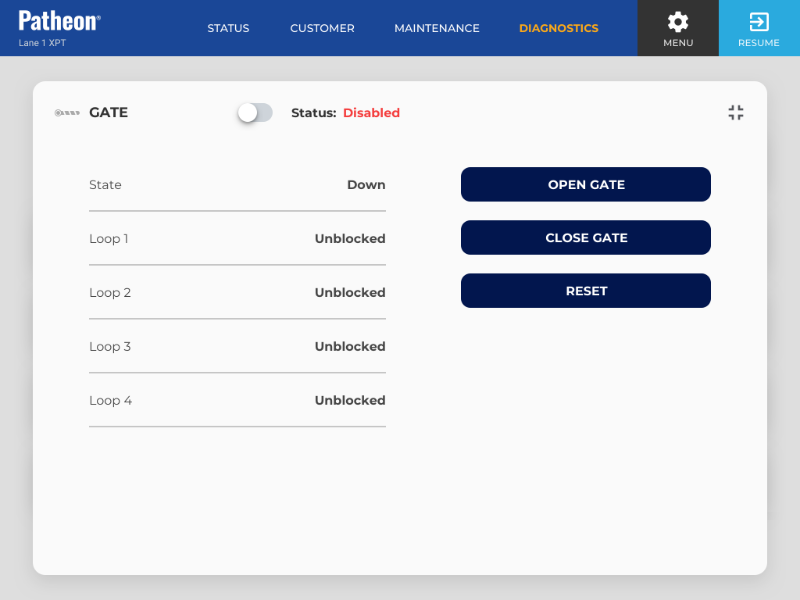
App Ver
Identifies the specific version of the application currently installed and running.
Firmware
Identifies the version of the device's embedded software currently installed and running.
Status
Identifies the current state of this kiosk's gate.
- Connected: The gate is enabled and actively connected to the system.
- Error: The gate is not functioning as expected or cannot communicate with the system.
State
The gate's current position.
- Down: The gate is lowered/closed.
- Up: The gate is raised/opened.
Loop 1
Loop 1 is normally the gate loop. The loop's current state.
- Blocked: The loop detects a vehicle.
- Unblocked: The loop doesn't detect a vehicle.
Loop 2
Loop 2 is normally an external proximity input. The loop's current state.
- Blocked: The loop detects a vehicle.
- Unblocked: The loop doesn't detect a vehicle.
Loop 3
Loop 3 and 4 are normally merge loops. The loop's current state.
- Blocked: The loop detects a vehicle.
- Unblocked: The loop doesn't detect a vehicle.
Loop 4
Loop 3 and 4 are normally merge loops. The loop's current state.
- Blocked: The loop detects a vehicle.
- Unblocked: The loop doesn't detect a vehicle.
OPEN GATE
Select to manually raise the gate. Some gates can also be manually opened/raised with a gate key and/or a button inside the gate's control panel.
CLOSE GATE
Select to manually lower the gate. Some gates can also be manually closed/lowered with a gate key and/or a button inside the gate's control panel.
RESET DEVICE
If a gate experiences an issue, staff can attempt to resolve it by resetting the gate.