RFID READER
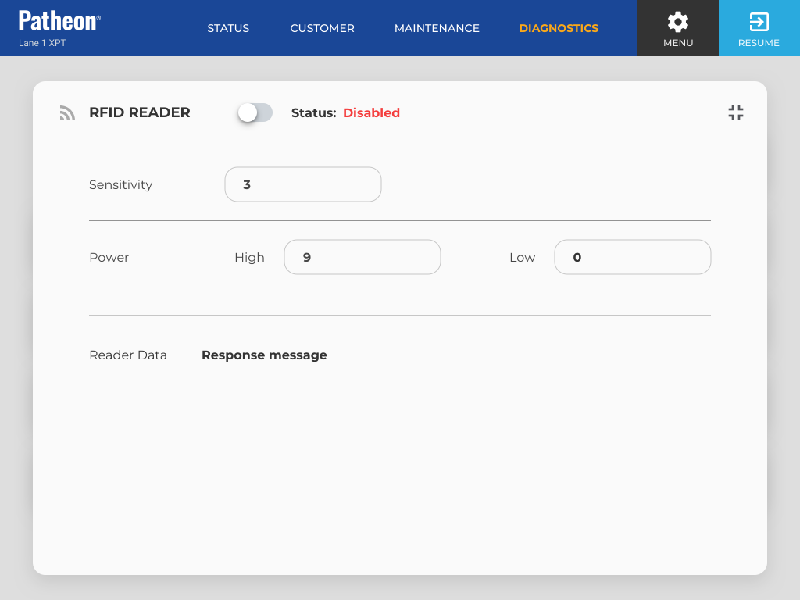
The RFID Reader diagnostics panel, accessible from the Diagnostics panel, provides status information about the RFID reader connected to the kiosk. It includes a function to enable or disable the reader, settings to adjust the reader's sensitivity and power, and read data to verify the reader and a tag work correctly.
App Ver
Identifies the specific version of the application currently installed and running.
Firmware
Identifies the version of the device's embedded software currently installed and running.
Status
Identifies the current state of this kiosk's RFID reader.
- Connected:: The RFID reader is enabled, online, and actively connected to the system. The reader is available for transactions and should scan RFID cards, tags, or credentials normally.
- Degraded: The RFID reader is enabled and online, but it is operating with reduced performance or has reported a condition that may require attention. The reader may still scan RFID credentials, but scanning may be slower, inconsistent, or less reliable. See below for more information.
- Disconnected: The RFID reader can't connect to Patheon and is out of service. Because the system cannot confirm the reader's current state or receive scan information, RFID-based actions are unavailable until connectivity is restored. See below for more information.
- Error: The RFID reader has encountered a critical error that has placed it out of service. The reader can't process RFID scans until the error is cleared or the underlying issue is resolved. See below for more information.
- Offline: The RFID reader is offline and out of service. The reader is not currently available to the kiosk and can't process RFID scans. See below for more information.
Degraded
A Degraded status may occur when the reader detects communication delays, intermittent read failures, hardware warnings, signal interference, or another non-critical issue. If the condition is not resolved, the RFID reader may eventually become unavailable or move to an offline status.
Disconnected
A Disconnected status may indicate a network issue, device communication failure, disconnected cable, powered-off component, or another condition preventing communication with Patheon.
Error
An Error status may be caused by a hardware fault, failed read process, device initialization failure, configuration issue, or another condition that prevents normal operation. Additional troubleshooting or service may be required.
Offline
An Offline status may occur when the reader is powered down, disabled, not detected by the kiosk, or otherwise unavailable to the system. The reader must be brought back online before RFID scanning can resume.
Sensitivity
Sensitivity settings must be carefully adjusted to avoid reading tags from adjacent lanes, but still read tags quickly on a variety of cars with various windshield properties. The easiest way to perform this adjustment is to open the RFID Reader diagnostic panel and perform a walk-around test while holding a known, good tag. This will allow you to determine the outer limits of the read zone.
The minimum value is 1 and the maximum value is 10. The default value is 3.
If the read zone is too small, set Sensitivity to 4. Identify the read zone again. If the read zone is not the correct size, continue to increase Sensitivity in increments of 1. If Sensitivity is 5 and the read zone is still too small, contact DRB before increasing the sensitivity further.
Do NOT increase the Sensitivity value unless the High power value is 10 and tags still won't read.
Power
The minimum value is 1 and the maximum value is 10. The default value is 9. If the read zone is too big, set High power to 8. If it is too small, set it to 10.
If power is 1 or 10 and the read zone is still wrong, adjust the Sensitivity.
Setting the power to 1 or higher enables the reader to perform a second read after the reader detects an RFID tag. The second read is designed to confirm the tag is from this reader's lane, and not another lane.
Closer Look
Sets the RFID reader's Closer Look level using a value from 0 to 10. Use this setting to adjust how detailed or focused the diagnostic read check should be, then review the read data to verify that the radar can detect and communicate with the RFID tag correctly.
Duration
Indicates how long the RFID reader attempts to detect or read a tag during a diagnostic test. Use this value to confirm whether the reader has enough time to identify nearby tags and return valid read data.
Live Reader Data
This section displays a timestamp and tag data when a tag is read. Data that appears in this section is not sent to Patheon. Use the information to test the reader or an RFID tag.
APPLY SETTINGS
Select when you have changed a value for the RFID reader. This option is disabled until a value is changed.
CLEAR CHANGES
Select to reset any unsaved adjustments made, returning the settings to their last saved values.