Configure EWA Google Tag Manager ID
Google Tag Manager (GTM) provides sites the ability to manage and deploy Google Analytics website tracking tags without updating the site code for each change. GTM supports analytics and marketing tools that track customer actions such as page visits, coupon clicks, and online booking submissions. Use these steps to configure an EWA GTM ID.
Note: DRB supports the integration of GTM with EWA, but does not provide GTM training or guidance on configuring tags, triggers, or variables. To learn how to use GTM, see Google Tag Manager documentation and other online resources.
Tools Required
- Patheon EWA GOOGLE TAG MANAGER feature enabled. Contact DRB to enable this feature.
- Google Tag Manager account.
Create Google Tag ID
- Log in to the Google Tag Manager account at tagmanager.google.com. The Tag Manager page opens.
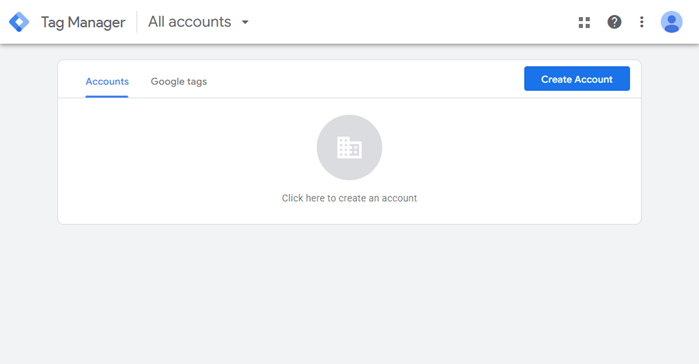
- Select Create Account. The Add a New Account page opens.
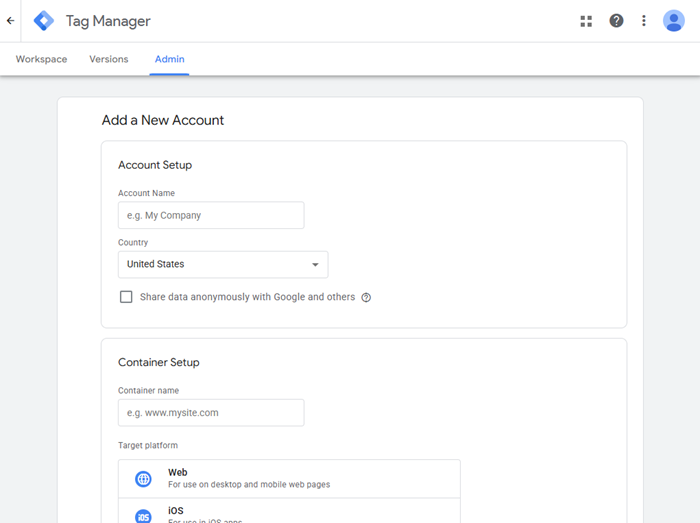
- In Account Name, enter a name for the account, such as Car Wash Website.
- In Country, select the appropriate country.
- In Target platform, select Web.
- In Container name, enter the your carwash website, such as mycarwash.patheon.app.
- Select Create. The Google Tag Manager Terms of Service Agreement opens.
- Select Yes. The Install Google Tag Manager dialog opens.
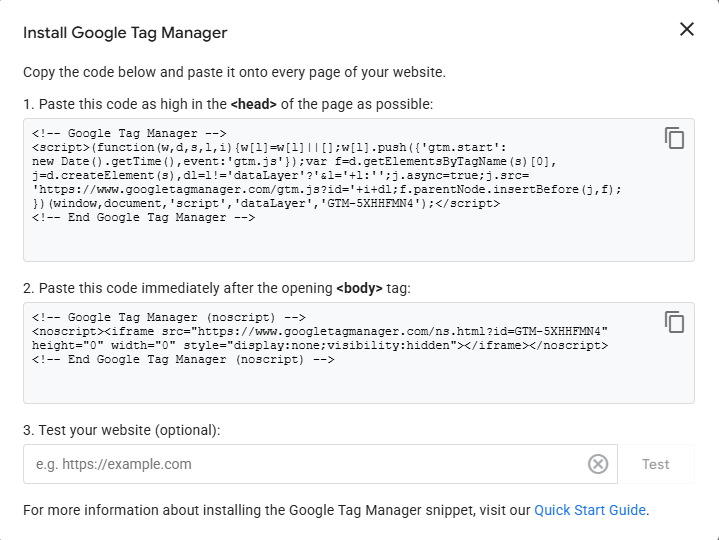
- Select X. The dialog closes.
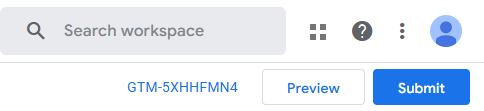
- From the top of the screen, copy the GTM ID. Note: The ID starts with GTM.
Add Google Tag ID to Patheon Portal
- Log In to Patheon Portal.
- Select Configuration.
- Select Customization. The receipts panel opens.
- Select E-commerce. The e-commerce panel opens.
- Navigate to the analytics section.
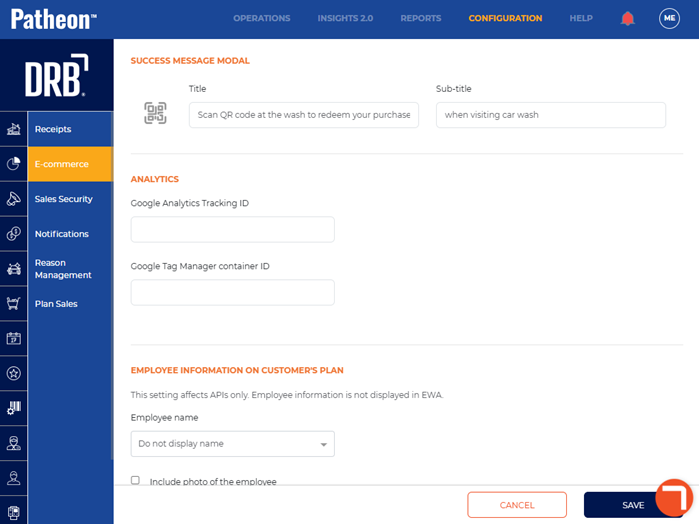
- In Google Tag Manager container ID, paste the copied GTM ID.
- Select .