Configure a Flexible Reload Discount for Plan Vehicles
Use these steps to create and configure a discount for a single vehicle or all plan vehicles.
- Log In to Patheon Portal.
- Select Discounts. The Discounts panel opens.
- Select . The add discount (1 Conditions) panel opens.
- In Name*, enter the discount name, such as Plan Vehicle Discount.
- In Apply to*, select Customers.
- In Application Type*, select Coupon.
- In Discount/tax relationship*, select Match site setting, Apply discount before tax, or Apply discount after tax.
- In conditions, select Plan(s).
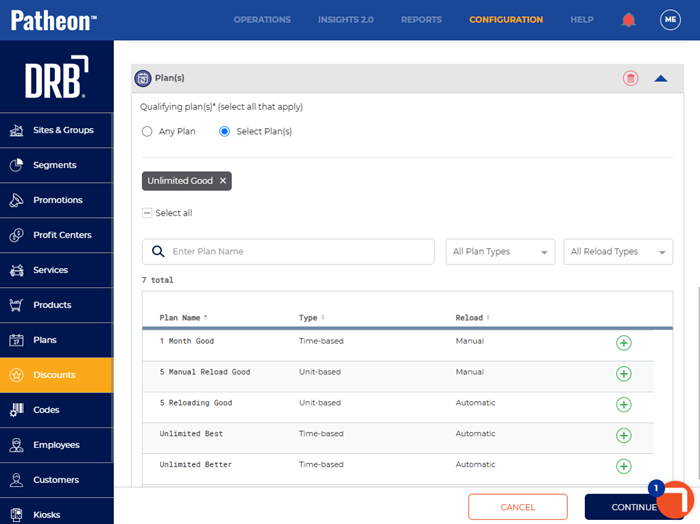
- In Qualifying plan(s)*, select Select Plan(s). The Plans list opens.
- Select the desired plan(s).
- Select . The add discount (2 actions) panel opens.
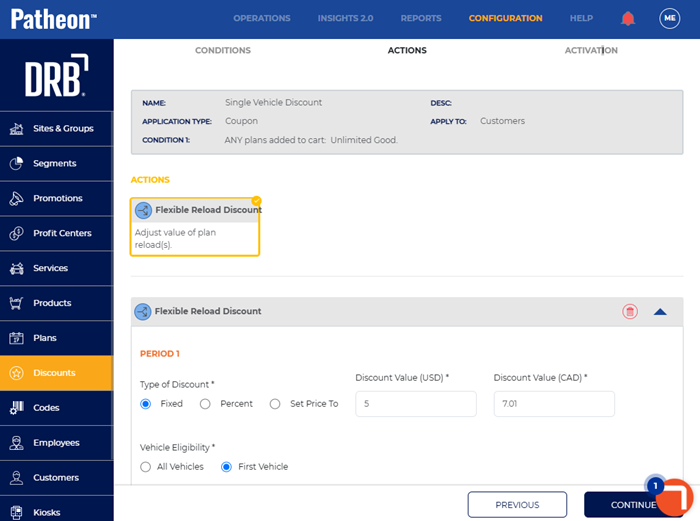
- Navigate to the Flexible Reload Discount section.
- In Type of Discount*, select Fixed, Percent, or Set Price To.
- If Fixed is selected, in Discount Value (USD), enter the discount value in US dollars, such as 5.
- In Discount Value (CAD)*, enter the discount value in Canadian dollars, such as 7.
- If Percent is selected, in Discount value (%)*, enter the discount percentage, such as 15.
- If Set Price To is selected, in Discounted Price (USD)*, enter the discounted price for the plan in US dollars, such as 25.
- In Discounted Price (CAD)*, enter the discounted price for the plan in Canadian dollars, such as 35.08.
- In Vehicle Eligibility*, select All Vehicles to apply the discount to all plan vehicles or First Vehicle to apply the discount to a single plan vehicle.
- Select . The add discount (3 Activation) panel opens.
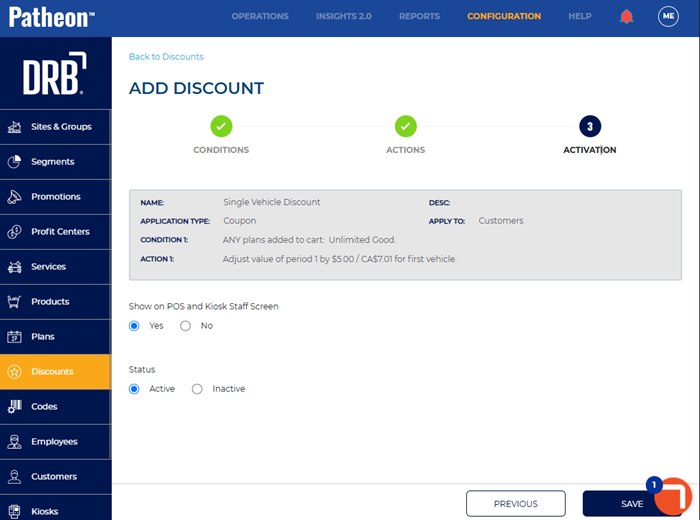
- In Show on POS and Kiosk Staff Screen, select Yes.
- In Status, select Active.
- Select . The discounts panel opens.