Configure a Plan Sales Discount
Use these steps to add and configure a discount (fixed dollar amount off (for example, $5 off), percentage off (for example, 25% off), or price set to amount (for example, $9.99)) that can be applied to a wash plan sale.
- Log In to Patheon Portal.
- Select Configuration.
- Select Discounts. The Discounts panel opens.
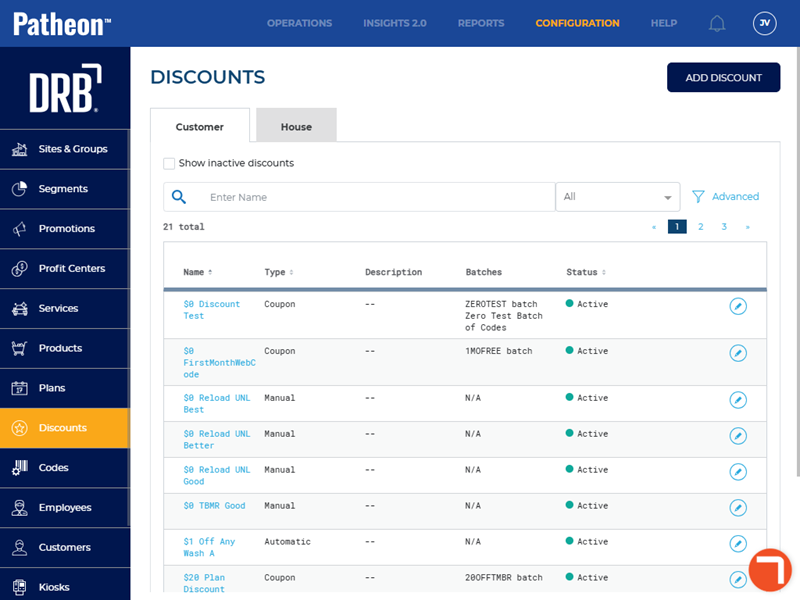
- Select . The add discount (1 conditions) panel opens.
- In Name*, enter the discount name, for example, Plan Discount.
- In Apply to*, select Customers.
- In Application Type*, select Coupon or Automatic.
- In Discount/tax relationship*, select Match site setting, Apply discount before tax, or Apply discount after tax. The conditions section opens.
- Select Plan(s). The Plan(s) section opens.
- Select Any Plan or Select Plan(s). If Select Plan(s) is selected, the available plans display. Select the plans to which the discount should apply.
- Select . The Add Discount (2 Actions) panel opens.
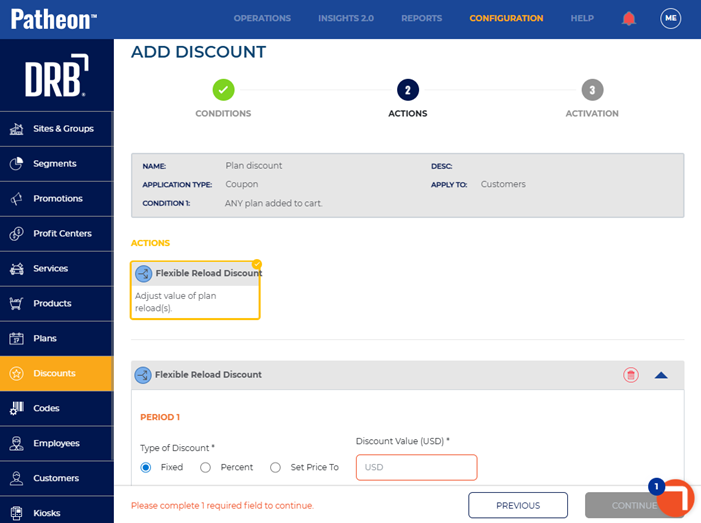
- In Type of Discount*, select the discount type: Fixed, Percent, or Set Price To.
- If Fixed is selected, in Discount Value (USD)*, enter the value of the discount.
- If Percent is selected, in Discount Value (%)*, enter the discount percentage.
- If Set Price To is selected, in Discounted Price (USD)*, enter the discount price.
- Select . The add discount (3 Activation) panel opens.
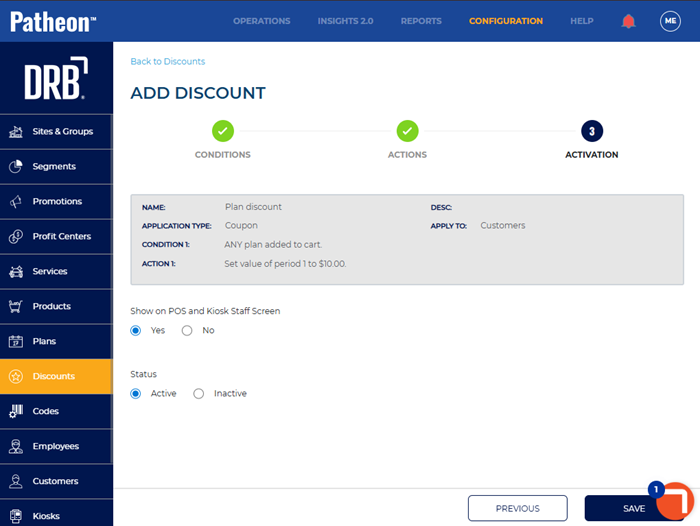
- In Show on POS and Kiosk Staff Screen, select Yes.
- In Status, select Active.
- Select . The Discounts panel opens and the new discount displays in the list.