Change a Cashier Terminal Button Label
Use these steps to change the text label of a cashier terminal button.
Note: Multi-site organizations can publish the change to multiple sites.
- Log In to Patheon Portal.
- Select Configuration. The Sites panel opens.
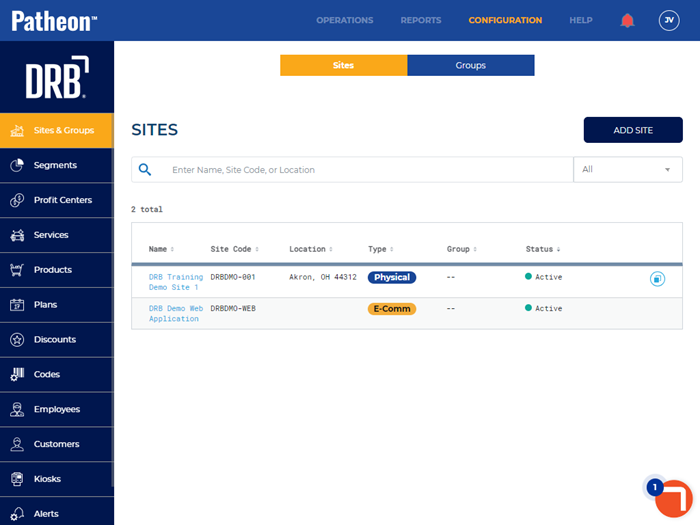
- Select the site from the Name column. The site name panel and site menu open.
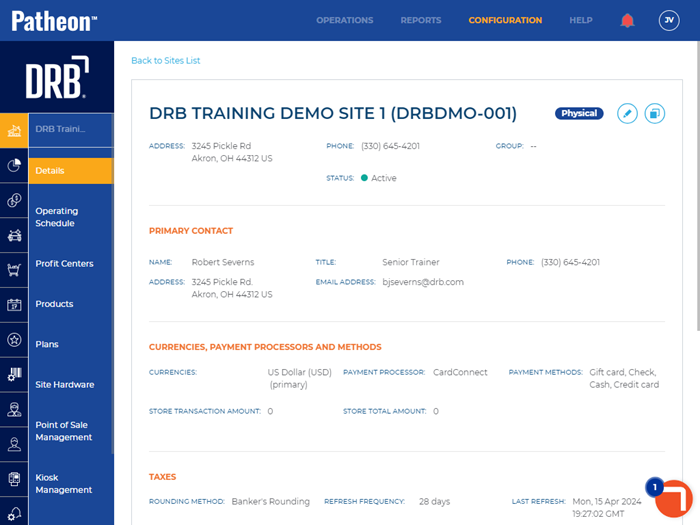
- Select Point of Sale Management. The POint of Sale Management panel opens.
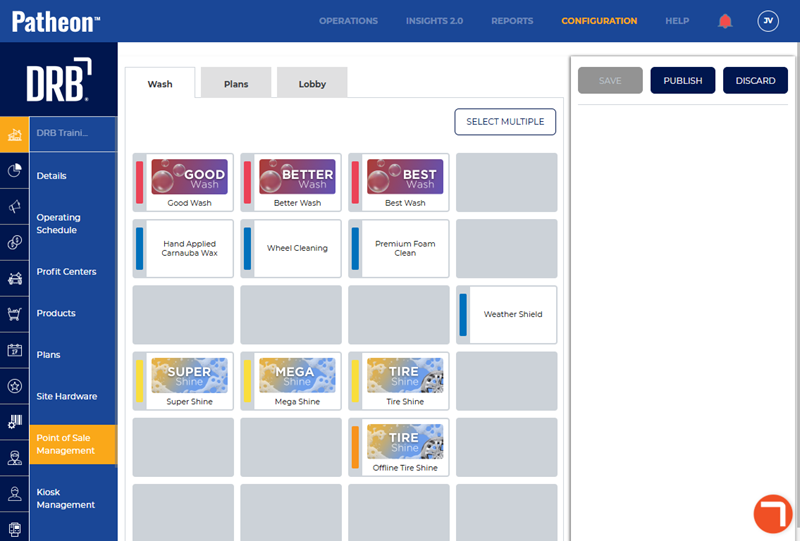
- Select the tab with the button.
- Select the button.
- Select View Product Details. The Product Overview panel opens.
- Select the product edit icon.
- In Product Name*, enter the name to display on the button.
- Select .
- To publish to multiple sites, select Select more sites in [group name] group where changes should be applied. Note: Only employees with Configure Site POS permissions can publish to multiple sites.
- Select . If publishing to multiple sites, the panel opens.
- Select all the sites to publish the changes to. The Publish changes modal opens.
- Select .