Enable or Disable Cash Tender
Use these steps to enable or disable cash tender for individual kiosks or attended lanes. Sites that want to prevent customers from purchasing wash plans or completing transactions with cash at a specific kiosk terminal or lane, can disable the cash tender for that terminal. Disabling cash tender removes the cash payment option from the sales panel only. Other payment types and sales activity remain available, so the kiosk or lane can continue processing non-cash transactions. The cash tender is enabled by default for all terminal applications except tablets.
Note: To keep the sales panel accessible to tunnel loaders while preventing cash payments, you can leave Allow Cash Tender enabled and set Cash Drawer* to No. The terminal will not accept cash payments, but employees can still access the sales panel.
When cash preferences are changed, the system may prompt you to record the previous ending balance before the new cash repository can be used. If prompted after changing cash preferences, record the previous ending balance before continuing.
Steps
Use the following steps to enable or disable the cash tender.
- Log In to Patheon Portal.
- Select .
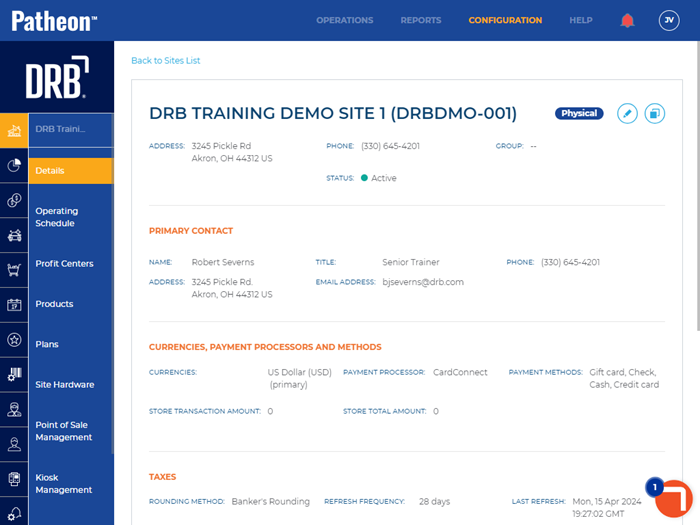
- Select Site Hardware. The site hardware panel opens.
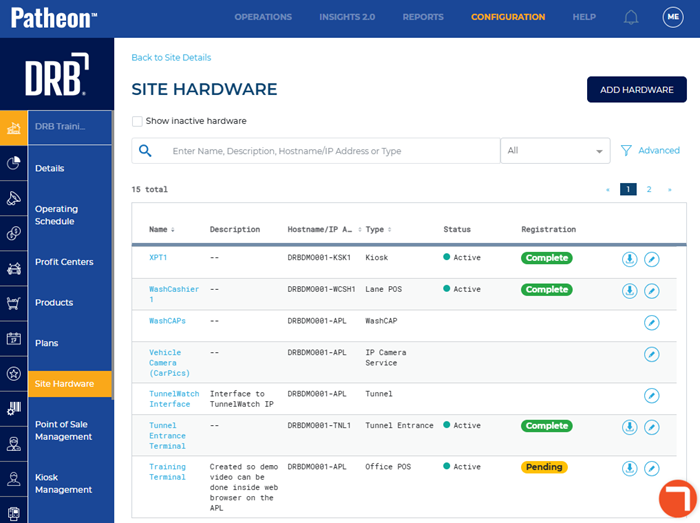
- Navigate to the terminal where you want to enable or disable cash tender.
- Select
 (Edit). The site hardware details panel opens.
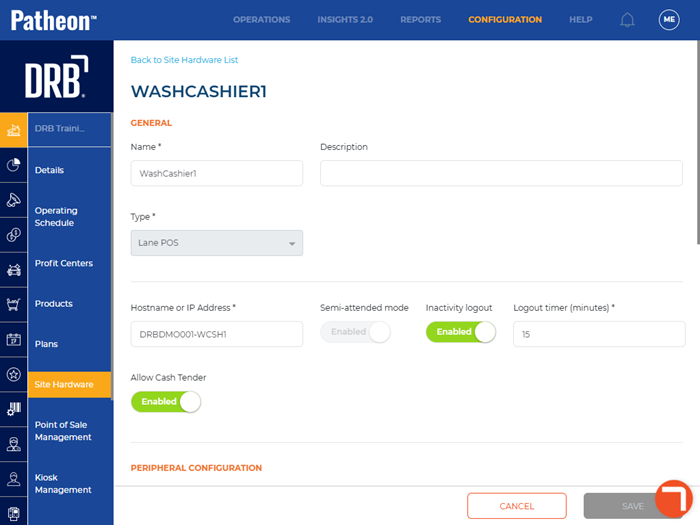
- By default, Allow Cash Tender is enabled. To disable cash tender, select the Allow Cash Tender toggle. The toggle changes to Disabled.
- Navigate to the peripheral configuration section.
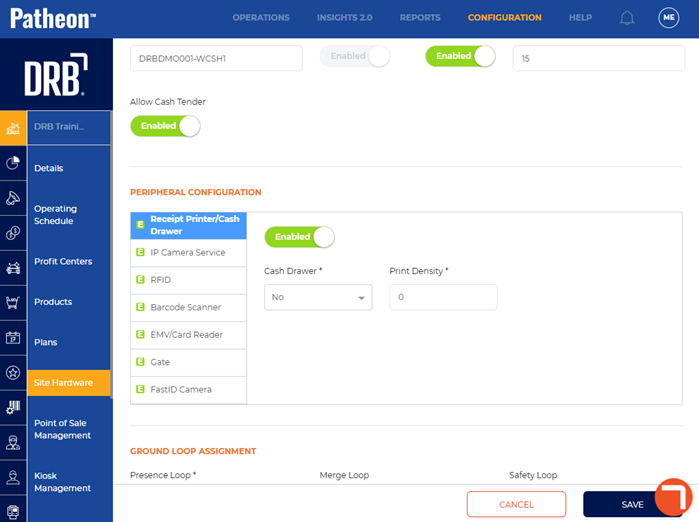
- For Cash Drawer*, select Yes if the terminal should accept cash payments or No if the terminal should not accept cash payments but still needs access to the sales panel.
- Select .