Enable Card Update Prompt for Payment Processor Migration
Use these steps to enable a prompt on cashier terminals and kiosks for sites migrating from WorldPay to CardConnect. This prompt helps identify customers with cards associated with the old WorldPay processor and asks them to update their payment card so it can be used with the CardConnect processor. Enabling this prompt supports a smoother migration by allowing customers to update their card information directly at the kiosk instead of requiring all updates to be handled manually or through back-end processing.
Sample Card Update Screens
The following information provides image previews of the card update prompt for kiosk terminals and cashier terminals.
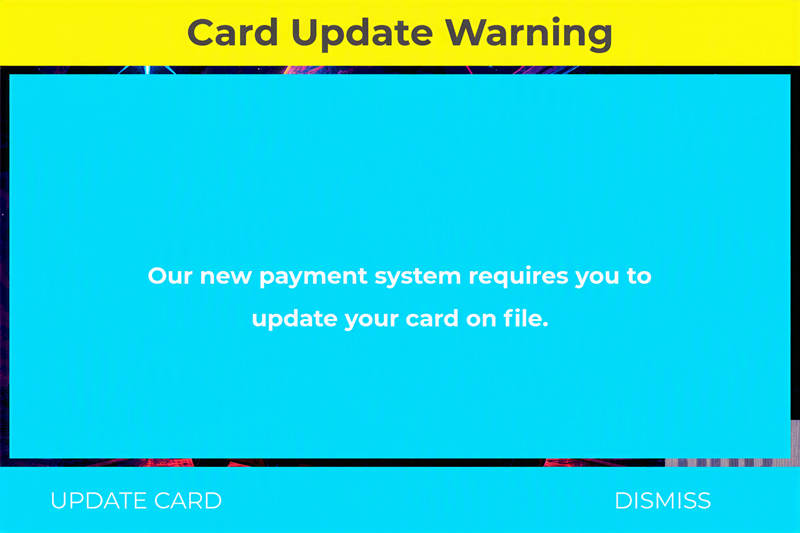
Kiosk Terminals
The following image provides a preview of the card update as it appears on a kiosk terminal.
Cashier Terminals
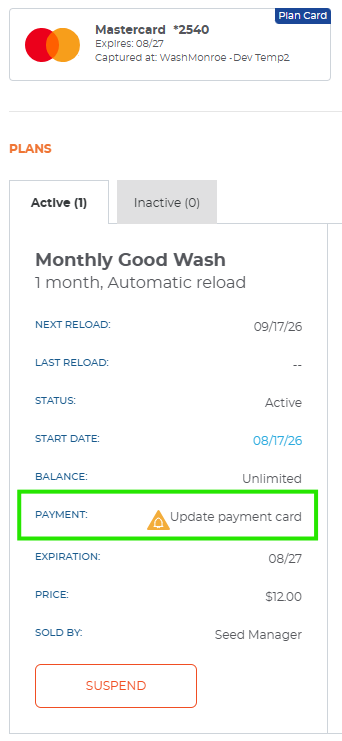
The following image provides a preview of the card update as it appears on a cashier terminal.
Steps
Use the following steps to enable a prompt for customers to update their payment card when a site is migrating their payment processor from Worldpay to CardConnect.
- Log In to Patheon Portal.
- Select .
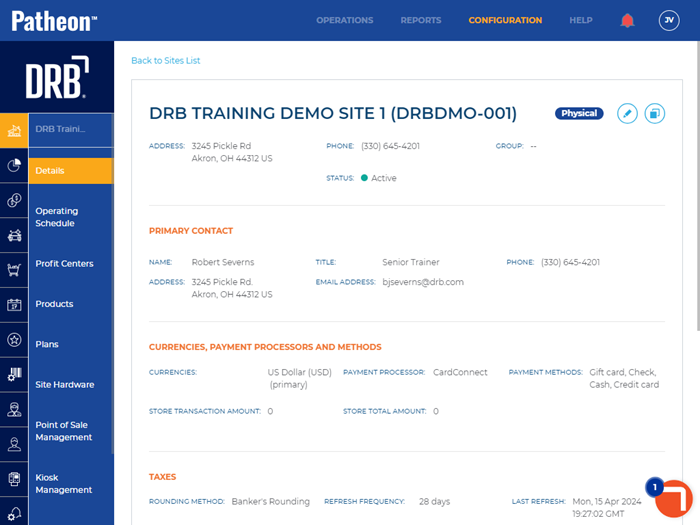
- Select the Edit icon (
 ). The site details panel opens.
- Navigate to the plan migration section.
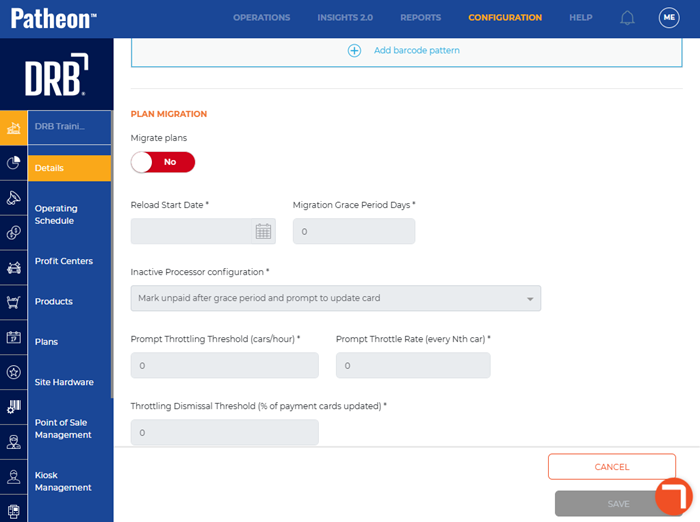
- Select the Migrate plans toggle. The toggle changes to Yes.
- In Reload Start Date*, select the date when plan migration begins.
- In Migration Grace Period Days*, enter the number of days allowed for the migration grace period, such as 3.
Important: These settings can affect customer plan reloads. Before you change the Inactive Processor configuration setting, confirm the customer's requested reload behavior and card update prompt behavior.
- In Inactive Processor configuration*, select how the system handles cards assigned to the inactive processor.
- Select Mark unpaid after grace period and prompt to update card if after the configured grace period ends, the system marks the payment as unpaid if the card can't be charged. The customer is prompted to update the card.
- Select Allow reloads and do not prompt to update card if the customer can continue to reload. The system does not prompt the customer to update the card.
- Select Allow reloads and prompt to update card if the customer can continue to reload. The system prompts the customer to update the card.
- In Prompt Throttling Threshold (cars/hour)*, enter the number of cars per hour used to determine when payment prompts are throttled, such as 10.
- In Prompt Throttle Rate (every Nth car)*, enter how frequently payment prompts appear when throttling is active, such as 5.
- In Throttling Dismissal Threshold (% of payment cards updated)*, enter the percentage of updated payment cards required to stop throttling payment prompts, such as 20.
- Select .