Override Receipt QR Code and Message Printing at the Site Level
Use these steps to configure Patheon to allow a site to override the organization's default receipt QR code and message printing.
- Log In to Patheon Portal.
- Select Receipts. The receipts panel opens.
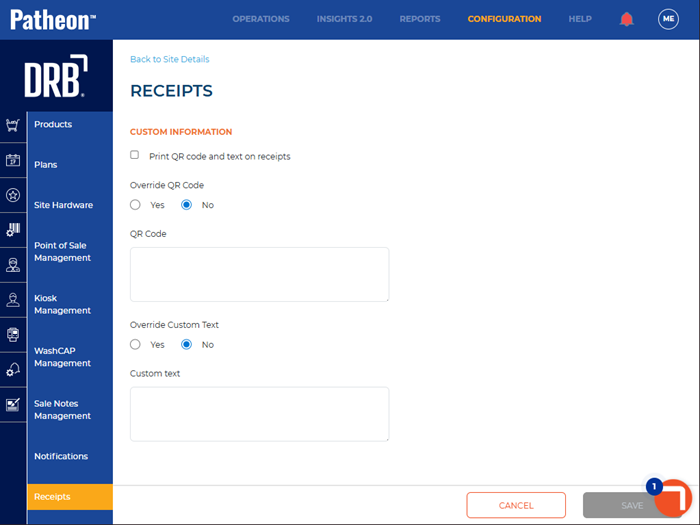
- Select Print QR code and text on receipts if you want to print a different QR code and message on the site's receipts. If not, leave unselected.
- In Override QR Code, select Yes.
- Enter text in QR Code field if you want to print a different QR code than defined at the client level.
- In Override Custom Text, select Yes.
- Enter text in Custom text field if you want print a different message than defined at the client level.
- Select .