Kiosk Cash Management
This topic explains how to safely access the kiosk vault area, add or remove cash and coins, and accurately record all cash management activity before returning the kiosk to service. Cash management tasks include opening the kiosk, servicing bill and coin devices, closing and locking the vault and kiosk doors, and confirming the activity performed through the on-screen prompts.
Open the Kiosk Vault Door
Use these steps to open the kiosk vault door.
Requirements
- Kiosk door access
- Vault access
- Kiosk key
- Kiosk wrench
- Vault key
Open the Kiosk
- Place the kiosk key in the top lock tumbler to remove. The quick status panel opens on the kiosk.
- Scan or enter employee barcode and pin.
- Select . The maintenance panel opens.
- Place the kiosk key in the bottom lock tumbler to remove.
- Place the kiosk wrench in the top lock tumbler and turn counter clockwise 7.5 times.
- Place the kiosk wrench in the bottom lock tumbler and turn counter clockwise 7.5 times.
- Open the kiosk door.
Open the Vault
- Use the vault key to unlock and open the vault.
Fill a Kiosk Bill Dispenser
Use these steps to fill a kiosk bill dispenser.
- Open the kiosk staff screen.
- Select Maintenance from the kiosk management header. The Maintenance panel opens.
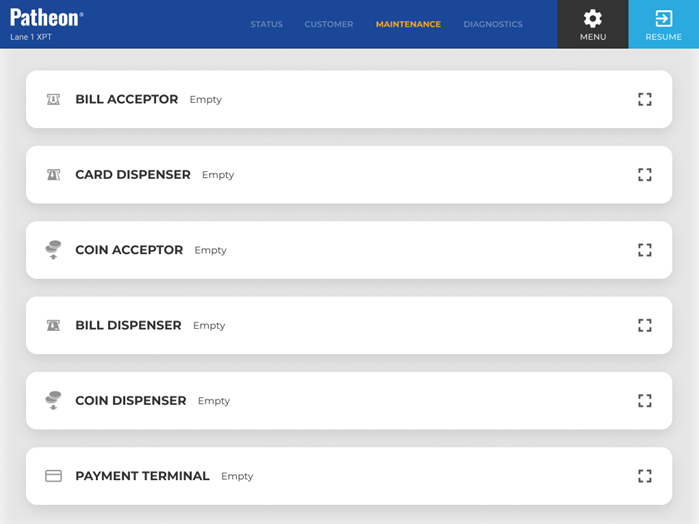
- Select . The maintenance panel opens.
- Select . The receipt printer prints the number and amount of bills that have been dispensed by the kiosk since the bill dispenser was last emptied.
- Open the Kiosk Vault Door.
- Physically remove the full bill dispenser cassette.
- Physically add the new bill dispenser cassette.
- Close the Vault.
- Select . All Count values and Amount values reset to 0 (zero).
- Select the close function in the top right corner. A modal opens.
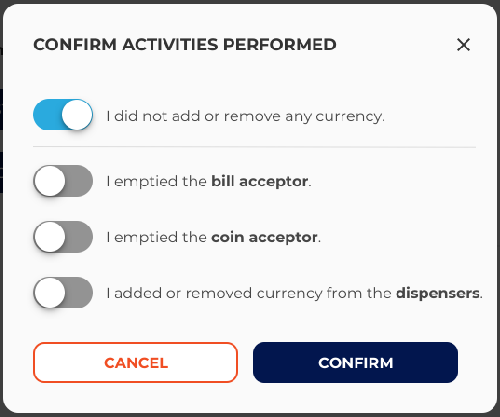
- Select I added or removed currency from the dispensers.
- Select . The add bills panel opens.
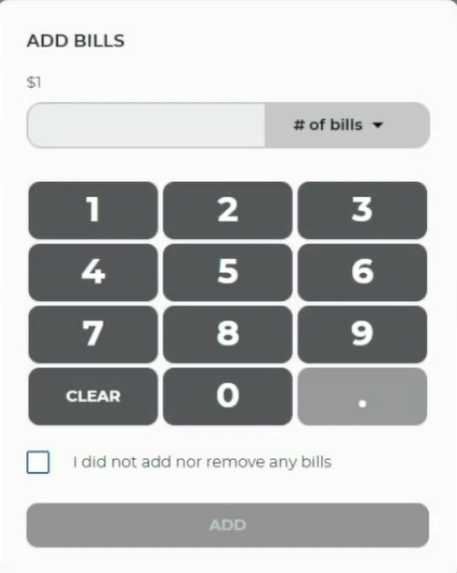
- Enter the number of $1 bills added to the bill dispenser.
- Select . The add bills panel opens.
- Enter the number of $5 bills added to the bill dispenser.
- Select . The kiosk status panel opens.
- Select to resume to the standard kiosk flow. The vault session receipt prints.
- Reconcile a Kiosk Deposit.
Fill a Kiosk Coin Dispenser
Use these steps to fill a kiosk coin dispenser.
- Open the kiosk staff screen.
- Select Maintenance from the kiosk management header. The Maintenance panel opens.
- Select . The maintenance panel opens.
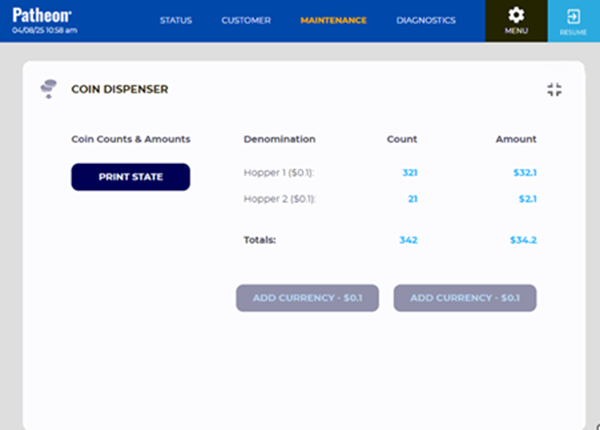
- Select . The receipt printer prints the number and amount of bills that have been dispensed by the kiosk since the bill dispenser was last emptied.
- Open the Kiosk Vault.
- Pull the coin dispenser out from the vault.
- Add coin to the dispenser.
- Close the Kiosk Vault.
- Select the close function in the top right corner. A modal opens.
- Select I added or removed currency from the dispensers.
- Select . The add coins panel opens.
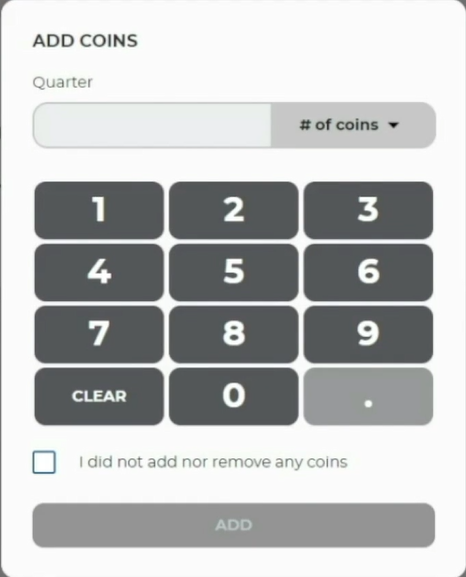
- Enter the number of quarters added.
- Select . The add coins panel opens
- Enter the number of dollar coins added.
- Select . The kiosk status panel opens.
- Select to resume to the standard kiosk flow. The vault session receipt prints.
- Reconcile a Kiosk Deposit.
Empty a Kiosk Bill Acceptor
Use these steps to empty a full kiosk bill acceptor.
- Open the kiosk staff screen.
- Select Maintenance from the kiosk management header. The Maintenance panel opens.
- Select . The maintenance panel opens.
- Select . The receipt printer prints the number and amount of bills that have been accepted by the kiosk since the bill acceptor was last emptied.
- Open the Vault.
- Physically remove all bills from the bill acceptor or replace the full cassette with an empty cassette.
- Check the reject tray for any bills that may have rejected from the bill dispenser.
- Close the Vault.
- Select . All Count values and Amount values reset to 0 (zero).
- Select the close function in the top right corner. A modal opens.
- Select I emptied the bill acceptor.
- Select . The Confirm Activities Performed modal and bill acceptor maintenance panel close and the Maintenance panel opens.
Empty a Kiosk Coin Acceptor
Use these steps to empty all coins from a kiosk terminal coin acceptor.
- Open the kiosk staff screen.
- Select Maintenance from the kiosk management header. The Maintenance panel opens.
- Select . The maintenance panel opens.
- Select . The receipt printer prints the number and amount of bills that have been accepted by the kiosk since the bill acceptor was last emptied.
- Open the Vault.
- Physically remove all coins from the coin acceptor.
- Close the Vault.
- Select . All Count values and Amount values reset to 0 (zero).
- Select the close function in the top right corner. A modal opens.
- Select I emptied the coin acceptor.
- Select . The Confirm Activities Performed modal and coin acceptor maintenance panel close and the Maintenance panel opens.
Close the Kiosk Vault
Use these steps to close the kiosk vault.
Close the vault
- Close the vault door.
- Lock the vault door with the vault key.
Close the kiosk
- Close the kiosk door.
- Place the kiosk wrench in the top lock tumbler and turn clockwise 7.5 times.
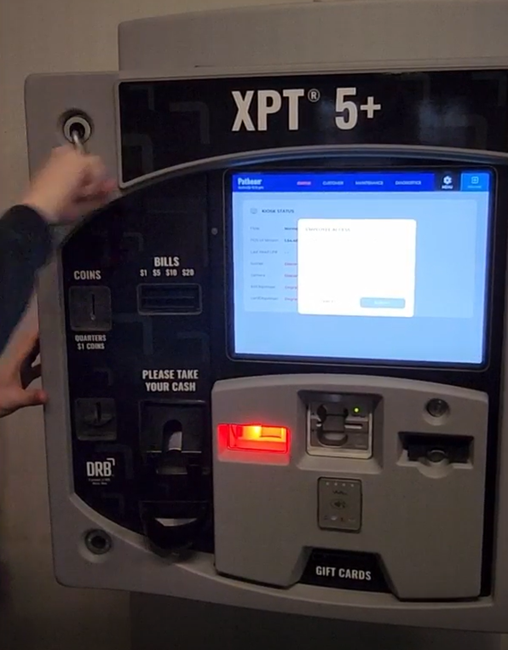
- Place the kiosk wrench in the bottom lock tumbler and turn clockwise 7.5 times.
- Replace the top and bottom lock tumblers.
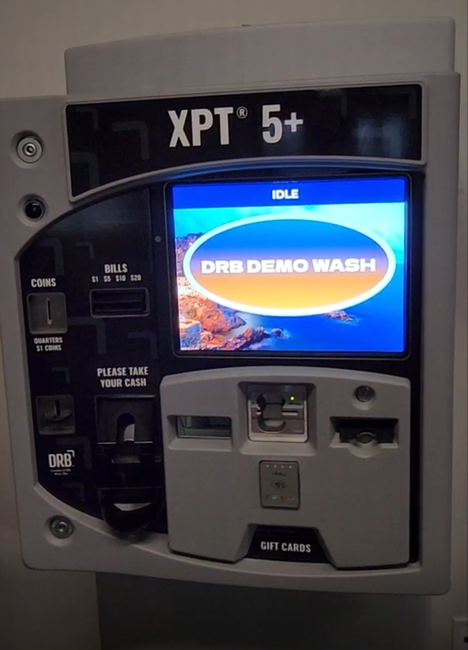
No action
If no action was taken within the vault, select the I did not add nor remove any currency option.
If this option is selected when the button is pressed, the Confirm Activities Performed dialog closes and no receipt is printed.
Vault Access receipt
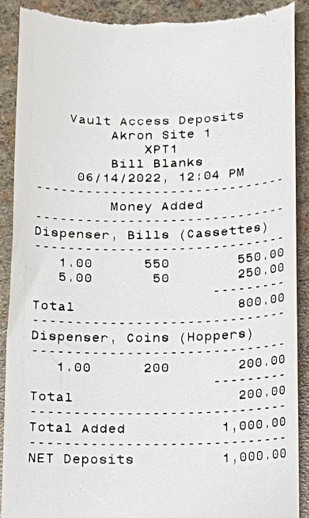
The content of the Vault Access Deposits receipt depends on the options selected in the Confirm Activities Performed dialog. This receipt will either print immediately after one or both of the empty coin/bill acceptor options is selected and is pressed or when exiting maintenance mode after accessing the vault during that maintenance session.
NET Deposits = Total Amount Removed + Total Amount Added
All amounts for REMOVED section are negative.
 S