Add a New Employee
Use these steps to set up an employee in Patheon.
Create Employee Profile
- Log in to Patheon Portal.
- Select Configuration.
- Select Employees. The Employees panel opens.
- Select . The add employee (1 personal) panel opens.
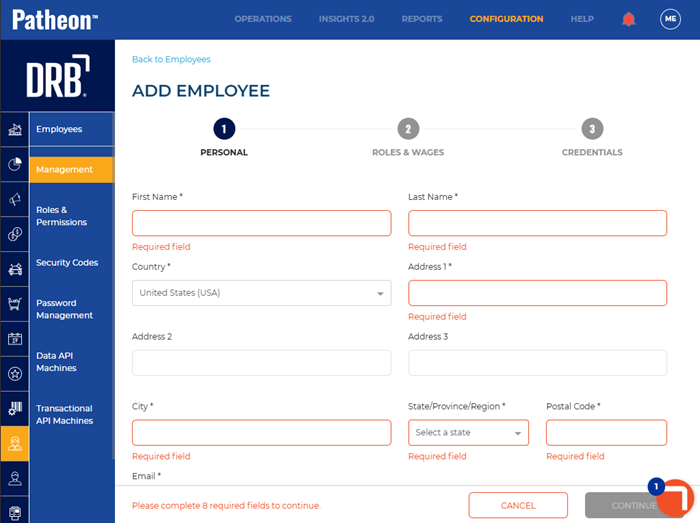
- In First Name*, enter the employee's first name.
- In Last Name*, enter the employee's last name.
- In Country*, select the country.
- In Address 1*, enter the employee's address.
- In City*, enter the employee's city.
- In State/Province/Region*, select the employee's state.
- In Postal Code*, enter the employee's postal code.
- In Email Address*, enter the employee's email address. This is the email address used if the employee needs to retrieve their username or reset their password.
- In Phone 1*, enter the employee's main phone number.
- In Type*, select the primary phone type.
- Optionally, add a secondary phone number and type.
- Set Status* to Active.
- Select . The Add employee (2 Roles & wages) panel opens.
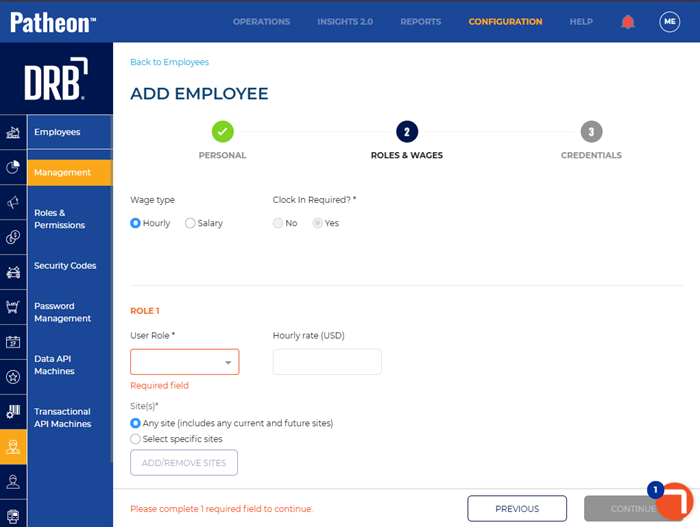
Set Roles + Wages
- In User Role*, select the employee's security role.
- In Clock in Required?*, select No or Yes.
- In User Role*, select the employee's security role.
- Under Site(s)*, select Any site (includes any current and future sites) or Select specific sites. If Select specific sites is selected, select to add sites at which this role is valid for the employee.
- Select to assign additional roles to the employee.
- Select each site at which the additional role is valid for the employee.
- Select . The add employee (3 credentials) panel opens.
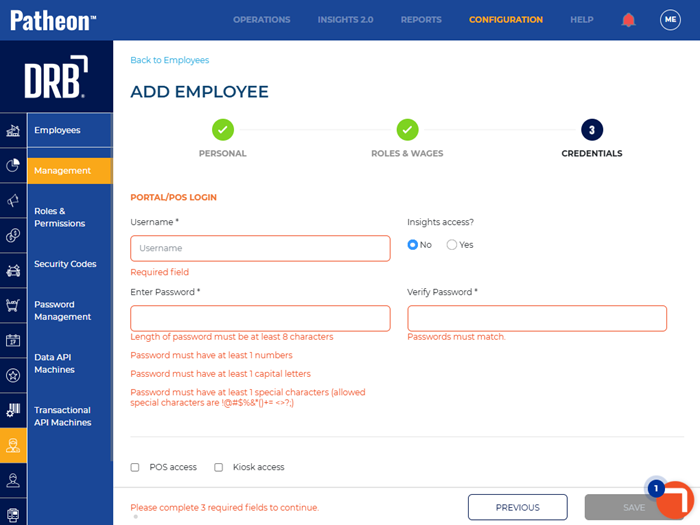
Set Username + Password
- In Username*, enter the username for this employee's user account. Usernames must be at least 6 characters; they aren't case-sensitive.
- In Insights access?, select No or Yes.
- In Password*, enter the password for this employee's user account. Password requirementsPassword requirements.
-
At least 8 characters
-
At least 1 number
-
At least 1 uppercase letter
-
At least 1 special character: !@#$%&*()+=<>?;
-
- In Verify Password*, re-enter the password. The password must be typed; copy/paste is not supported.
- Select POS access and/or Kiosk access if applicable. If not applicable, proceed to step 12.
- In Manually enter barcode?, select No or Yes.
- If Manually enter barcode? is set to No, in Code Batch, select the applicable code batch.
- If Manually enter barcode? is set to Yes, in Barcode, enter the 6-16 digit value of the barcode on this employee's access card, if applicable.
- In Enter PIN, enter the 6-digit value of the employee's access card.
- In Verify PIN, re-enter the PIN value.
- In Require PIN for terminal access?, select No or Yes.
- In Employee ID, enter the employee's ID.
- Select .
- Select again. An "Employee Created" dialog opens, stating, "An employee has been created. Patheon Portal access email has been sent."
- Select or .