Sale ID
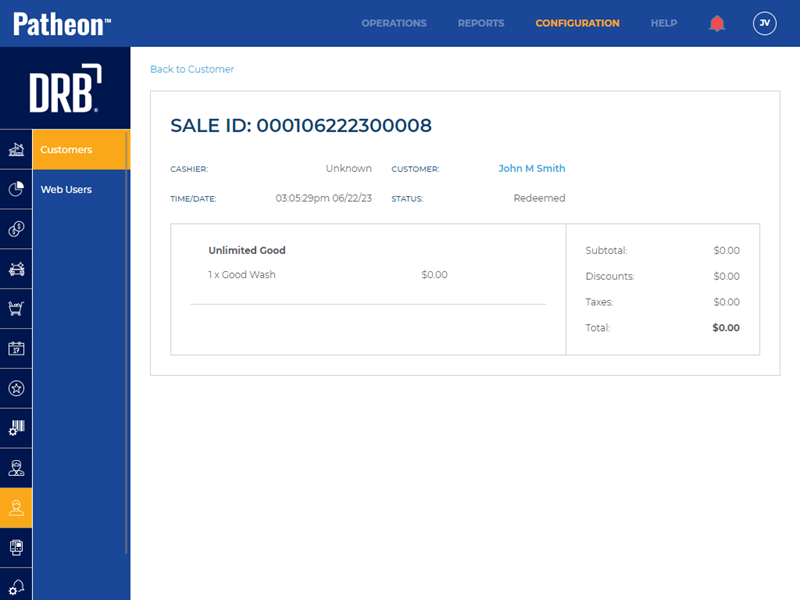
The Sale ID panel displays a read-only view of a customer's specific transaction. It's accessed by selecting the edit function from a customer's transactions list on the CUSTOMER VIEW panel.
Use the Back to Customer function or Customer name function to close the Sale ID panel, and open the Customer View panel where you can select and view another transaction recorded for the customer.
FAQs
- Can I edit a sale from here?Can I edit a sale from here?
No. Sales can't be edited from the Sale ID panel.
- Can I void a sale from here?Can I void a sale from here?
No. Sales can't be voided from the Sale ID panel.
- Can I print a receipt for a sale from here?Can I print a receipt for a sale from here?
No. Receipts can't be printed from the Sale ID panel.
Sale Data

Sale ID
The unique 15-digit code assigned to the sale.
Cashier
The employee assigned to the point-of-sale terminal when and where the sale occurred.
Customer
The customer, identified and recorded, for the sale when it occurred. It is formatted as a link, which when selected, closes the Sale ID panel and opens the Customer View panel for the corresponding customer.
Time/Date
The local time, in HH:MM:SSam/pm format, and date, in MM/DD/YY format, the sale occurred.
Status
Possible transaction statuses include:
- Abandoned
- Plan Purchased
- Purchased
- Reactivated
- Redeemed
- Refunded
- Terminated
- Updated
Sale Contents
Products Column
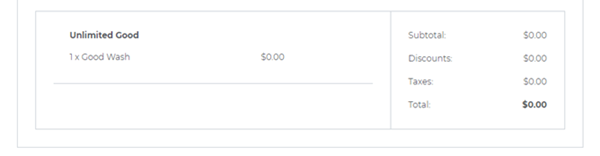
The left column of the sale contents section lists each product's name, quantity, and price.
Amounts Column
Subtotal
The sum of all products in the sale, before any discounts and taxes are applied.
Discounts
The sum of all discounts in the sale.
Taxes
The sum of all taxes applied to the sale.
Total
The sum of all products in the sale, less any discounts, and all applicable taxes.
070623