Customer View
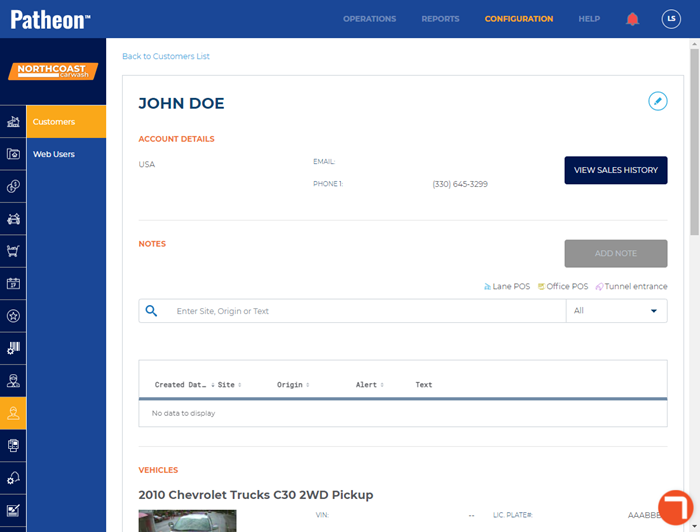
The Customer view panel displays a specific customer's information where it can be viewed or edited. It's accessed by selecting a customer name from the customer list in the Customers panel. Use the Patheon Portal Customer View panel to:
- Update a customer's contact information, vehicle(s), and license plate(s)
- Open and view a customer's sales history
- Add or edit customer notes
- Update a customer's recurring plan payment card, and change the default card-on-file transaction payment card
FAQs
- Can I create a customer here?Can I create a customer here?
No.
- Can I delete a customer here?Can I delete a customer here?
No.
Account Details
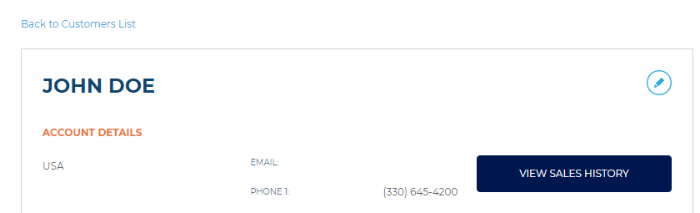
Name
A customer's combined First Name*, Middle Initial, and Last Name* is displayed at the top of the screen.
Edit
Select the edit function to open the Edit Customer panel to update the customer's contact and vehicle information.
<Country>
The customer's address country.
The customer's email address.
PHONE 1
A customer's Phone 1* value.
VIEW SALES HISTORY
Select this function to view a list of sales to which the customer profile was assigned.
Notes
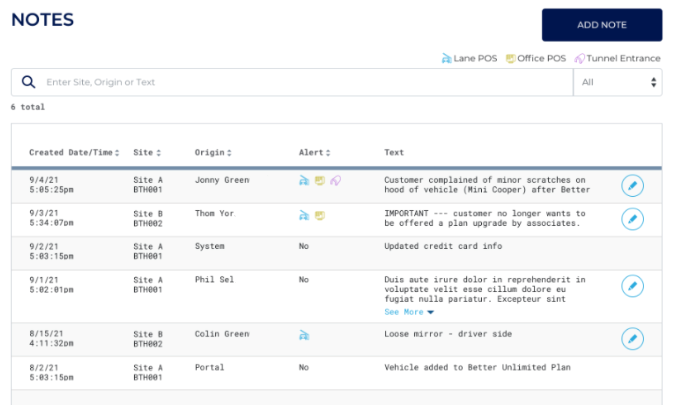
The Notes section can be used to add, view, and edit customer notes. The Notes section looks and functions the same in both the Patheon Portal and POS.
Vehicles
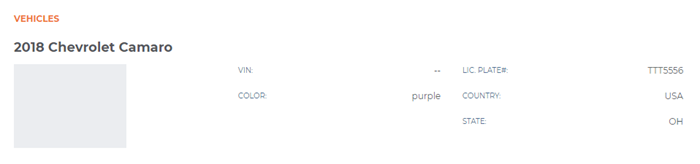
VIN
The vehicle's identification number.
COLOR
The vehicle's color.
LIC. PLATE#
The vehicle's License Plate value.
COUNTRY
The license plate country.
STATE
The license plate state.
Payment
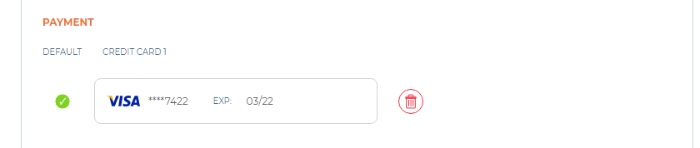
Default
Only one payment card can be selected as the default card at a time. This identifies the payment card used for sales tendered via card-on-file. It does not identify the payment card used for recurring plan charges. That is identified and configured for the plan.
Credit Card
The payment card's card brand (Visa, Mastercard, Discover, etc.), last 4 digits of the primary account number, and expiration date.
Delete
Select the trash function to remove the corresponding payment card from the customer profile.
Plans
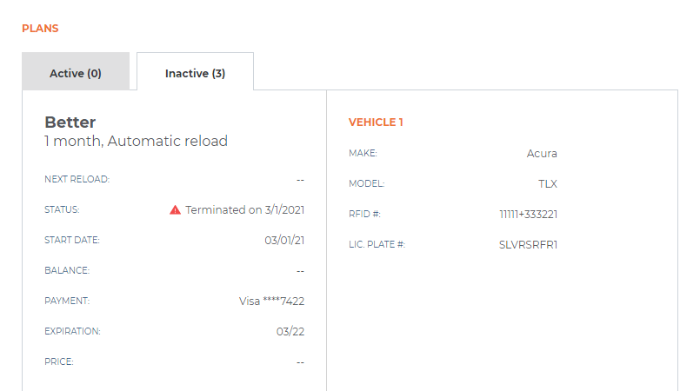
Active
Identifies plans that are currently active. The payment card used to tender a plan's recurring charges is configured here.
Inactive
Identifies plans that are currently inactive.
Transactions
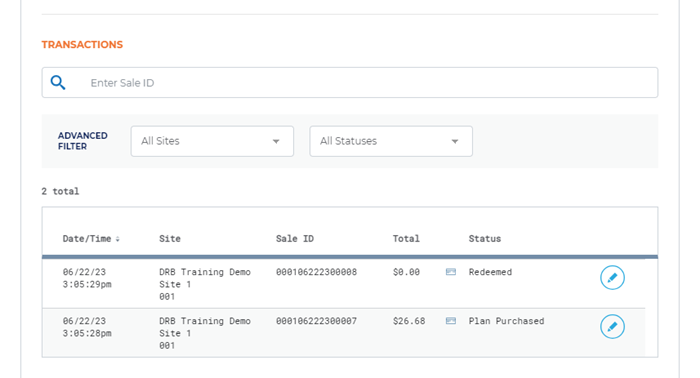
Search
Enter part (begining, middle, or end portion) or all of the 15-digit sale ID in the search function and then select enter to quickly locate, or narrow the list (if part), a transaction in the transaction list. After a search, clear the search parameter and select enter to display all transactions.

Advanced Filter
Filter a customer's transactions list by site and/or status.

Site
Use the site filter to view the customer's transactions for all sites in an organization (All Sites), or one specific site.
Status
Use the transaction status filter to view the customer's transactions that have a specific status. The list of statuses that can be filtered on will vary from customer to customer; it is limited to the statuses that are present in each specific customer's transactions list.
Possible transaction statuses include:
- Abandoned
- Plan Purchased
- Purchased
- Reactivated
- Redeemed
- Refunded
- Terminated
- Updated
Transactions List
The list of transactions reflect the results of any search or application of any filter(s). By default, all of the selected customer's transactions are listed.
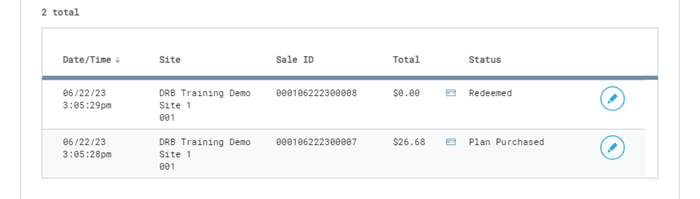
Date/Time
The date, in MM/DD/YY format, and local time, in HH:MM:SSam/pm format, the sale occurred.
Site
The site where the sale occurred.
Sale ID
The unique 15-digit code assigned to the sale.
Total
The sum of all products in the sale, less any discounts, and all applicable taxes.
Status
The transaction status. Possible transaction statuses include:
- Abandoned
- Plan Purchased
- Purchased
- Reactivated
- Redeemed
- Refunded
- Terminated
- Updated
Edit (View)
Select the edit function to view the corresponding transaction's details in the SALE ID panel. The sale details are read-only; the sale can't be voided or edited. Also, note that a receipt can't be printed for the sale.
070623