EMPLOYEES
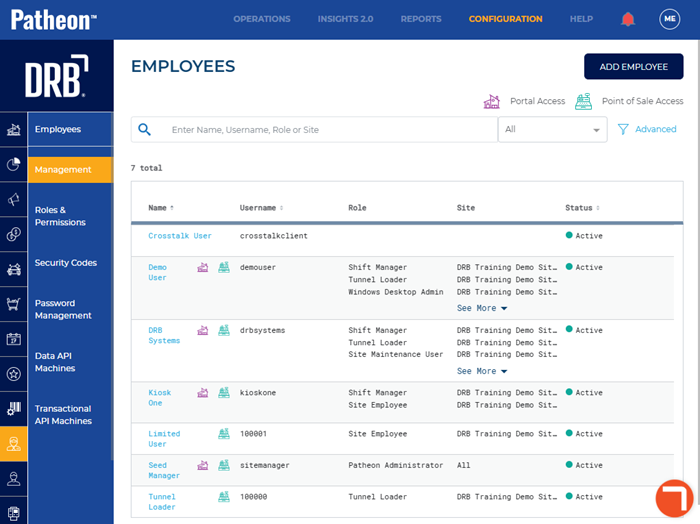
The Employees panel provides a list of all an organization's employees. It also provides access to the configuration panels used to change an employee's status, password, contact information, roles, and sites.
- Edit an employee's status, name, phone, or email address in the Employee Details panel, accessible from the Employee Overview panel.
- Edit an employee's password, roles, or sites in the Employee Role & Permissions panel, accessible from the Employee Overview panel.
FAQs
- Can I delete an employee?Can I delete an employee?
No. Employees that are no longer employed can be deactivated (have their Status* set to Inactive).
- What happens to historical reports if I deactivate an employee?What happens to historical reports if I deactivate an employee?
Nothing. Sales , labor, and statistical reports that involve a deactivated employee remain accurate.
- Can an employee be assigned to more than one role?Can an employee be assigned to more than one role?
Yes. An employee can be assigned to multiple roles for a single site, and/or multiples for multiple sites.
- If an employee is assigned to more than one role, are they able to utilize the permissions for all their roles, or only those permissions belonging to the role they're signed in to at the time?If an employee is assigned to more than one role, are they able to utilize the permissions for all their roles, or only those permissions belonging to the role they're signed in to at the time?
An employee can only utilize the permissions for the role, site, and application they are signed in to.
- Can I hide deactivated employees in Patheon Portal?Can I hide deactivated employees in Patheon Portal?
No.
- If I change an employee's role, when do their new rights take effect?If I change an employee's role, when do their new rights take effect?
The next time they sign in.
- What happens to employees if their employee role is deactivated?What happens to employees if their employee role is deactivated?
Employee roles can't be deactivated if they're assigned to an employee.
Add Employee
Use the function to create and configure a new employee in the Employee Details panel. The new employee must be set to Active before the user can sign in.

Search
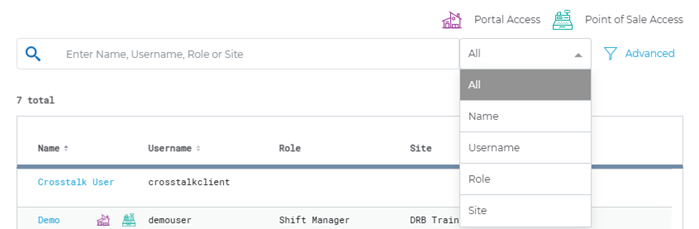
Use the search tool to find an employee based on Name, Username, Role, and/or Site. The default parameter, All, searches all the fields. To view all employees after a search, simply clear this field and select enter.

Parameter
The search parameter drop-down list allows users to restrict a search to one of the following parameters: Name, Username, Role, or Site.
|
Parameter |
Description |
|
All |
Search results will include any matches for name, username, role, or site. |
|
Name |
An employee's combined First Name*, Middle Initial, and Last Name*, formatted as a link that opens the Employee Overview panel. Open the Employee Details panel from the Employee Overview panel to edit an employee's name. |
|
Username |
The employee's configured username. An employee's username can't be edited or changed. |
|
Role |
The role(s) assigned to the employee. Open the Roles & Permissions panel to view the permissions associated with a role. |
|
Site |
The site(s) for which the employee is configured. |
Select All, the default value, from the drop-down list to reset the search function.
Advanced
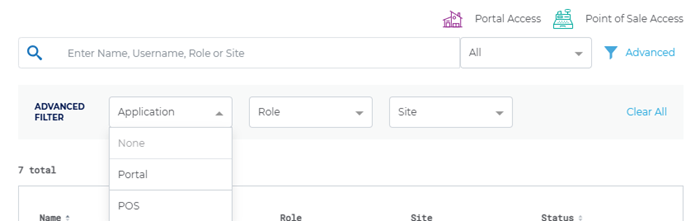
Filter the employees list based on any combination of Application, Role, and Site. To reset the employees list and display all employees, select None for each filter or simply use the Clear All function.

Application
Filter the employees list to only display employees that have permission to access the Patheon Portal application or the Point of Sale application.
Role
Filter the employees list to only display employees assigned to a specific employee role. There are 13 employee roles in Patheon. Sites can't create custom roles or permissions. See Roles & Permissions for information on the permissions assigned to a each role, and the access associated with each permission.
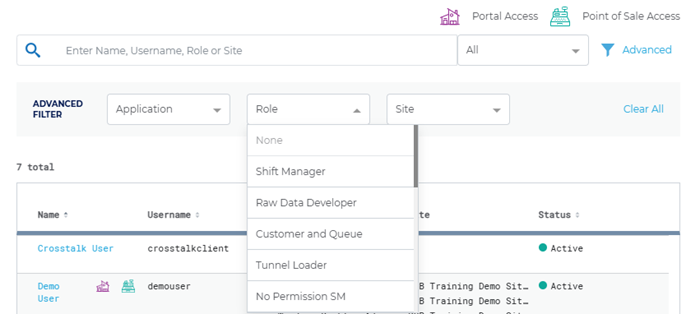
|
Role |
|
|
None |
|
|
Shift Manager |
|
|
Raw Data Developer |
|
|
Customer and Queue |
|
|
Tunnel Loader |
|
|
No Permission SM |
|
|
Site Maintenance User |
|
|
Site Diagnostics User |
|
|
Site Admin |
|
|
Team Lead |
|
|
Transactional API Developer |
|
|
Windows Desktop User |
|
|
Client Admin |
|
|
Windows Desktop Admin |
|
|
Patheon Administrator |
|
|
Vault Maintenance User |
|
|
Read Only SM |
|
|
Site Employee |
Site
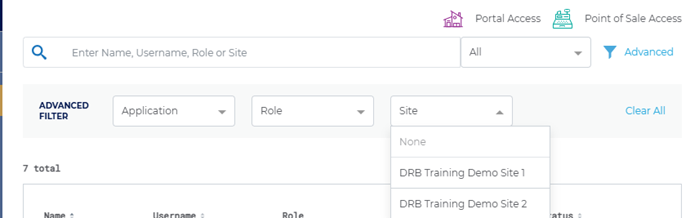
Filter the employees list to only display employees assigned to a specific site.
Employees List
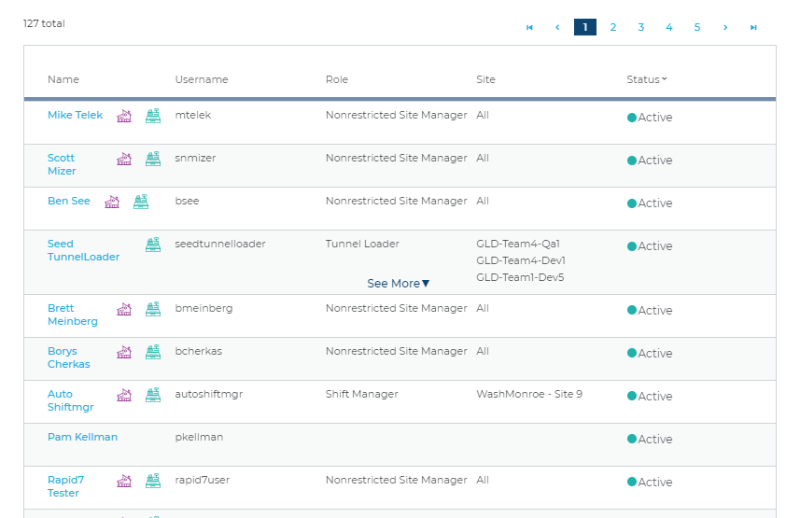
The employees list provides access to view or edit any employees configured for a client. Select an employee name to open a read-only view of their information, that also includes an edit icon ( ) that can be used to update the employee's information.
The list displays 10 employees per page.