MEDIA LIST (KIOSKS)
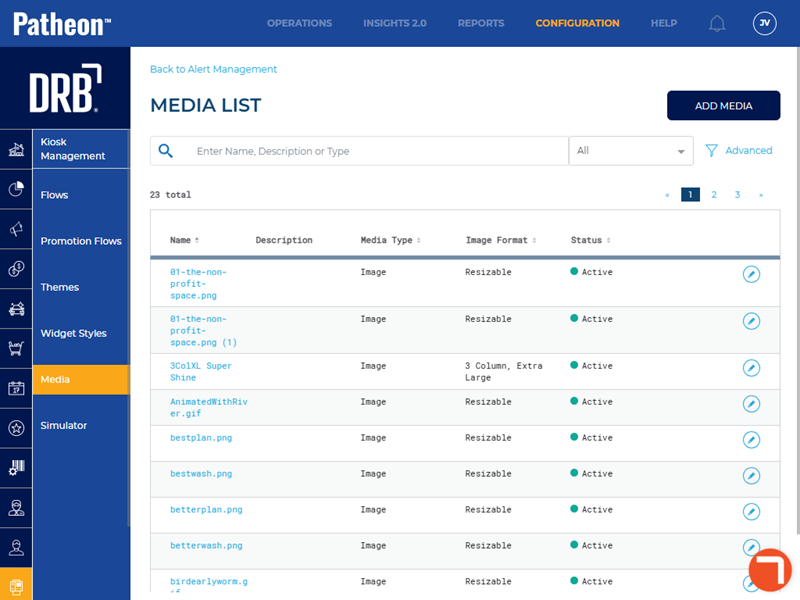
The Media List (Kiosks) panel provides the ability to view, add (upload), and manage image files, audio files, and font files that are available for configuring kiosk terminal workflows.
Note: See Upload an Audio, Font, or Image File for Kiosk Workflows for steps to upload custom media files.
ADD MEDIA
The function provides the ability to upload an audio, font, or image file.
Search
The Search function provides the ability to find an existing, uploaded media file by entering all or any part of its Name., its configured Description, its file type, or all of these. The results are displayed as matches are found.

Search Filter
The Search function includes a filter option that can be used to narrow a search to only Name, only Description, or only Type. By default, the search returns media that matches any one of these three parameters.
|
Search Filter |
Description |
| All |
Enter Name, Description or Type The default setting. Search results will include any matches for Name, or Description, or Type. |
|
Name |
Enter Name Search results will only include matches for Name. |
|
Description |
Description of the media file. |
|
Type |
Type of media file. |
Media List
The media list displays all currently available media files.
Advanced (ADVANCED FILTER)
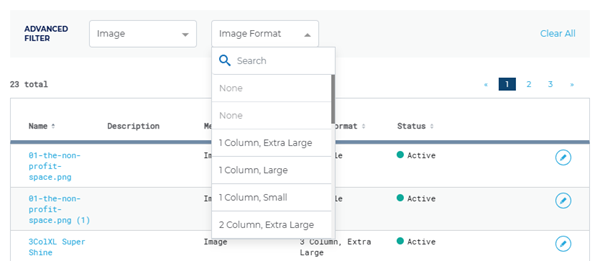
The ADVANCED FILTER function provides the ability to narrow the list of media files based on Media Type (Audio, Font, or Image). Note that when filtering the list by Image, an additional Image Format filter is available to filter the list by a specific image format (dimensions).
Use the filter function independent of the search tool or in conjunction with it.

Select Clear All to remove any selected filter options and display all media.
Media Type
Use the Media Type filter to list media files based on its type.

None
Display all media files, regardless of type.
Audio
Display only audio media files.
Font
Display only font media files.
Image
Display only image media files. This also provides an additional filter, Image Format.
Image Format
The Image Format filter can be used to further filter the list by a specific image dimension.
Name
The Name column provides the media file name, formatted as a link. Select it to open the media file's configuration in the media Overview panel.
Description
The Description column provides additional information, if configured, about the media file.
Media Type
The Media Type column provides the type of media file.
- Audio
- Font
- Image
Image Format
The Image Format column provides a description of the image's dimensions.
Status
 Active: The file can be used in the kiosk workflow.
 Inactive: The file can't be used in the kiosk workflow.
Edit
Select the edit function ( ) to open the media file's configuration in the media details panel.