Account Report
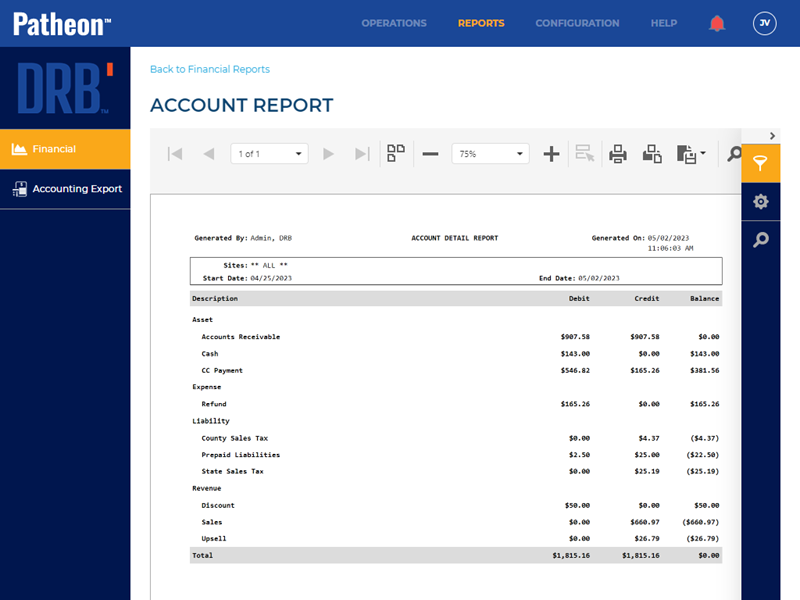
The Account Report is a Patheon Portal financial report that provides debits, credits, and balances for journal accounts (Accounts Receivable, House Account Receivable, Refund, Sales Tax, Discount, etc.), grouped by category (Asset, Expense, Liability, and Revenue). It can be generated in a Summary view (simple journal account debits, credits, and balances) or a Detail view (every transaction for each journal account). Use the Summary view to quickly identify discrepancies between asset, expense, liability, and revenue debits and credits. Use the Detail view to locate specific transaction(s) causing a discrepancy.
Tip: While the House Account Receivable journal account detail view lists all house account transactions, use the General Sales Report detail view for information on a specific house account.
- Generate for a single site, select multiple sites, site groups, a single date, or a range of dates.
- Generate a summary or detail report.
- Export a generated report to CSV, HTML, BMP, GIF, JPEG, PNG, EMF, WMF, TIFF, MHT, PDF, RTF, TXT, XLS, XLSX, or DOCX.
SiteWatch Comparison: The SiteWatch General Ledger Report is similar to the Patheon Account Report. However, the SiteWatch General Ledger Report only provides data for GL accounts configured on items with the QuickBooks interface.
Report Parameters and Tools
The Account Report tools include the preview parameters (report time, range, site group, site, and details/summary), export options, and search. The preview parameters section opens by default when the Accounting Report is selected from the list of financial reports, instructing, Waiting for parameter values...
PREVIEW PARAMETERS
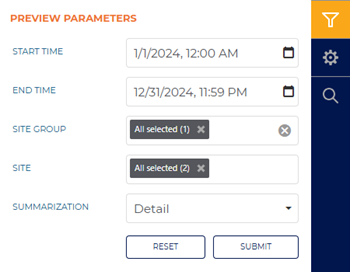
The Preview Parameters section provides the ability to specify the start time, end time, site group, site, and summary/detail summarization for a generated Account Report.
START TIME
The beginning date and time for the report. Select the calendar icon in the START TIME box to open a START TIME dialog.
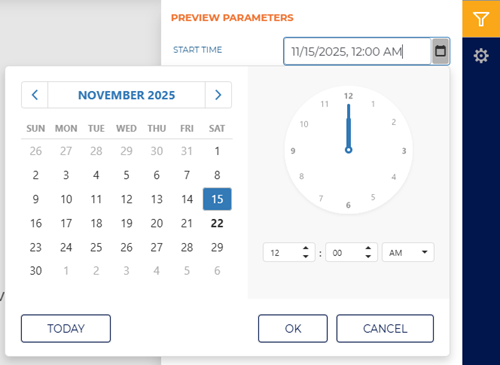
The default time for each day defaults to 12:00 AM, but can be changed to any hour and minute time.
Two shortcut functions are available for selecting and setting the date: a month/year selector and a today (current date) selector.
MONTH YEAR
The month and year above the calendar is a shortcut that changes the month view to a year view, from which any month in the year can be selected. Selecting a month then opens the month view so a specific day from that month can be selected.
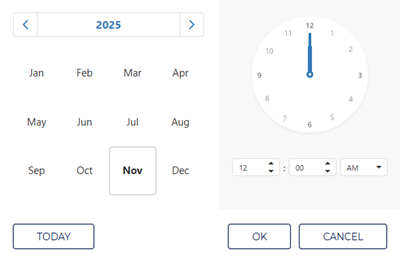
Selecting the year above the year view opens a decade view, from which any month in the decade can be selected. Selecting a year then opens the year view so a specific month from that year can be selected.
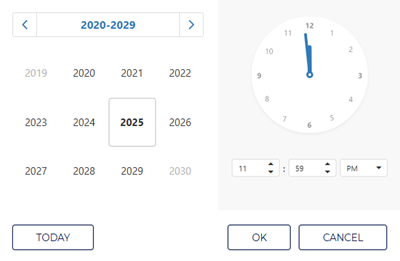
Selecting the decade above the decade view opens a century view, from which any decade in the century can be selected. Selecting a decade then opens the decade view so a specific year from that decade can be selected.
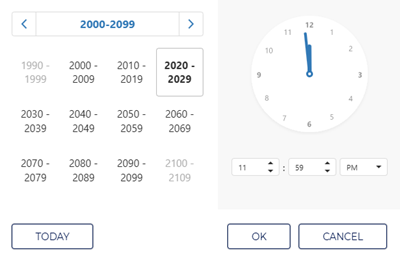
TODAY
Select the function to set the date and time to the current date and 11:59 PM.
END TIME
The ending date and time of the report. Select the date and time box to open a date and time dialog.
Enter the same date as the START TIME to generate a report for a single day.
SITE GROUP
The SITE GROUP parameter provides the ability to select a single site group, multiple select site groups, or all site groups to include in the report.
This setting includes all site groups (All selected) by default.
SITES
The SITES parameter provides the ability to select a single site, multiple select sites, or all sites to include in the report.
This setting includes all sites (All selected) by default.
SUMMARIZATION
The SUMMARIZATION parameter provides the ability to specify the amount of data to include in the report.
Summary
Select Summary to display summarized data for each section on the report.
- Asset: The report displays summarized totals for asset accounts, including accounts receivable, cash, credit card payment, and house account receivable activity.
- Expense: The report displays summarized totals for expense-related transactions including refunds and other expense activity.
- Liability: The report displays summarized totals for liability accounts, including sales tax, gift card liabilities, prepaid liabilities, and related liability adjustments.
- Revenue: The report displays summarized totals for revenue-related activity, including sales, discounts, contra discounts, and upsell transactions.
- Totals: The report displays debit, credit, and balance totals for each account included within the selected parameters.
Detail
Select Detail to display each transaction that contributes to the debit, credit, and balance totals for each account included in the report.
- Transactions: The report lists each transaction by Sale ID and includes the completed date and time, transaction type, and transaction status.
- Account Activity: The report displays detailed debit, credit, and balance amounts for each transaction associated with the selected account category.
- Transaction Types: The report identifies the transaction type associated with each entry, including sales, plan use, refunds, and other account activity.
- Status: The report displays the processing status associated with each transaction, such as purchased or redeemed.
- Totals: The report displays running debit, credit, and balance totals for each account included within the selected parameters.
RESET | SUBMIT
Use the function to return all preview parameters settings to their default settings. Use the function to generate the report for the preview parameters current settings.
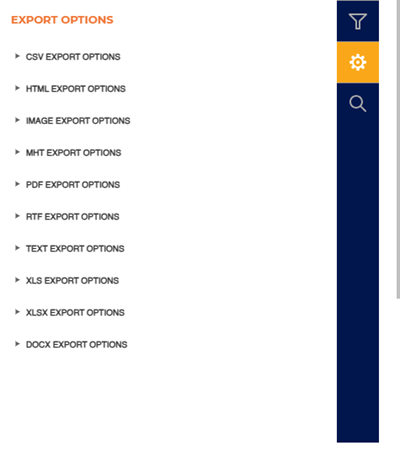
EXPORT OPTIONS
The Export Options section provides the ability to export a generated XPT Cash Audit Report to any of the following file formats:
- CSV
- HTML
- PNG
- MHT
- RTF
- TXT
- XLS
- XLSX
- DOCX
Report Header
The first page header of the Account Report includes Generated By, Title, Generated On, Sites, Start Time, and End Time. If the report spans multiple pages, the header for all subsequent pages includes the Generated By, Title, and Generated On.

Generated By
The employee who generated the report.
Title
The title of the report is Account Detail Report.
Generated On
The date and time which the report was generated, in mm/dd/yyyy, hh:mm:ss format.
Sites
The site(s) for which the report was generated.
Start Time | End Time
The start date and time and end date and time for which the report was generated.
Summary Report Data
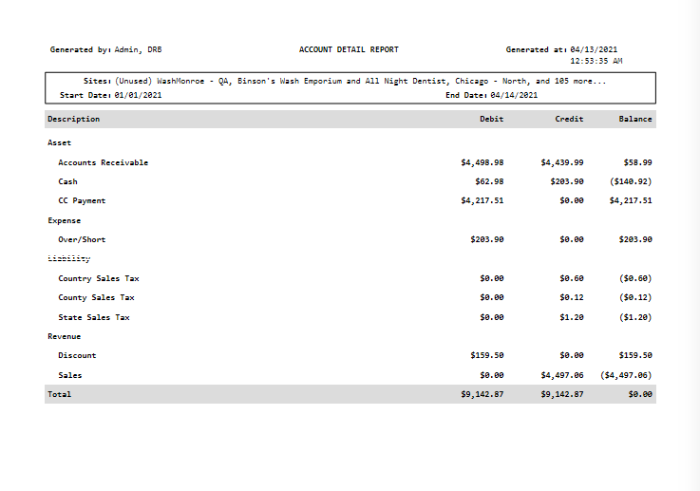
The Account Report summary view lists journal account debits, credits, and balances, organized by four categories and a total:
- Asset
- Expense
- Liability
- Revenue
- Total
Asset
The Asset category includes the following journal accounts:
- Accounts Receivable
- Cash
- CC Payment
Accounts Receivable
Money owed to the site by customers for unpaid sales or services. This balance should always be 0.00. If the balance is not 0.00, this indicates a transaction issue, meaning the debits and credits are not balancing correctly and part of the sale may be missing.
Cash
Cash included in transactions, including any adjusted transactions with over/short amounts.
CC Payment
Credit card payments received or processed that are recorded as a business asset until settled.
Expense
The Expense category includes the following journal account:
- Refund
Liability
The Liability category includes the following journal accounts:
- County Sales Tax
- Gift Card Liabilities
- State Sales Tax
County Sales Tax
Sales tax collected on taxable transactions that is owed to the county tax authority.
Gift Card Liabilities
Funds received for gift cards that remain unredeemed and represent a future obligation to provide goods or services.
State Sales Tax
Sales tax collected on taxable transactions that is owed to the state tax authority.
Revenue
The Revenue category includes the following journal accounts:
- Discount
- Sales
Discount
Reductions applied to the regular selling price that decrease total revenue from sales.
Sales
Income earned from providing goods or services to customers.
Total
The Total category includes the totals for the following:
- Debit
- Credit
- Balance
Debit
The total amount recorded on the debit side of journal entries or account activity.
Credit
The total amount recorded on the credit side of journal entries or account activity.
Balance
The net amount remaining after debits and credits are applied.
Detail Report Data
The Detail view displays a list of all transactions recorded for each journal account. Each transaction includes a Sale Id, Completed On date, transaction Type, transaction Status, transaction Debit, transaction Credit, and transaction Balance.
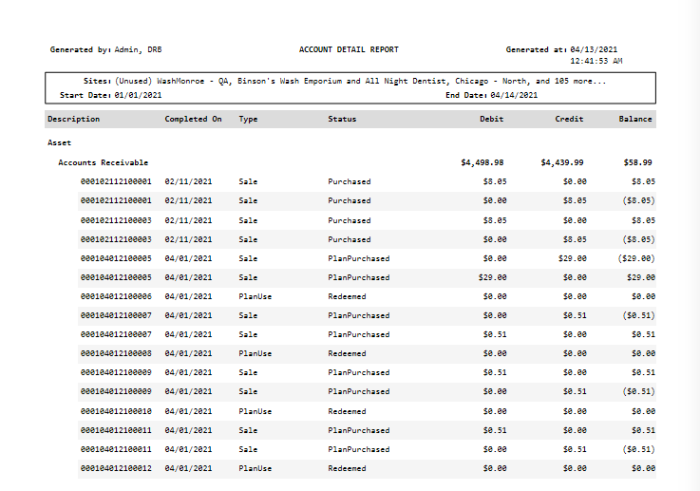
Sale Id
The unique sale identifier assigned to the transaction.
Completed On
The date for which the transaction is recorded.
Type
The transaction type.
- PlanUse
- Sale
Status
The transaction status.
- Purchased
- Redeemed
Debit
The transaction debit amount; it should be identical to the transaction credit amount. Note: Patheon uses double-entry accounting. Each credit entered in a transaction must be offset by a debit. If the debit and credit amounts do not balance, the transaction will most likely result in an accounts receivable balance. At the line-item level, including product, plan, tax, and discount, the credit minus debit reflects the amount for that line item.
Credit
The transaction credit amount; it should be identical to the transaction debit amount. Note: Patheon uses double-entry accounting. Each credit entered in a transaction must be offset by a debit. If the debit and credit amounts do not balance, the transaction will most likely result in an accounts receivable balance. At the line-item level, including product, plan, tax, and discount, the credit minus debit reflects the amount for that line item.
Balance
The transaction balance amount; it should be $0.00.
- Positive amount: Over
- Negative amount (enclosed by parentheses): Short
If this is some other value, expand the transaction to view its details.
Accounts
When the report is generated, it displays a row for each journal account. Each financial account row displays the following: Financial account category, Financial account name, Total debit amount for the financial account, Total credit amount for the financial account, Total balance (debit - credit) for the financial account.
Category
Journal accounts are grouped on the report in the following categories:
- Asset: A physical thing or an intangible right that has monetary value. An asset account contains the dollar value of an item owned or controlled by a company. Cash (in the cash register drawer) is an important example of an asset.
- Expense: A cost incurred in the operation of a business. An expense account contains the dollar value of money spent or obligations incurred in order to earn revenue. Soap and chemical supplies, water and sewer costs, equipment maintenance, and site utility payments are common examples of expenses.
- Liability: A debt or obligation owed by a company to another party. A liability account contains the dollar value of amounts a company owes to lenders, suppliers, or others. A loan for car wash equipment or an outstanding balance owed to a chemical supplier are important examples of liabilities.
- Revenue: Income earned from the sale of goods or services. A revenue account contains the dollar value of amounts earned by a company through its business activities. Sales income is an important example of revenue.
See below for a comprehensive list of the journal accounts that belong to each category.
Account
Each journal account with transaction data for the site(s) and date(s) is listed in the Account column. Each journal account can be expanded, to display all transactions for the journal account.
- Sale Id
- Completed On: Local date and time the sale was completed, in format: mm/dd/yyyy hh:mm AM/PM
- Type
- Status
- Debit
- Credit
- Balance
Debit
Increases amounts on the LEFT side of a two-column statement.
Credit
Increases amounts on the RIGHT side of a two-column statement.
Balance
The financial position of an account or group of accounts when the report is generated, calculated as:
Debit - Credit = Balance
Transaction Details
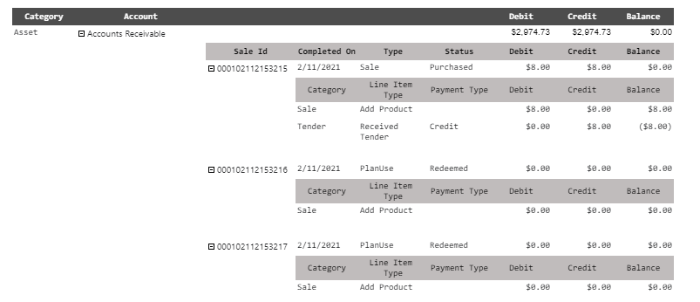
Category
- Sale
- Tender
Line Item Type
- Add Product
- Received Tender
- PlanUse
Payment Type
- Credit
- Redeemed
Debit
Decrease
Credit
Increase
Balance
The transaction detail amounts should be $0.00.
- Positive amount: Over
- Negative amount (enclosed by parentheses): Short
If this is some other value, expand the transaction to view its details.
Asset Accounts
Assets are tangible and intangible properties of a business that comprise its equity (e.g., cash, buildings, equipment). The following asset accounts include information about how debit and credit entries are reflected on the report.
Accounts Receivable
- Debit: Increase
- Credit: Decrease
Cash
- Debit: Increase
- Credit: Decrease
CC Payment
- Debit: Increase
- Credit: Decrease
House Account Receivable
- Debit: Increase
- Credit: Decrease
Expense Accounts
Expenses decrease a business's equity (e.g., utilities, wages). The following expense accounts include information about how debit and credit entries are reflected on the report.
Cash Over/Short
- Debit: Increase
- Credit: Decrease
Refund
- Debit: Increase
- Credit: Decrease
Liability Accounts
Liabilities represent the part of a business's assets that some other entity holds rights to (e.g., mortgages payable, sales tax payable). The following liability accounts include information about how debit and credit entries are reflected on the report.
Change Due
- Debit: Decrease
- Credit: Increase
Gift Card
- Debit: Decrease
- Credit: Increase
Prepaid
- Debit: Decrease
- Credit: Increase
State Sales Tax
- Debit: Decrease
- Credit: Increase
Revenue Accounts
Revenue represents the portion of a car wash business' earnings generated from its operating activities and other income sources, such as retail wash sales, monthly membership fees, vacuum income, and detailing services. The following revenue accounts include information about the how debit and credit entries are reflected on the report.
Discount
- Debit: Increase
- Credit: Decrease
Sales
- Debit: Increase
- Credit: Decrease
Cumulative Totals
The last row of the report displays totals for:
- All debits
- All credits
- All balances
Report Footer
Page numbers should be added at the bottom of each report in Page X of Y format.