General Sales Report
The General Sales Report provides summarized and detailed sales data, plan stats, and wash stats. Sites can use this report to view how revenue breaks out by product, for a specific site, group of sites, or all sites.
- Generate for a single site or multiple sites
- Generate for a single date or date range
- Export a generated report to CSV, HTML, PNG, MHT, PDF, RTF, TXT, XLS, XLSX, or DOCX
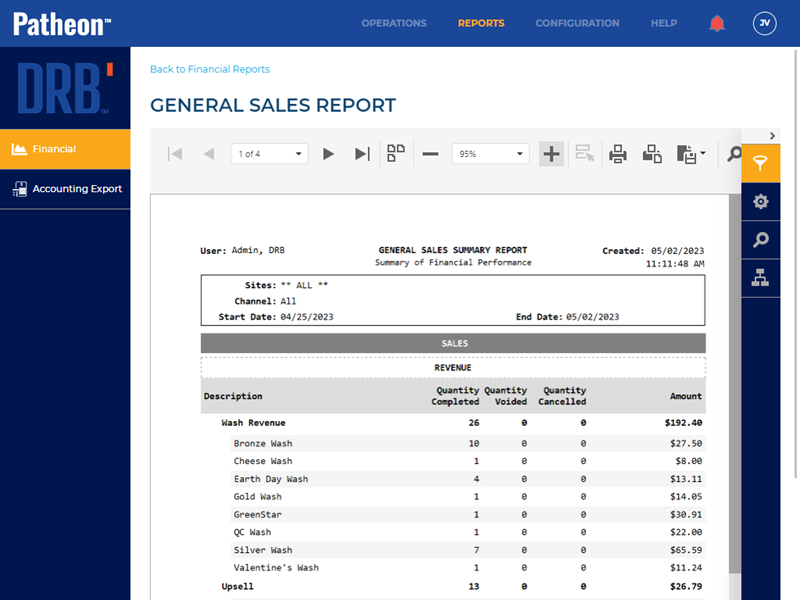
All Patheon Portal paginated financial reports include a set of functions to navigate report pages, resize the report view, print the report, and export the report. See Financial Report Tools for detailed information about each tool.
Report Parameters and Tools
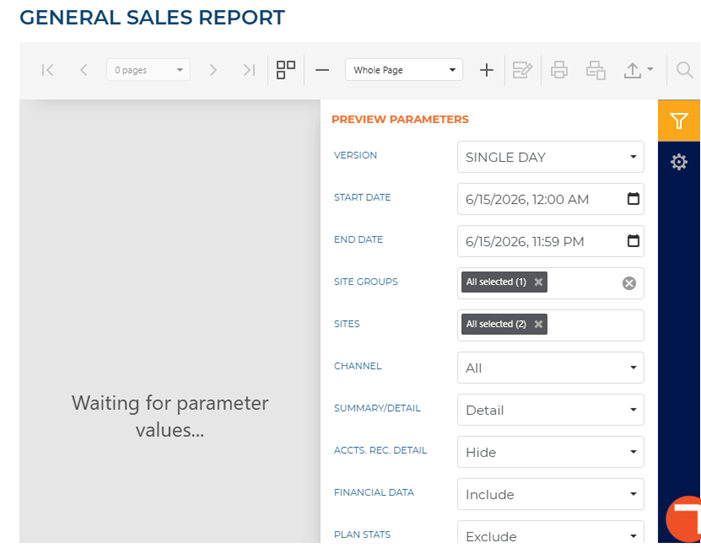
The General Sales Report tools include preview parameters (report time range and account), export options, and search. The preview parameters section opens by default when the General Sales Report is selected from the list of financial reports, instructing, Waiting for parameter values...
PREVIEW PARAMETERS
The preview parameters section provides the ability to specify the start time, end time, and account for a generated General Sales Report.
VERSION
The version of the report you wish to view. You can select SINGLE DAY or HISTORICAL THROUGH 15M...
START DATE
The beginning date for the report. Select the calendar icon in the START DATE box to open a START DATE dialog.
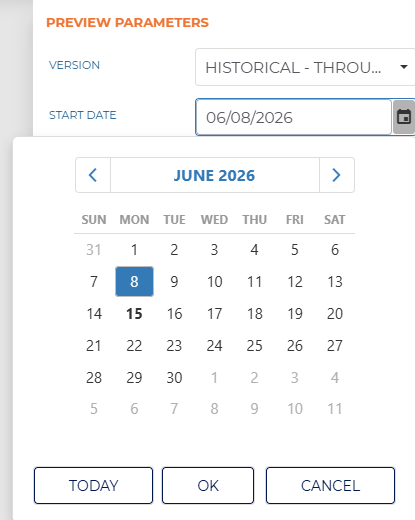
Two shortcut functions are available for selecting and setting the date: a month/year selector and a today (current date) selector.
MONTH YEAR
The month and year above the calendar is a shortcut that changes the month view to a year view, from which any month in the year can be selected. Selecting a month then opens the month view so a specific day from that month can be selected.
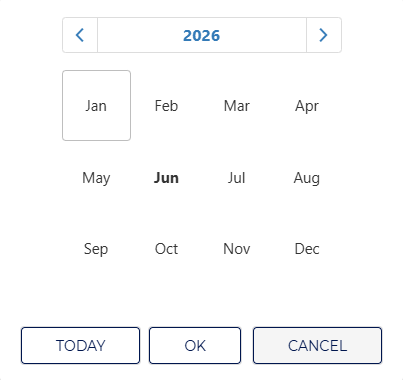
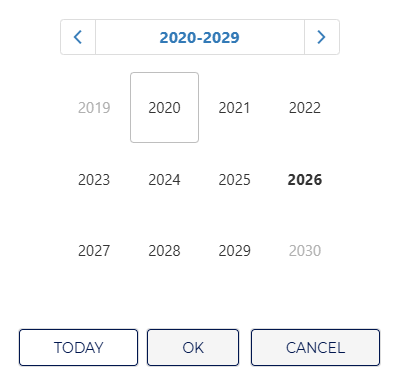
Selecting the year above the year view opens a decade view, from which any month in the decade can be selected. Selecting a year then opens the year view so a specific month from that year can be selected.
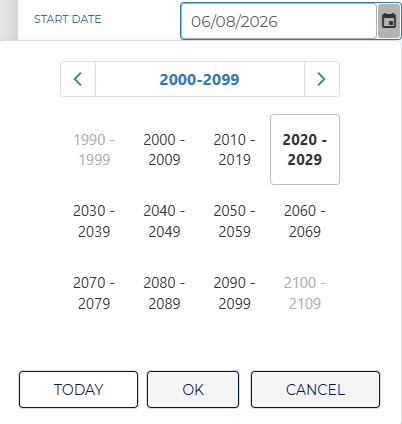
Selecting the decade above the decade view opens a century view, from which any decade in the century can be selected. Selecting a decade then opens the decade view so a specific year from that decade can be selected.
TODAY
Select the TODAY function to set the date to the current date.
END DATE
The ending date of the report. Select the date box to open a date dialog.
Enter the same date as the START DATE to generate a report for a single day.
SITE GROUPS
Select the SITE GROUP box to open a drop-down list of site groups. Select a single site group, multiple select site groups, or all site groups to include in the report.
All selected is selected by default when the report is first accessed.
SITES
Select the SITES box to open a drop-down list of sites. Select a single site, multiple select sites, or all sites to include in the report.
All selected is selected by default when the report is first accessed.
CHANNEL
Select the CHANNEL box to open a drop-down list of all channels. Select Retail Only to only include transactions recorded at the site, Ecommerce Only to only include transactions recorded from the EWA customer app, or All to include transactions recorded at the site and the EWA customer app.
All is selected by default when the report is first accessed.
SUMMARY/DETAIL
Select the amount of data to include on the report.
Exclude is selected by default when the report is first accessed.
Summary
Select Summary to display summarized data for each section on the report.
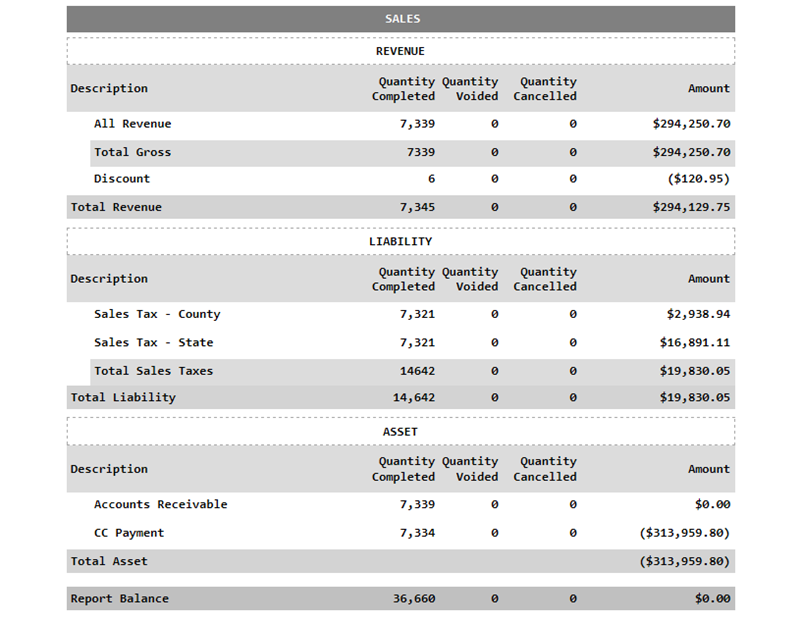
- SALES: The report displays quantity and amount totals for each journal account (categorized by revenue, liability, asset, and expense).
- PLANS SUMMARY: The report displays quantity and amount totals for plans redeemed, plans reloaded, and plans sold; the products that contribute to each of these categories are not listed.
- CAR COUNTS: The report displays quantity totals for car counts by product.
Detail
Select Detail to display the specific product quantities and totals that contribute to each section on the report.
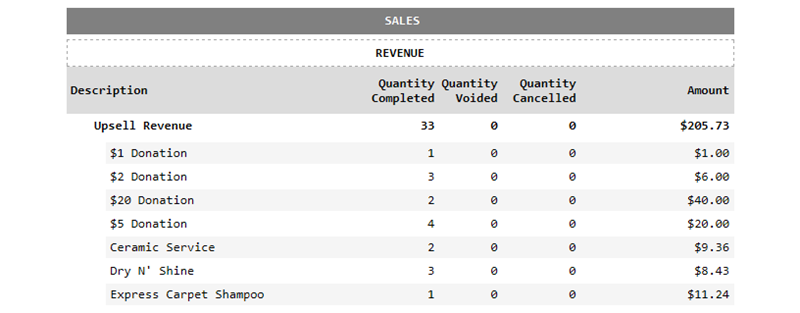
- SALES: The report expands each journal account, to include quantity and amount totals for each product that belongs to it.
- PLANS SUMMARY: The report expands each plans redeemed, plans reloaded, and plans sold category, to include quantity and totals for each product that belongs to it.
- CAR COUNTS: The report displays quantity totals for car counts by product.
ACCTS. REC. DETAIL
Select the ACCTS. REC. DETAIL box to open a drop-down list to choose whether to Hide or Show the accounts receivable detail in the report.
Hide is selected by default when the report is first accessed.
FINANCIAL DATA
Select the FINANCIAL DATA box to open a drop-down list to choose whether to Include or Exclude financial data in the report.
Include is selected by default when the report is first accessed.
PLAN STATS
Select the PLAN STATS box to open a drop-down list to choose whether to Include or Exclude plan statistics in the report.
Exclude is selected by default when the report is first accessed.
CAR WASH STATS
Select the CAR WASH STATS box to open a drop-down list to choose whether to Include or Exclude car wash statistics in the report.
Exclude is selected by default when the report is first accessed.
RESET | SUBMIT
Use the RESET function to return all preview parameters settings to their default settings. Use the SUBMIT function generate the report for the PREVIEW PARAMETERS current settings.
EXPORT OPTIONS
The EXPORT OPTIONS section provides the ability to export a generated General Sales Report to any of the following file formats:
- CSV
- HTML
- PNG
- MHT
- RTF
- TXT
- XLS
- XLSX
- DOCX
SEARCH
The search section provides the ability to quickly locate a specific piece of text or data in the generated report.
Text Box
The text box provides a field to input the search criteria. Select Enter on a keyboard or use the provided ^ or v function to invoke the search.
^ | v
Invoke the search function for the generated report, up or down.
Match case
Select the Match case option to only identify exact uppercase and/or lowercase matches in the results.
Match whole word only
Select the Match whole word only option to only identify exact text matches in the results.
Search Result
The Search Result area lists all search matches in the report. Each match identifies the page on which it is located, and the match is a link that can be selected to highlight its location on the generated report (in the report viewer).
Report Header
The first page header of the General Sale Report includes a User, Title, Subtitle, Created, Sites, Channel, Start Date, and End Date. If the report spans multiple pages, the header for all subsequent pages includes the User, Title, and Created.
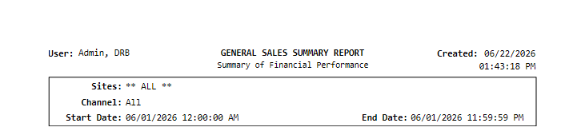
User
The User information identifies the employee who generated the report.
GENERAL SALES SUMMARY REPORT
The title of the report, GENERAL SALES SUMMARY REPORT, appears centered at the top.
Note: The title does not change based on the SUMMARY/DETAIL report parameter; the SUMMARY term is present in the title even when the detail version of the report is generated.
Summary of Financial Performance
The subtitle of the report, Summary of Financial Performance, appears below the title.
Note: The subtitle does not change based on the SUMMARY/DETAIL report parameter; the Summary term is present in the subtitle even when the detail version of the report is generated. Similarly, the subtitle does not change if the FINANCIAL DATA report parameter is set to Exclude and the report is generated for only PLAN STATS or CAR WASH STATS.
Created
The Created information identifies the date and time which the report was generated, in mm/dd/yyyy and hh:mm:ss format.
Sites
The Sites information identifies the site(s) for which the General Sales Report was generated.
Channel
The Channel information identifies whether the General Sales Report was generated for Retail Only transactions, Ecommerce Only transactions, or both retail transactions and ecommerce transactions (All).
Start Date | End Date
The Start Date and End Date information identifies the date and time range for which the General Sales Report was generated.
SALES
The Sales section provides revenue, liability, asset, and expense financial information, for the site(s) and date(s) the report was generated. Note that if no financial activity is recorded for a category for the report's site(s) and time period, (for example, no expense activity), that category's section is not displayed on the report.
Important: The section is generated for the report by default. However, it can be excluded by setting (in Preview Parameters) to Exclude.
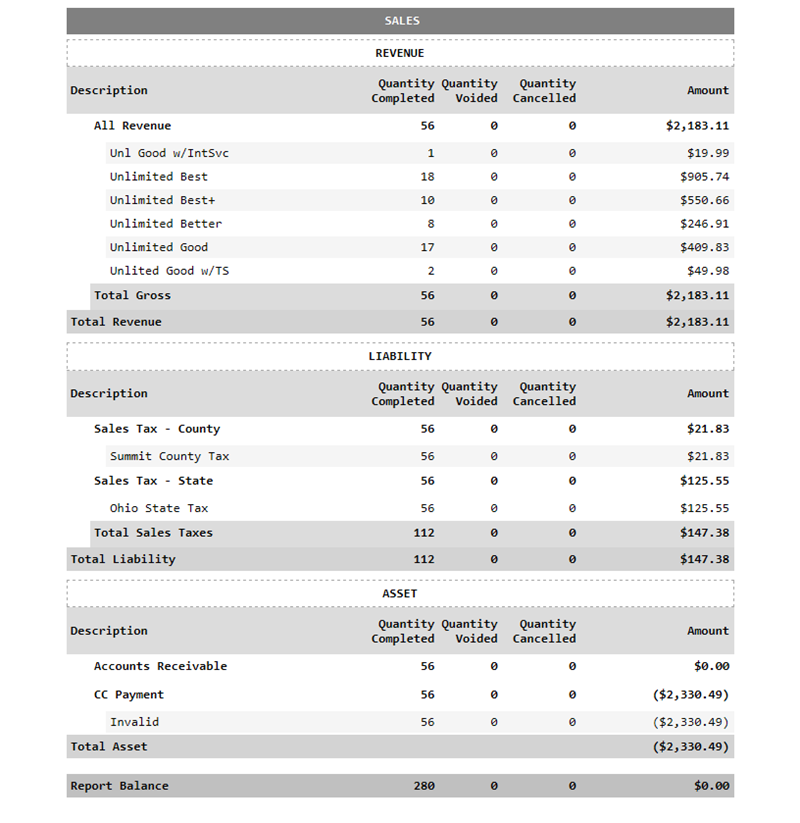
REVENUE
The sub-section includes all wash, pay as you go, extra service, plan, and lobby revenue, organized by profit center, for the selected site(s) for the selected time period.
Note: A cumulative Total Revenue totals row and information is provided for the overall sub-section at the bottom/end of the sub-section.
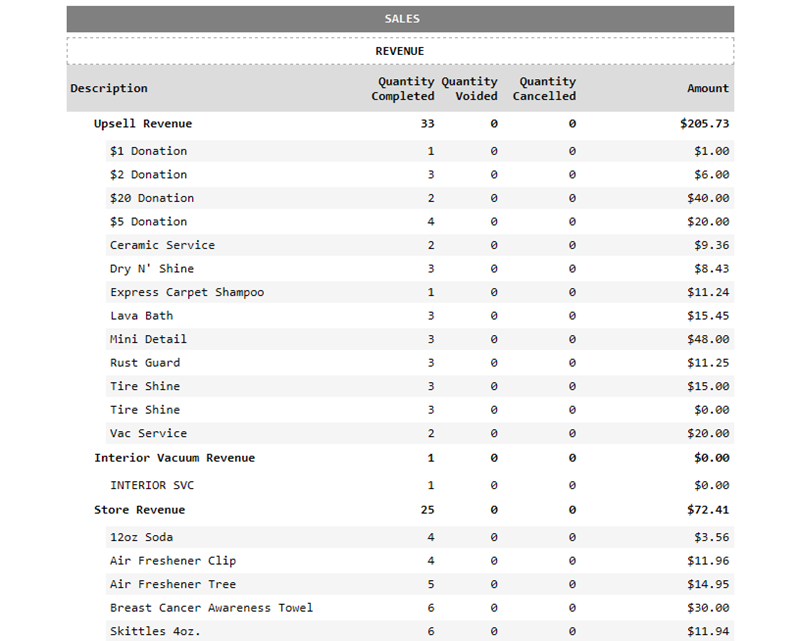
REVENUE Columns
The sub-section provides columns for description, quantity completed, quantity voided, quantity cancelled, and amount.
Description
The Description column provides the revenue category, product, or transaction type.
Quantity Completed
The Quantity Completed column provides the total number of sales transactions recorded for the corresponding revenue category, product, or transaction type.
Quantity Voided
The Quantity Voided column provides the total number of voided transactions recorded for the corresponding revenue category, product, or transaction type.
Quantity Cancelled
The Quantity Cancelled column provides the total number of cancelled transactions recorded for the corresponding revenue category, product, or transaction type.
Amount
The Amount column provides the total dollar amount associated with the transaction category.
Total Revenue
A Total Revenue row provides the combined totals for all sales categories displayed in the SALES section.
LIABILITY
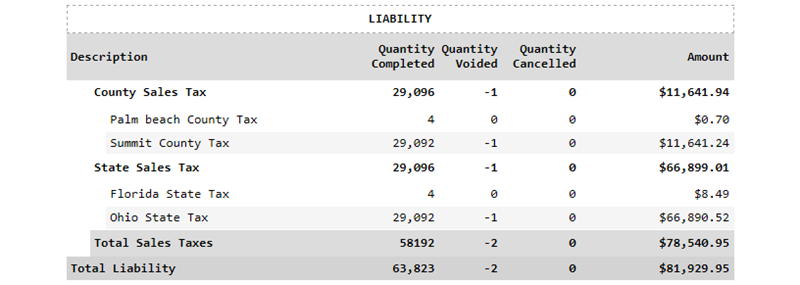
The sub-section includes all liabilities from prepaids, ticket books, gift cards, and taxes, organized by sales and redemptions, for the selected site(s) for the selected time period.
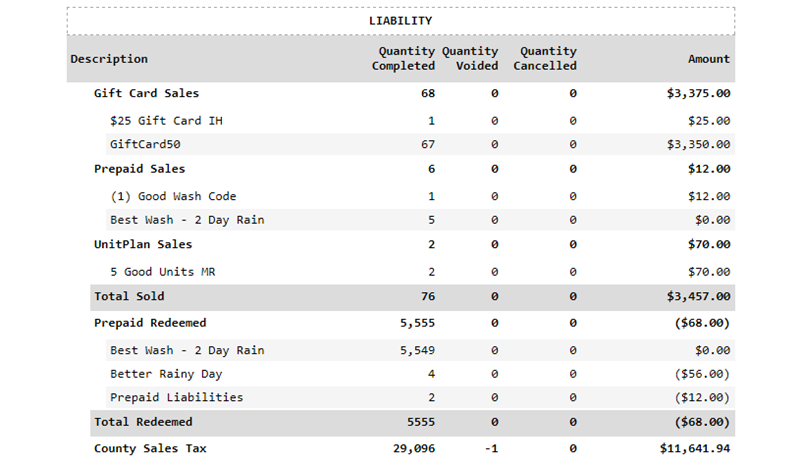
LIABILITY Columns
The sub-section provides columns for description, quantity completed, quantity voided, quantity cancelled, and amount.
Description
The Description column provides the liability category, product, or transaction type.
Quantity Completed
The Quantity Completed column provides the total number of liability transactions recorded for the corresponding liability category, product, or transaction type.
Quantity Voided
The Quantity Voided column provides the total number of voided transactions recorded for the corresponding liability category, product, or transaction type.
Quantity Cancelled
The Quantity Cancelled column provides the total number of cancelled transactions recorded for the corresponding liability category, product, or transaction type.
Amount
The Amount column provides the total dollar amount associated with the transaction category. Note that negative amounts appear on the report in parentheses, while positive amounts do not.
Sales
The sales section contains prepaid sales transactions.
- Gift Card Sales
- Gift Card Sales Contra
- Prepaid Sales
- Ticket Book Sales
- UnitPlan Sales
- Total Sold
Redemptions
The redemptions section contains prepaid redemption transactions.
- Gift Card Redeemed
- Gift Card Contra Redeemed
- Prepaid Redeemed
- Ticket Book Redeemed
- UnitPlan Redeemed
- Total Redeemed
Other Liabilities
The other liabilities section contains other liability transactions.
- Total Other Liabilities
Tax
The tax liabilities section contains tax liability transactions.
- County Sales Tax
- State Sales Tax
- Total Sales Tax
Miscellaneous
The miscellaneous section contains miscellaneous liability transactions.
- UnitPlan Terminated
- Total Miscellaneous
Total Liability
A cumulative Total Liability totals row and information is provided for the overall sub-section at the bottom/end of the sub-section.
ASSET
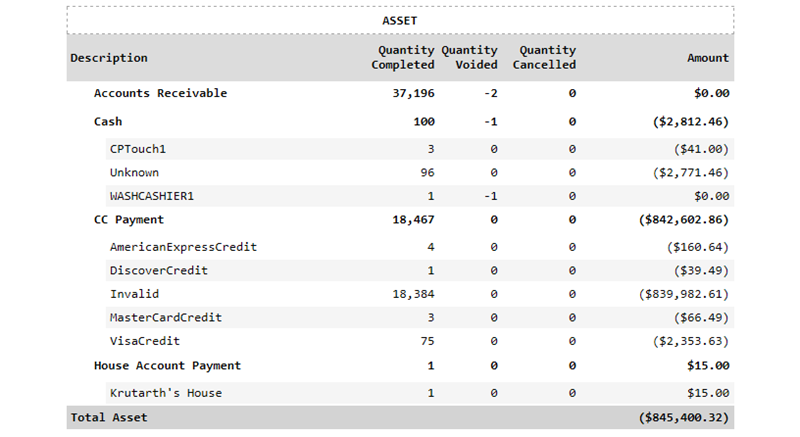
The sub-section includes all transactions that recorded accounts receivable, cash, credit card payments (organized by card brand, e.g. Visa, America Express), house account charge, and house account payment activity for the selected site(s) for the selected time period.
ASSET Columns
The sub-section provides columns for description, quantity completed, quantity voided, quantity cancelled, and amount.
Description
The Description column provides the asset category, product, or transaction type.
Quantity Completed
The Quantity Completed column provides the total number of asset transactions recorded for the corresponding asset category, product, or transaction type.
Quantity Voided
The Quantity Voided column provides the total number of voided transactions recorded for the corresponding asset category, product, or transaction type.
Quantity Cancelled
The Quantity Cancelled column provides the total number of cancelled transactions recorded for the corresponding asset category, product, or transaction type.
Amount
The Amount column provides the total dollar amount associated with the transaction category.
Accounts Receivable
The Accounts Receivable sub-section contains accounts receivable transaction information.
Cash
The Cash sub-section contains cash transaction information, organized by the sales terminal where the cash was recorded.
CC Payment
The CC Payment sub-section contains payment card transaction information, organized by card brand.
House Account Payment
The House Account Payment sub-section contains house account payment transaction information, organized by the house account name.
Total Asset
The Total Asset row provides a cumulative total for the Amount column.
Note: The row does not provide a total for any of the other columns in the ASSET section.
EXPENSE
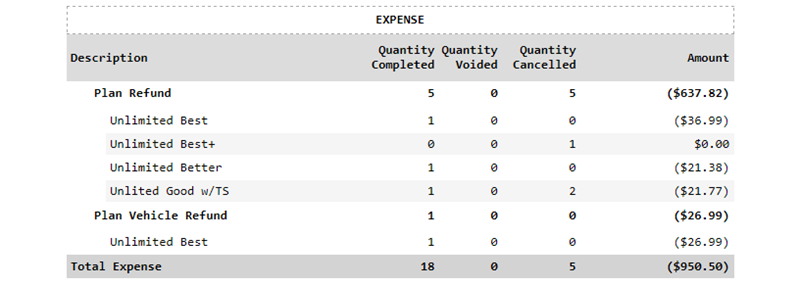
The sub-section includes all transactions that recorded expense activity for the selected site(s) for the selected time period.
EXPENSE Columns
The sub-section provides columns for description, quantity completed, quantity voided, quantity cancelled, and amount.
Description
The Description column provides the expense category (over/short, general refund, plan refund, and plan vehicle refund), product, or transaction type.
Quantity Completed
The Quantity Completed column provides the total number of expense transactions recorded for the corresponding expense category, product, or transaction type.
Quantity Voided
The Quantity Voided column provides the total number of voided transactions recorded for the corresponding expense category, product, or transaction type.
Quantity Cancelled
The Quantity Cancelled column provides the total number of cancelled transactions recorded for the corresponding expense category, product, or transaction type.
Amount
The Amount column provides the total dollar amount associated with the transaction category.
Over/Short
The Over/Short sub-section contains balance financial information for sales terminals..
General Refund
The General Refund sub-section provides refund transaction information, based on the point of sale terminal where it occurred.
Plan Refund
The Plan Refund sub-section provides plan refund transaction information, organized by the plan name/product.
Plan Vehicle Refund
The Plan Vehicle Refund sub-section provides plan vehicle refund transaction information, organized by the plan name/product.
Total Expense
The Total Expense row, located at the bottom of the EXPENSE sub-section, provides cumulative totals for each column.
Report Balance
The Report Balance row at the bottom/end of the SALES section, provides the overall net balance calculated from the report data. This value should be $0.00, indicating that there is no overage or shortage. A positive value indicates an overage. A negative value indicates a shortage.
PLANS SUMMARY
The Plans Summary section breaks out the total plan activity (organized by plan type) recorded for the selected site(s) for the selected time period. Plan types include:
- Time Based Auto Reload (ARM) (TBAR)
- TIme Based Manual Reload (Club Plans) (TBMR)
- Unit Based Auto Reload
- Unit Based Manual Reload
- Time Based OpenExpires
Note: A cumulative totals row is not provided for the overall Plans Summary section or any of the plan type subsections in it.
Important: The Plans Summary section is not generated for the report by default. (in Preview Parameters) must be set to Include to generate it for the report.
Columns
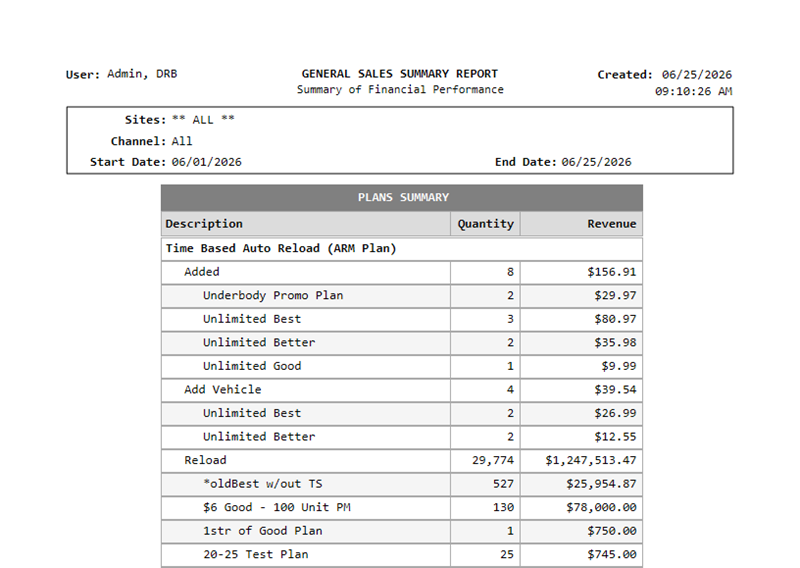
The Plans Summary table provides Description, Quantity, and Revenue data columns for each plan transaction and plan included in the report.
Description
The Description column provides the name of the plan type, transaction type, and plan name.
Quantity
The Description column provides the total number of transactions for each transaction type and plan.
Revenue
The Revenue column provides the total revenue generated from each transaction type and plan.
Time Based Auto Reload (ARM Plan)
The Time Based Auto Reload (ARM Plan) section is generated if there is transaction activity for at least 1 plan of this type. The transaction activity type is also provided, with Quantity and Revenue information for the corresponding plan(s).
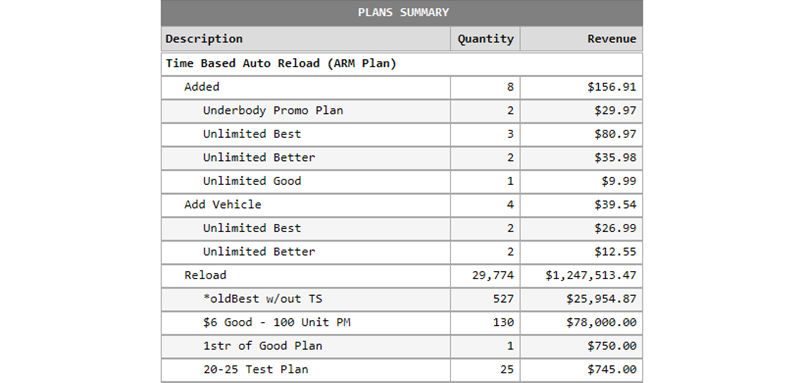
Transaction activity is organized by type (listed below). Each transaction type consists of a total Quantity value and a total Revenue value, as well the individual Quantity values and Revenue values for each plan that contribute to those total values.
- Added
- Add Vehicle
- Reload
- Reloading
- TransferredIn
- Resumed
- Reactivated
- Redeemed
- Suspended
- TransferredOut
- Remove Vehicle
- Terminated
- Suspending
- Discontinuing
- Discontinued
Time Based Manual Reload (Club Plan)
The Time Based Manual Reload (Club Plan) section is generated if there is transaction activity for at least 1 plan of this type. The transaction activity type is also provided, with Quantity and Revenue information for the corresponding plan(s).
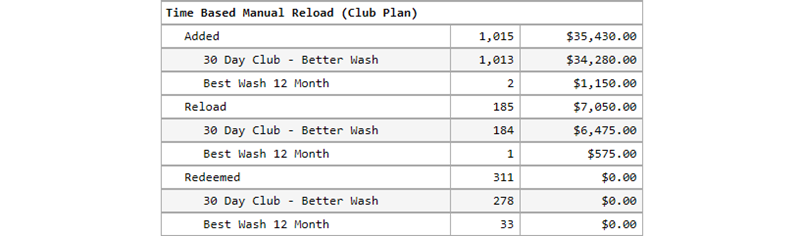
Transaction activity is organized by type (listed below). Each transaction type consists of a total Quantity value and a total Revenue value, as well the individual Quantity values and Revenue values for each plan that contribute to those total values.
- Added
- Reload
- Redeemed
Unit Based Auto Reload
The Unit Based Auto Reload section is generated if there is transaction activity for at least 1 plan of this type. The transaction activity type is also provided, with Quantity and Revenue information for the corresponding plan(s).
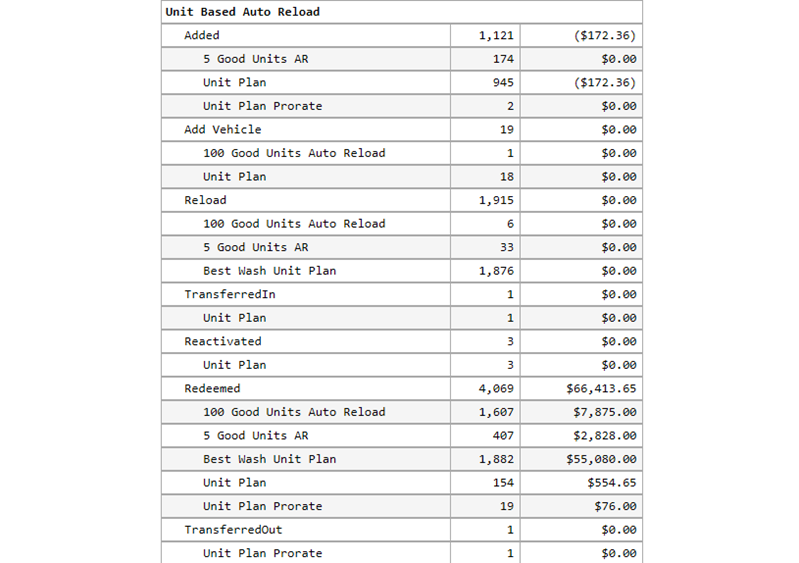
Transaction activity is organized by type (listed below). Each transaction type consists of a total Quantity value and a total Revenue value, as well the individual Quantity values and Revenue values for each plan that contribute to those total values.
- Added
- Add Vehicle
- Reload
- TransferredIn
- Reactivated
- Redeemed
- TransferredOut
- Remove Vehicle
- Terminated
- Discontinuing
Unit Based Manual Reload
The Unit Based Manual Reload section is generated if there is transaction activity for at least 1 plan of this type. The transaction activity type is also provided, with Quantity and Revenue information for the corresponding plan(s).
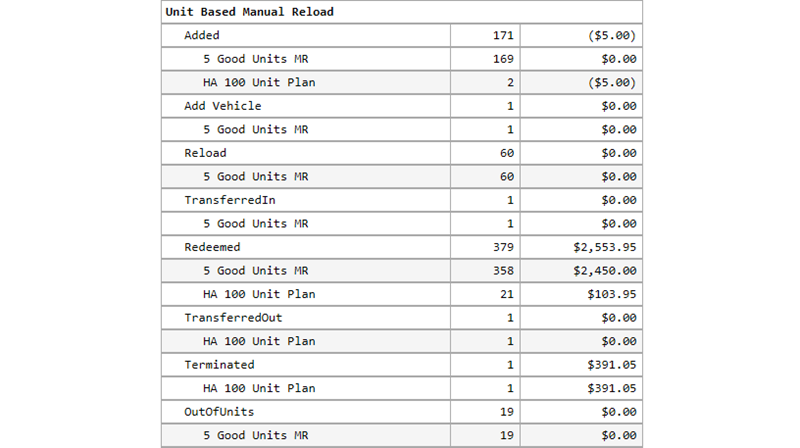
Transaction activity is organized by type (listed below). Each transaction type consists of a total Quantity value and a total Revenue value, as well the individual Quantity values and Revenue values for each plan that contribute to those total values.
- Added
- Add Vehicle
- Reload
- TransferredIn
- Redeemed
- TransferredOut
- Remove Vehicle
- Terminated
- OutOfUnits
Time Based OpenExpires
The Time Based OpenExpires section is generated if there is transaction activity for at least 1 plan of this type. The transaction activity type is also provided, with Quantity and Revenue information for the corresponding plan(s).
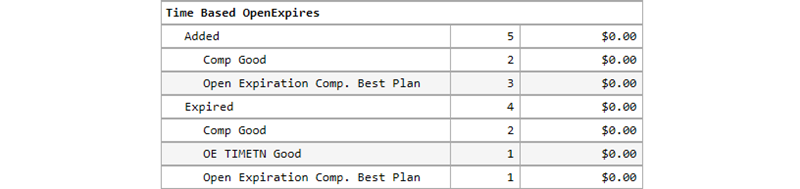
Transaction activity is organized by type (listed below). Each transaction type consists of a total Quantity value and a total Revenue value, as well the individual Quantity values and Revenue values for each plan that contribute to those total values.
- Added
- Expired
CAR COUNTS
The Car Counts section provides the number of vehicles washed (by wash product), number of vehicles rewashed (by rewash product), and overall percentage that vehicle rewashes account for compared with all washes, for the selected site(s) for the selected time period. Note that each wash product with activity for the generated report is always displayed in this section; the parameter (in Preview Parameters) does not affect it (for example, each wash product is listed if the parameter is set to Summary).
Important: The Car Counts section is not generated for the report by default. (in Preview Parameters) must be set to Include to generate it for the report.
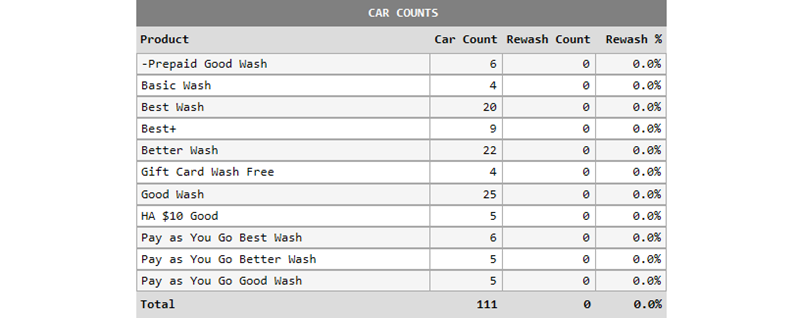
Product
The Product column provides the name of the wash service.
Car Count
The Car Count column provides the total number of vehicles that received the corresponding wash service for the report's site(s) and time period.
Rewash Count
The Rewash Count column provides the total number of vehicles that received a rewash for the corresponding wash service for the report's site(s) and time period.
Rewash %
The Rewash % column provides the percentage that the corresponding rewash service represents, for the report's site(s) and time period.
Total
The Total row provides the combined totals for all wash services, rewash services, and rewash %.
Footer
The report footer provides page number information at the bottom of each page, in the following format:
- 3 of 7