Bank Deposit Report
The Bank Deposit Report displays the total revenue recorded for each payment card type (Visa/Mastercard, Discover, etc.) and cash, (less refund, void, and return amounts), for a date or range of dates. Use this report to quickly and easily reconcile recorded deposits and charge totals with bank statements. It can be generated to manually compare and reconcile payment card deposit statements from a card processor, or cash deposit statements from a bank.
- Generate for single site, site group, multiple select sites, or all sites
- Generate for single date or range of dates
- Export a generated report to CSV, HTML, PNG, MHT, PDF, RTF, TXT, XLS, XLSX, or DOCX
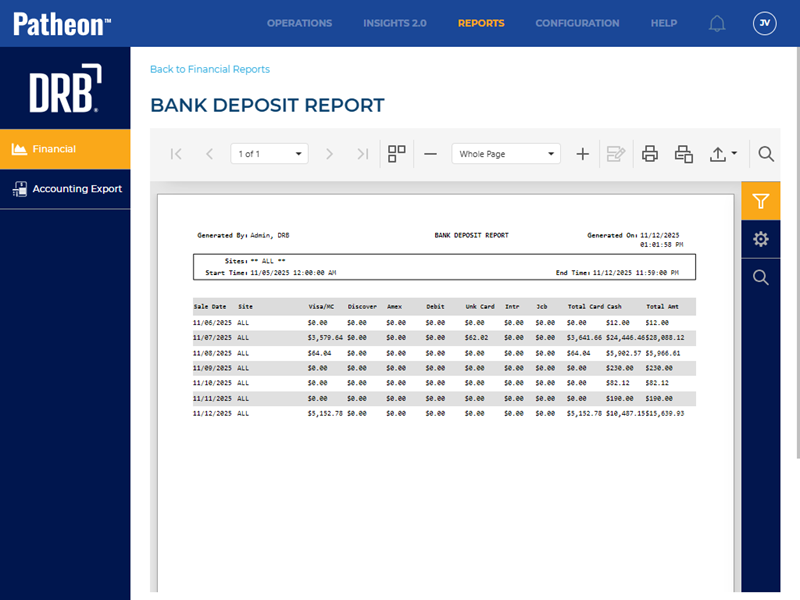
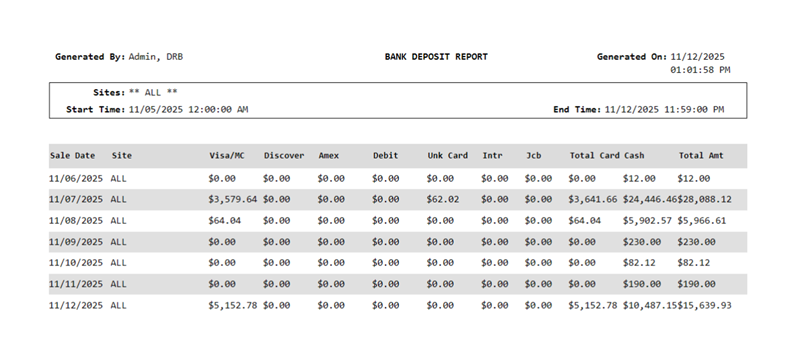
All Patheon Portal paginated financial reports include a set of functions to navigate report pages, resize the report view, print the report, and export the report. See Financial Report Viewer Tools for detailed information about each tool.
Report Parameters and Tools
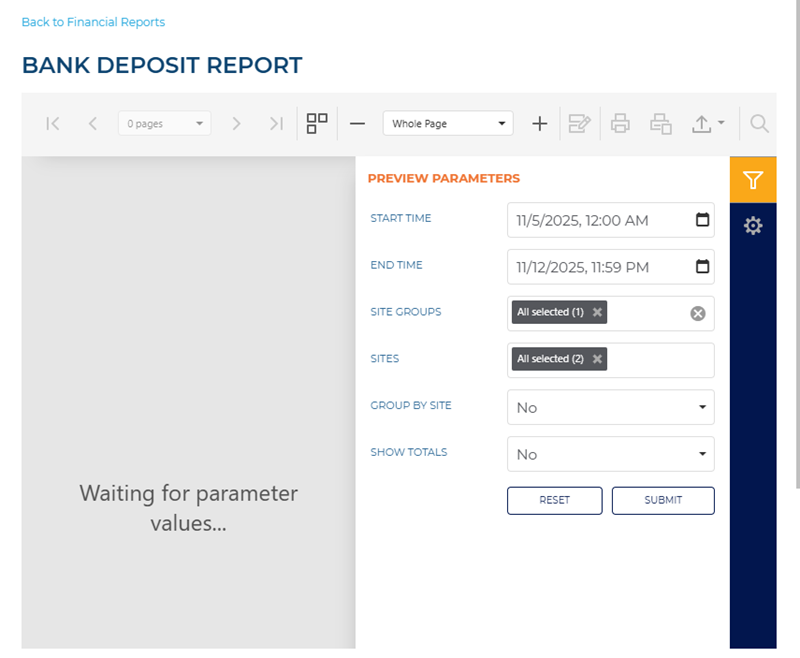
The Bank Deposit Report tools include Preview Parameters (report time range, site group(s), site(s), terminals), Export Options, and Search. The Preview Parameters section opens by default when the Bank Deposit Report is selected from the list of financial reports, instructing, Waiting for parameter values....
PREVIEW PARAMETERS
The Preview Parameters section provides the ability to specify the start time, end time, site group(s), site(s), whether to group by sites, and whether to show totals for a generated Bank Deposit Report.
START TIME
The beginning date and time for the report. Select the calendar icon in the START TIME box to open a START TIME dialog.
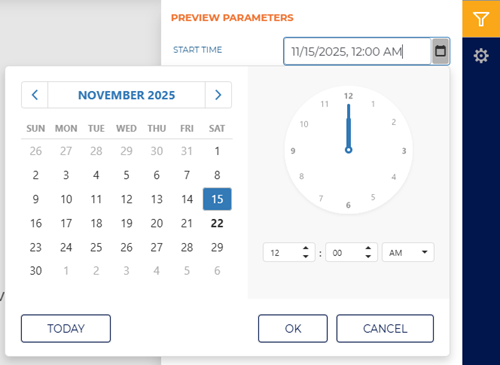
The default time for each day defaults to 12:00 AM, but can be changed to any hour and minute time.
Two shortcut functions are available for selecting and setting the date: a month/year selector and a today (current date) selector.
MONTH YEAR
The month and year above the calendar is a shortcut that changes the month view to a year view, from which any month in the year can be selected. Selecting a month then opens the month view so a specific day from that month can be selected.
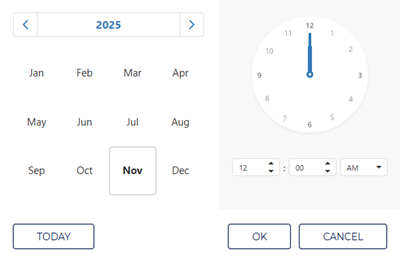
Selecting the year above the year view opens a decade view, from which any month in the decade can be selected. Selecting a year then opens the year view so a specific month from that year can be selected.
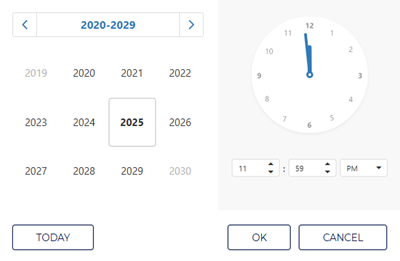
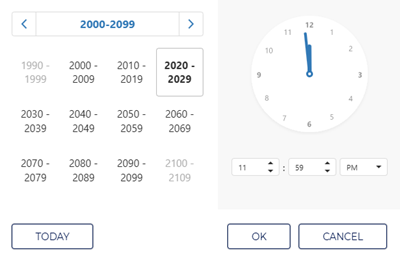
Selecting the decade above the decade view opens a century view, from which any decade in the century can be selected. Selecting a decade then opens the decade view so a specific year from that decade can be selected.
TODAY
Select the function to set the date and time to the current date and 11:59 PM.
END TIME
The ending date and time of the report. Select the date and time box to open a date and time dialog.
Enter the same date as the START TIME to generate a report for a single day.
SITE GROUPS
Select the site groups box to open a drop-down list of site groups. Select a single site group, multiple select site groups, or all site groups to include for the report.
This setting includes all site groups (All selected) by default.
SITES
Select the site box to open a drop-down list of sites. Select a single site, multiple select sites, or all sites to include for the report.
This setting includes all sites (All selected) by default.
GROUP BY SITE
Select whether the deposit amounts for each date in the report should be displayed for all sites or per site.
No
Select No to combine deposits for all sites for each date. Instead of breaking out the deposits by site, the report will display All, and the deposit amounts will be the total for all sites for each date.
Yes
Select Yes to display the deposits for each specific site for each date. Each site and its deposit amounts will be displayed for each date.
SHOW TOTALS
Select whether the report should include a Grand Total row at the end of the report.
No
Select No to omit a Grand Total row at the end of the report.
Yes
Select Yes to add a Grand Total row at the end of the report, which provides totals for each column.
|
Use the function to return all Preview Parameters settings to their default settings. Use the function to generate the report for the Preview Parameters current settings.
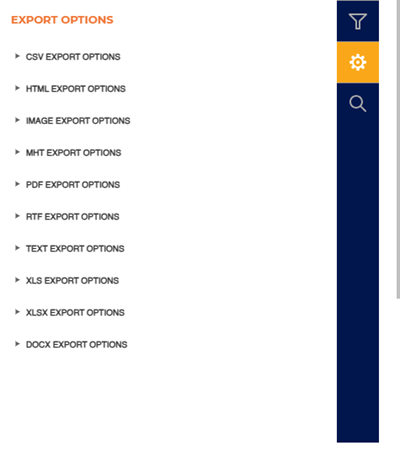
EXPORT OPTIONS
The Export Options section provides the ability to export a generated Bank Deposit Report to any of the following file formats:
- CSV
- HTML
- PNG
- MHT
- RTF
- TXT
- XLS
- XLSX
- DOCX
SEARCH
The Search section provides the ability to quickly locate a specific piece of text or data in the generated report.
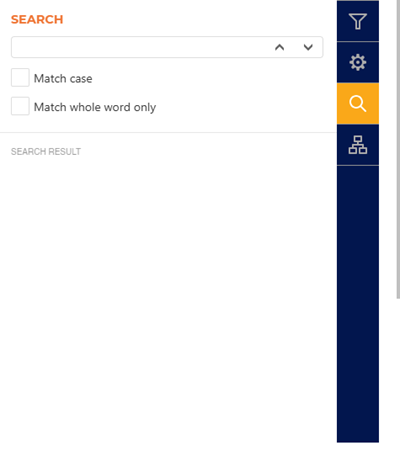
Text Box
The text box provides a field to input the search criteria. Select Enter on a keyboard or use the provided ^ function or v function to invoke the search.
^ | v
Invoke the search function for the generated report, up or down.
Match case
Select the Match case option to only identify exact uppercase and/or lowercase matches in the results.
Match whole word only
Select the Match whole word only option to only identify exact text matches in the results.
Search Result
The Search Result area lists all search matches in the report. Each match identifies the page on which it is located, and the match is a link that can be selected to highlight its location on the generated report (in the report viewer).
Report Header
The first page header of the report includes a Title, Report Generated, Generated By, Sites, Start Date, and End Date. If the report spans multiple pages, the header for all subsequent pages includes the Title, Report Generated, and Generated By.

Generated By
The employee who generated the report.
BANK DEPOSIT REPORT
The title of the report is Bank Deposit Report.
Generated On
The date on which the report was generated, in mm/dd/yyyy format.
Sites
The site(s) for which the report was generated.
Start Time
The start date and time for which the report was generated.
End Time
The end date and time for which the report was generated.
Report Data
The Bank Deposit Report data consists of credit card and cash revenue collected.
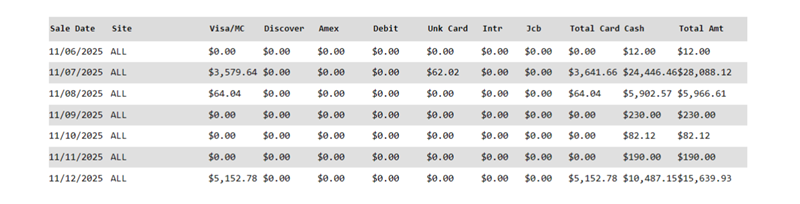
Sale Date
The corresponding date for the deposit values.
Format is mm/dd/yyyy.
Site
The corresponding site for the deposit values.
Visa/MC
The net total revenue (gross, less any returns or voids) from all transactions tendered to Visa and Mastercard payment cards. This includes Visa and Mastercard brand debit cards.
Format is $#,###.##.
Discover
The net total revenue (gross, less any returns or voids) from all transactions tendered to Discover payment cards.
Format is $#,###.##.
Amex
The net total revenue (gross, less any returns or voids) from all transactions tendered to American Express payment cards.
Format is $#,###.##.
Debit
The net total revenue (gross, less any returns or voids) from all transactions tendered to PIN debit payment cards. This value does not include Visa and Mastercard brand banking debit cards, which are recorded with that brand.
Format is $#,###.##.
Unk Card
The net total revenue (gross, less any returns or voids) from all transactions tendered to an unknown payment card.
Format is $#,###.##.
Intr
The net total revenue (gross, less any returns or voids) from all transactions tendered to an Intr payment card.
Format is $#,###.##.
Jcb
The net total revenue (gross, less any returns or voids) from all transactions tendered to a JCB payment card.
Format is $#,###.##.
Total Card
The net total revenue (gross, less any returns or voids) from all transactions tendered to a payment card: Visa, Mastercard, Discover, American Express, debit, Debit, and Unknown Card.
Format is $#,###.##.
Cash
The net total revenue (gross, less any returns or refunds) from all transactions tendered to cash.
Format is $#,###.##.
Total Amt
The net total revenue (gross, less any returns, refunds, or voids) from all transactions.
Format is $#,###.##.
Report Footer
Page numbers are provided at the bottom of each report.
