Security Audit Report
The security audit report provides visibility into key security and transactional events to help car wash operators and managers monitor employee activity and identify potential misuse or fraud. Sites can use this report as a reference when reviewing specific employee activity and investigating security or fraud-related issues. This report is designed for monitoring and investigation purposes only and is not a full system audit.
- Generate for a single site or multiple sites
- Generate for a single date or date range
- Export a generated report to CSV, HTML, PNG, MHT, PDF, RTF, TXT, XLS, XLSX, or DOCX
All Patheon Portal paginated financial reports include a set of functions to navigate report pages, resize the report view, print the report, and export the report. See Financial Report Tools for detailed information about each tool.
Report Parameters and Tools
The Security Audit Report tools include preview parameters (report time range and account), export options, and search. The preview parameters section opens by default when the Security Audit Report is selected from the list of financial reports, instructing, Waiting for parameter values...
PREVIEW PARAMETERS
The preview parameters section provides the ability to specify the start time, end time, and account for a generated Security Audit Report.
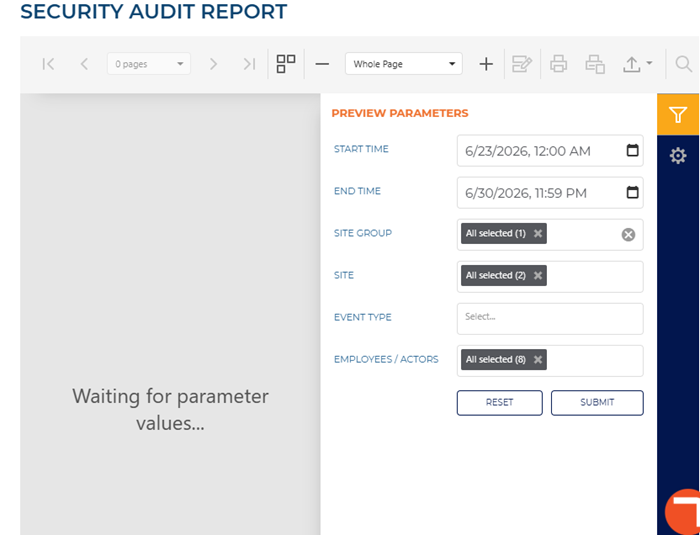
START TIME
The beginning date and time for the report. Select the calendar icon in the START TIME box to open a START TIME dialog.
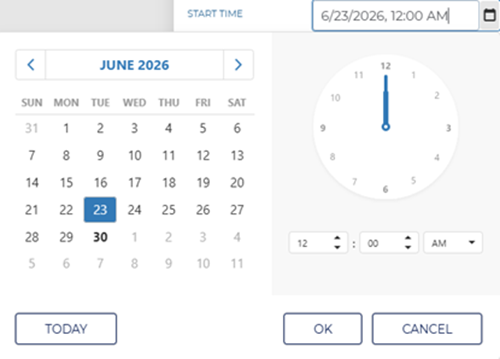
Two shortcut functions are available for selecting and setting the date: a month/year selector and a today (current date) selector.
MONTH YEAR
The month and year above the calendar is a shortcut that changes the month view to a year view, from which any month in the year can be selected. Selecting a month then opens the month view so a specific day from that month can be selected.
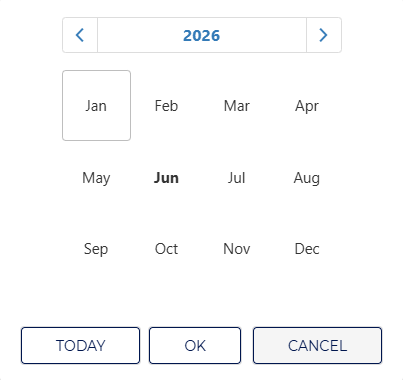
Selecting the year above the year view opens a decade view, from which any year in the decade can be selected. Selecting a year then opens the year view so a specific month from that year can be selected.
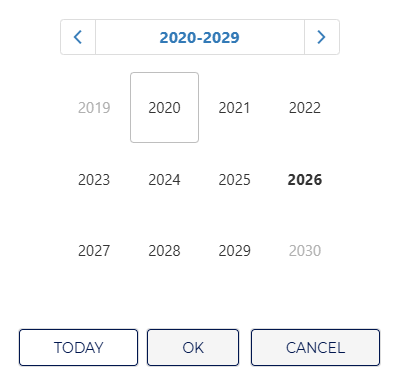
Selecting the decade above the decade view opens a century view, from which any decade in the century can be selected. Selecting a decade then opens the decade view so a specific year from that decade can be selected.
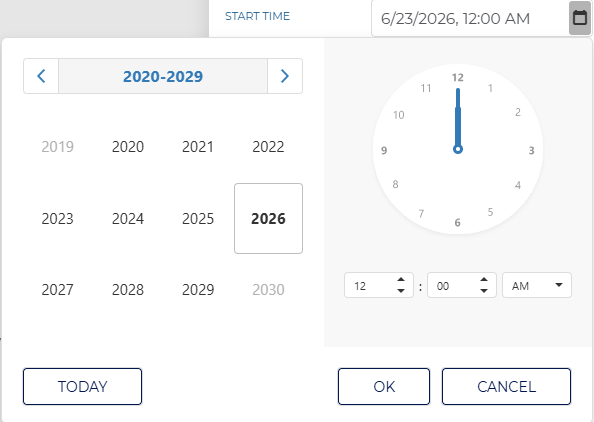
TODAY
Select the TODAY function to set the date to the current date.
END TIME
The ending date and time of the report. Select the date box to open a date and time dialog.
Enter the same date as the START TIME to generate a report for a single day.
SITE GROUP
Select the SITE GROUP box to open a drop-down list of site groups. Select a single site group, multiple site groups, or all site groups to include in the report.
All selected is selected by default when the report is first accessed.
Important: The security audit report uses cascading filters for SITE GROUP, SITE, and EMPLOYEES/ACTORS. If a SITE GROUP entry is unselected, any SITE entries belonging to that site group are also unselected. As a result, employees associated only with those unselected sites are also removed from the EMPLOYEES/ACTORS selection.
SITE
Select the SITE box to open a drop-down list of sites. Select a single site, multiple sites, or all sites to include in the report.
All selected is selected by default when the report is first accessed.
The SITE filter cascades with the SITE GROUP and EMPLOYEES/ACTORS filters. Changing selected sites updates the available and selected employees accordingly.
EVENT TYPE
Select the EVENT TYPE box to open a drop-down list of event types. Select a single event type, multiple event types, or all event types to include in the report.
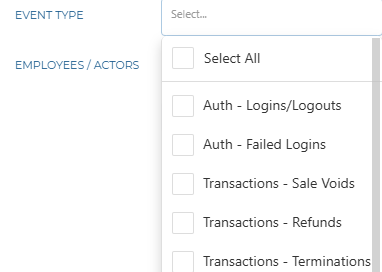
Auth - Logins/Logouts
Tracks when users sign in to and out of the system.
Auth - Failed Logins
Tracks unsuccessful login attempts.
Transactions - Sale Voids
Tracks sales transactions that were voided after being entered.
Transactions - Refunds
Tracks transactions where money was returned to the customer.
Transactions - Terminations
Tracks transactions that were ended before completion.
Transactions - Discounts
Tracks discounts applied to transactions.
Transactions - Cancellations
Tracks transactions that were canceled before being completed.
Transactions - All completed sales
Tracks all sales transactions that were successfully completed.
Cash - XPT/cash drawer opens
Tracks when the cash drawer is opened, including XPT-related drawer open events.
Cash - Pickups/drops
Tracks cash drop activity. Currently, the report lists drops only. Cash is typically added to a drawer only when entering the starting cash amount.
Config - Price changes
Tracks changes made to item prices in the system.
Users - New user creations
Tracks when new user accounts are created.
Users - Deactivations or deletions
Tracks when user accounts are deactivated or deleted.
Users - Edits of records
Tracks changes made to existing user records.
Users Event Types
For Users event types, the Security Audit Report attempts to match the records selected in the Employees/Actors filter to security events recorded in Patheon, whether the employee was the actor or the subject. For example, if john@gmail.com is selected in the Employees/Actors filter, the report checks for all actions performed by the john@gmail.com employee and for all actions performed on the john@gmail.com account, such as deactivation.
EMPLOYEES/ACTORS
Select the EMPLOYEES/ACTORS box to open a drop-down list of employees/actors. Select a single employee, multiple employees, or all employees to include in the report.
All selected is selected by default when the report is first accessed.
The EMPLOYEES/ACTORS filter has the following characteristics:
- Both active and deactivated (deleted) employees are listed to support historical and retrospective investigation of employee activity, including potentially fraudulent actions.
- Each employee is listed only once, even if the employee has multiple site assignments.
- Employee full names and email addresses are listed, allowing search-as-you-type behavior using either name or email.
- Employees may be assigned to a particular site, a group of sites, or all sites. Some employees may have access to All Sites and also to a set of individual sites. The filter evaluates and merges all access assignments for each employee, with All Sites access taking precedence.
- For example, if only one site is selected in the SITE filter, the EMPLOYEES/ACTORS filter includes employees assigned to that site as well as employees with access to All Sites.
RESET | SUBMIT
Use the RESET function to return all preview parameters settings to their default settings. Use the SUBMIT function to generate the report for the PREVIEW PARAMETERS current settings.
EXPORT OPTIONS
The EXPORT OPTIONS section provides the ability to export a generated Security Audit Report to any of the following file formats:
- CSV
- HTML
- PNG
- MHT
- RTF
- TXT
- XLS
- XLSX
- DOCX
SEARCH
The search section provides the ability to quickly locate a specific piece of text or data in the generated report.
Text Box
The text box provides a field to input the search criteria. Select Enter on a keyboard or use the provided ^ or v function to invoke the search.
^ | v
Invoke the search function for the generated report, up or down.
Match case
Select the Match case option to only identify exact uppercase and/or lowercase matches in the results.
Match whole word only
Select the Match whole word only option to only identify exact text matches in the results.
Search Result
The Search Result area lists all search matches in the report. Each match identifies the page on which it is located, and the match is a link that can be selected to highlight its location on the generated report (in the report viewer).
Report Header
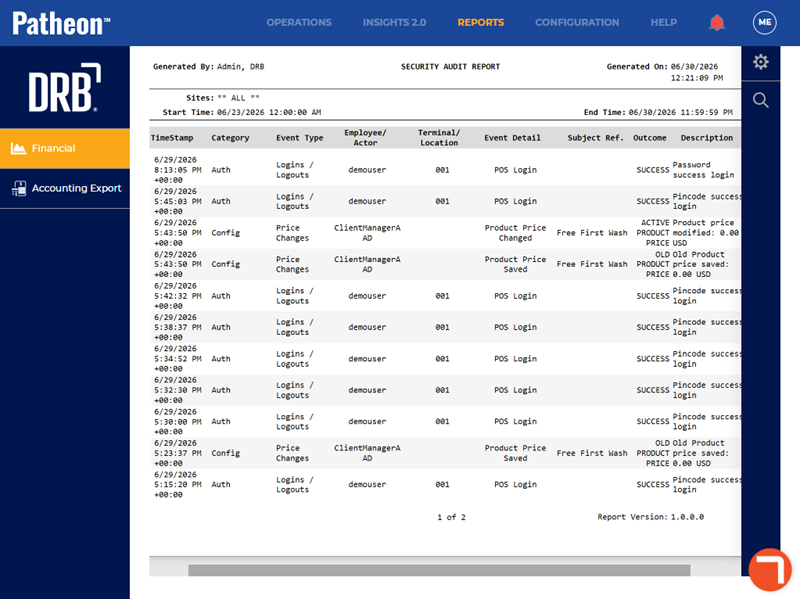
The first page header of the Security Audit Report includes a Generated By, Title, Generated on, Sites, Start Time, and End Time. If the report spans multiple pages, the header for all subsequent pages includes the Generated By, Title, and Generated On.

Generated By
The Generated By information identifies the employee who generated the report.
SECURITY AUDIT REPORT
The title of the report, SECURITY AUDIT REPORT, appears centered at the top.
Generated On
The Generated On information identifies the date and time which the report was generated, in mm/dd/yyyy and hh:mm:ss format.
Sites
The Sites information identifies the site(s) for which the Security Audit Report was generated.
Start Time | End Time
The Start Time and End Time information identifies the date and time range for which the Security Audit Report was generated.
Report Data
The Security Audit Report provides a chronological record of security-related events that occur within the system for the selected site(s) and date range. The report includes authentication activity, configuration changes, and other audited events, along with details such as the employee who performed the action, the terminal or location, the event outcome, and a description of the activity.
Important: The Security Audit Report displays only events that occurred during the selected reporting period. If no audited events are recorded for the selected site(s) and date range, the report does not contain any event entries.
For Transaction Voids, the report lists the original transaction and the transaction that voided it on separate lines with an appropriate comment in the Description column.
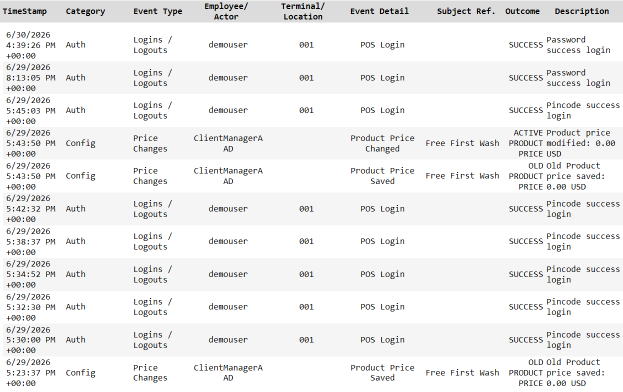
TimeStamp
The TimeStamp column provides the date and time when the audited event was recorded.
Category
The Category column provides the type of system activity that generated the audit event.
Categories
Categories may include:
- Authentication
- Configuration
- Transactions
- Users
Event Type
The Event Type column provides the specific action that triggered the audit event.
Event Types
Event types may include:
- All Sales
- Cancellations
- Cash Drawer Opens
- Cash Drops
- Discounts
- Failed Logins
- Logins / Logouts
- Price Changes
- Refunds
- Sale Voids
- Terminations
Employee/Actor
The Employee/Actor column provides the employee who performed the audited action or, where applicable, the employee account associated with the event.
Terminal/Location
The Terminal/Location column provides the terminal, workstation, or system location where the audited event occurred.
Event Detail
The Event Detail column provides additional information about the audited event, such as the object, setting, or resource affected by the action.
Subject Ref.
The Subject Reference column provides the user, object, or resource associated with the audited event, when applicable.
Outcome
The Outcome column provides the result of the audited event.
Outcomes
- Active Product Price
- Failed
- Old Product Price
- Success
Description
The Description column provides a summary of the audited event, including details about the action that occurred and its result.
Report Footer
The report footer provides page number information at the bottom of each page, in the following format:
- 3 of 7