Remove a Vehicle from an Unlimited Plan
This topic describes how to remove one or more vehicles from an existing, active wash plan from a cashier terminal.
View Plan Vehicles
- Log in to the cashier application.
- Select Customers. The Customers panel opens.
- Select the Customer Name for the customer for which you want to remove a vehicle. The Customer Details panel opens for the customer.
- Navigate to the Plans section.
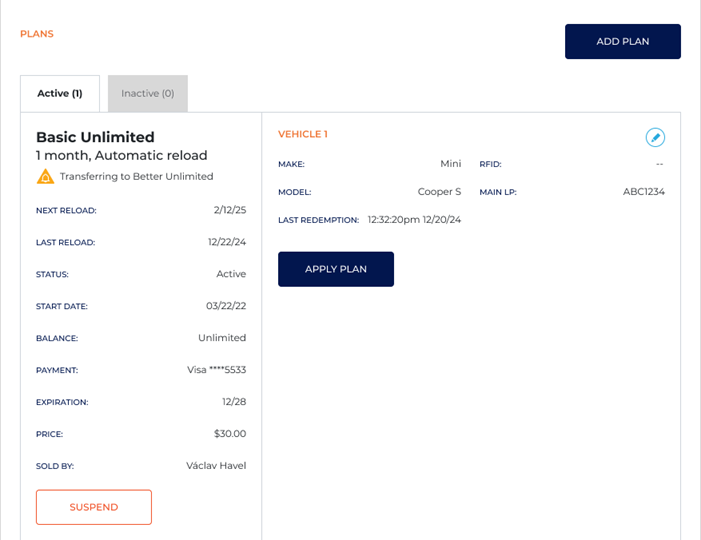
- Select the plan from which the vehicle is to be removed.
- Select the edit icon
 . The Plan Details panel opens.
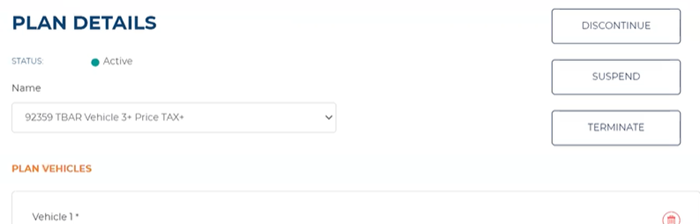
Remove Vehicle
- From the Plan Details panel, navigate to the Plan Vehicles section.
- Locate the vehicle to remove.
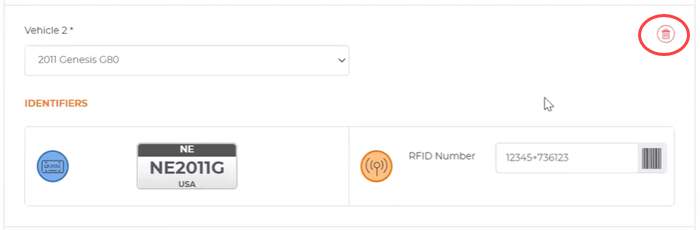
- Select the delete function. A Confirm Vehicle Removal dialog opens.
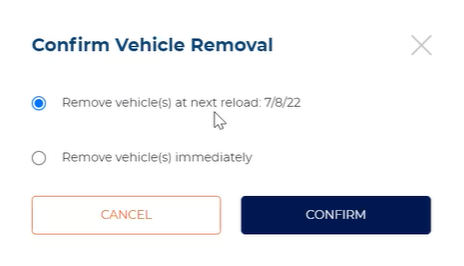
Confirm Vehicle Removal
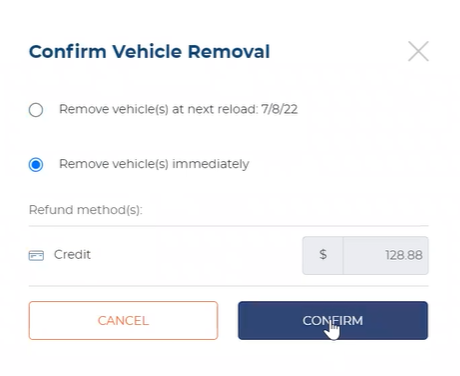
There are two options for removing a vehicle from a wash plan. It can be removed on the date of the next plan reload/recharge, or it can be removed immediately.
Remove vehicle(s) at next reload
Use the following steps to schedule the vehicle to be removed on the date of the next plan reload. The vehicle will be able to continue using the plan until this date.
- Select the Remove vehicle(s) at next reload: <Reload Date> option.
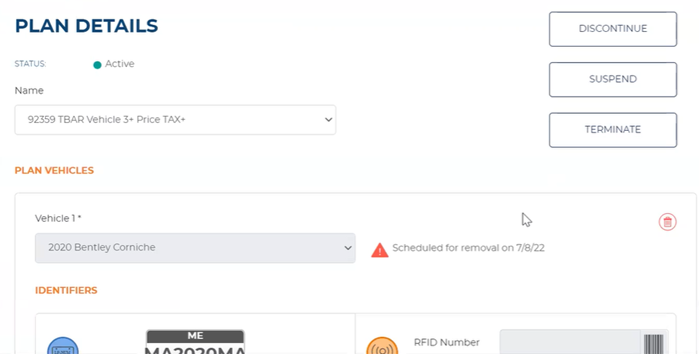
- Select . The dialog closes, and Scheduled for removal on mm/dd/yy is next to the vehicle.
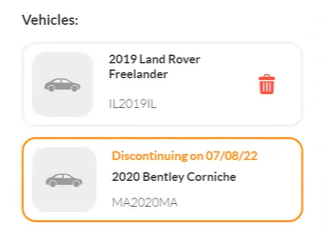
- If the customer uses the EWA customer app, Discontinuing on mm/dd/yy is listed above the vehicle as well.
Remove vehicle immediately
Use the following steps to remove the vehicle now. The vehicle will no longer be able to use the plan.
- Select Remove vehicle(s) immediately.
- Select . A Refund dialog opens and the payment terminal is activated.
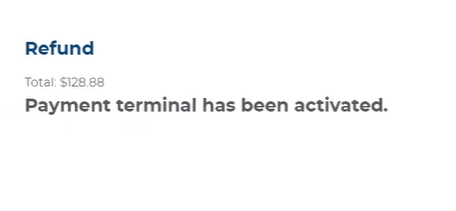
- Direct the customer to follow the steps on the payment terminal to receive the refund.