Sell an Unlimited Plan
Use these steps to sell an unlimited wash plan subscription to a customer from the cashier application.
Note: When the sale is tendered, a plan wash is added to the wash queue as part of the sale; cashiers don't need to open another sale or re-scan the tag.
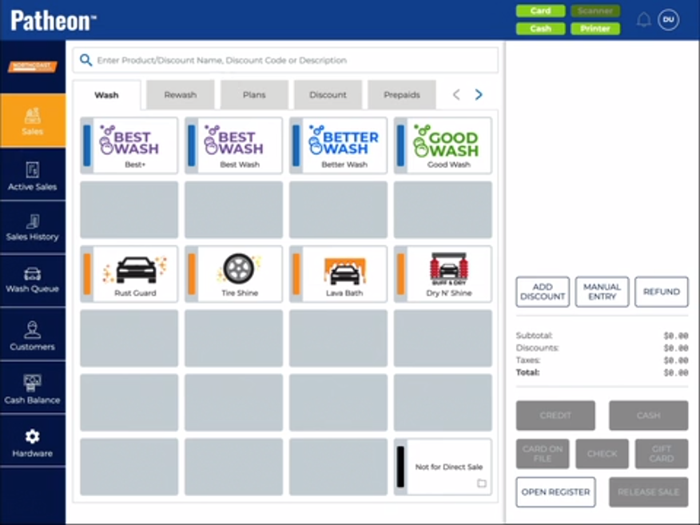
- Select Sales. The Sales panel opens.
- Select Plans. The Plans tab opens.
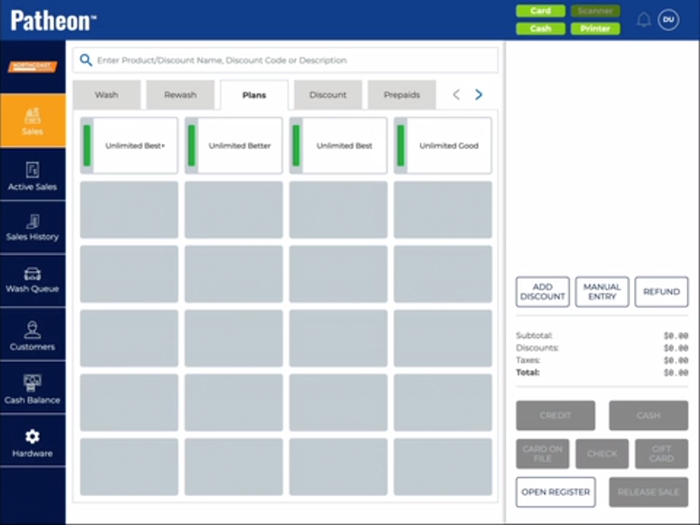
- Select the plan the customer is purchasing. The plan sale panel opens.
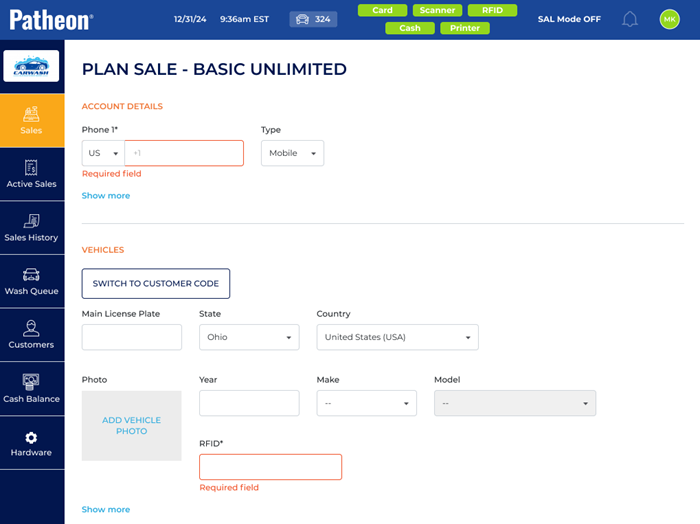
- In Phone 1*, enter the customer's phone number.
- If the customer already has a profile, select the customer.
- If the customer does not already have a profile, in First Name, enter the customer's first name.
- In Last Name, enter the customer's last name.
- Navigate to the Vehicles section. Note: Only the RFID* field is required to complete this section.
- In RFID*, scan or enter the RFID tag code to assign it to the vehicle.
- If the site uses license plate ID, in License Plate enter the vehicle's license plate.
- Navigate to the terms and conditions section.
- Review the terms and conditions with the customer.
- If the plan is configured to require a signature, direct the customer to provide theirs. The function is enabled.
- Select . The sales panel opens, and the plan is added to the cart.
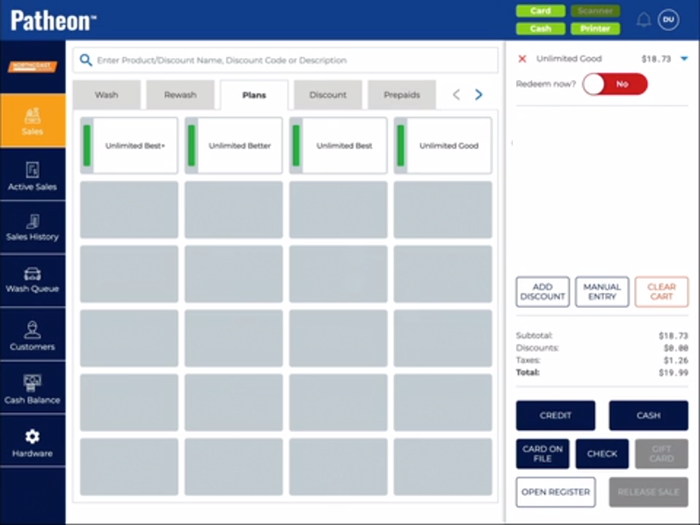
- If the customer's vehicle is in a lane, set Redeem now? to Yes. Otherwise, leave it set to No. They can still pull into the lane and use the plan after the sale is tendered.
- Select . A Credit dialog briefly opens with Payment terminal has been activated.
- Instruct the customer to follow the prompts on the payment card reader for the payment card to which they want the plan billed.
- After the sale is tendered, a Credit dialog opens with Tendered: $#.## and a receipt prints.
- Hand the receipt to the customer.
- Select . The dialog closes.