Terminate an Unlimited Plan
Use these steps when a customer wants to immediately end their membership. The customer will no longer be eligible to use the plan, and they may or may not receive a refund depending on how the site configured the plan.
Note: Staff without permission to terminate customer plans can still begin the termination process and have someone with the appropriate permission complete the termination.
- Log in to the cashier application.
- Select Customers. The Customers panel opens.
- Locate the customer that wants to terminate their plan.
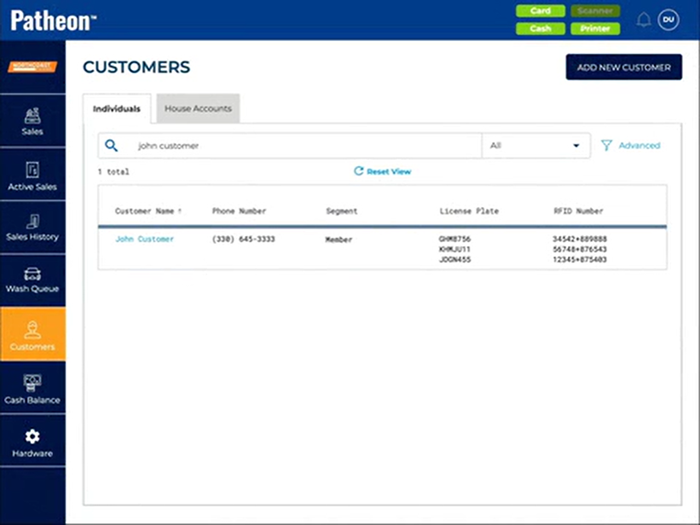
- Select the customer's name. The Customer panel opens.
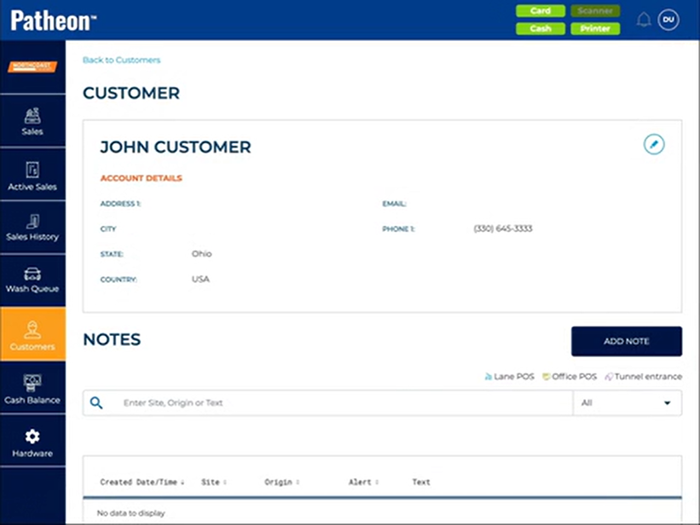
- Navigate to the Plans section.
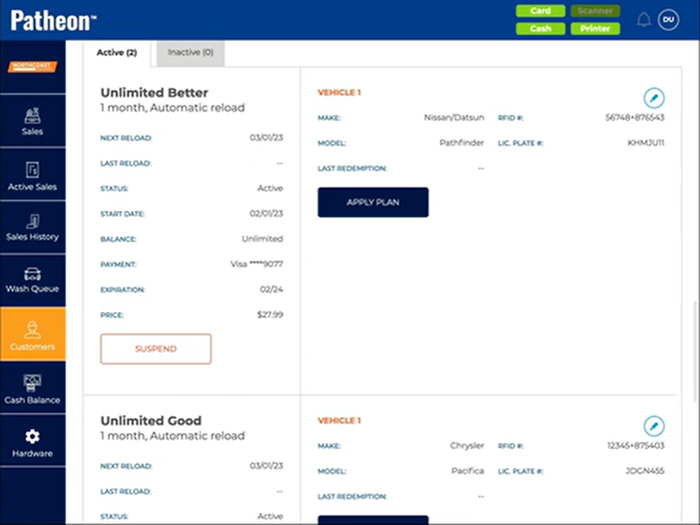
- Select the edit function for the plan. The Plan Details panel opens.
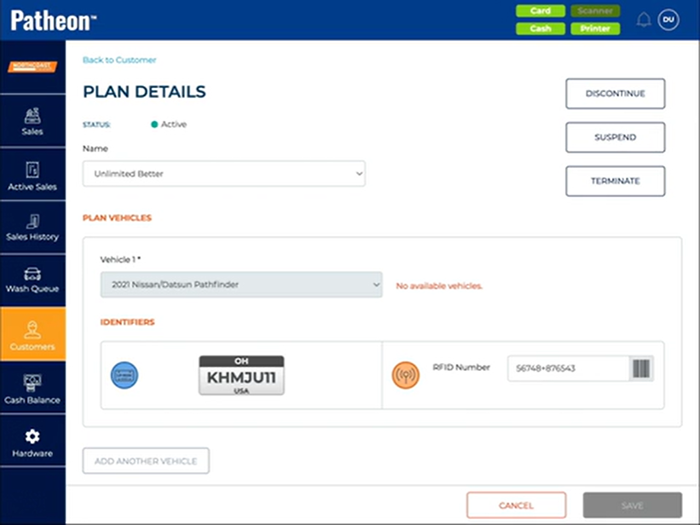
- Select . A Confirm Plan Termination dialog opens.
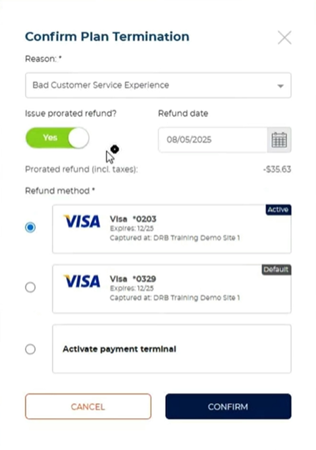
- In Reason, select the reason.
- Set Issue prorated refund? according to the site's policy.
- If Issue prorated refund? is set to Yes, set the Refund date.
- Select . The sales panel opens and the transaction is added to the cart.
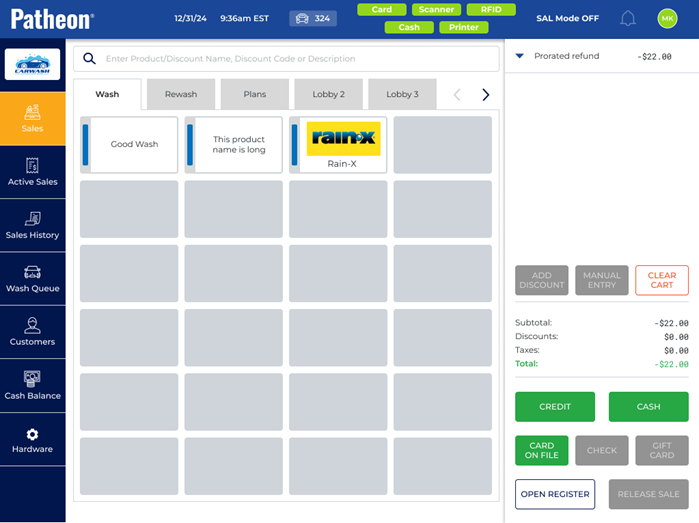
- If there is a refund, tender the refund.
Terminate an Unlimited Plan with Limited Permission
- Log in to the cashier application.
- Select Customers. The Customers panel opens.
- Locate the customer that wants to terminate their plan.
- Select the customer's name. The Customer panel opens.
- Navigate to the Plans section.
- Select the edit function for the plan. The Plan Details panel opens.
- Select . A Confirm Plan Termination dialog opens.
- In Reason, select the reason.
- Set Issue prorated refund? according to the site's policy.
- If Issue prorated refund? is set to Yes, set the Refund date.
- Select . The sales panel opens and the transaction is added to the cart.
- If there is a refund, tender the refund. The Authorization required dialog opens.
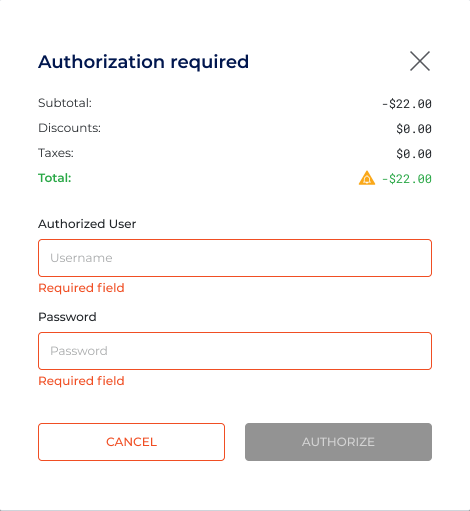
- In Authorized User, the employee with the correct permission enters their username.
- In Password, enter the password.
- Select . The refund is tendered to the selected method.