Add a Note to a Sale
Use these steps to apply a note to a sale on a cashier terminal. The notes added during a sale print on the pre-receipt once the sale is tendered. Sales notes can be selected from a pre-configured list (created in the Sale Notes Management panel) or manually entered (140 characters maximum) at the time of the sale.
Note: Multiple notes can be added (and printed) to a single sale.
- Log in to the cashier application.
- Select Sales. The Sales panel opens.
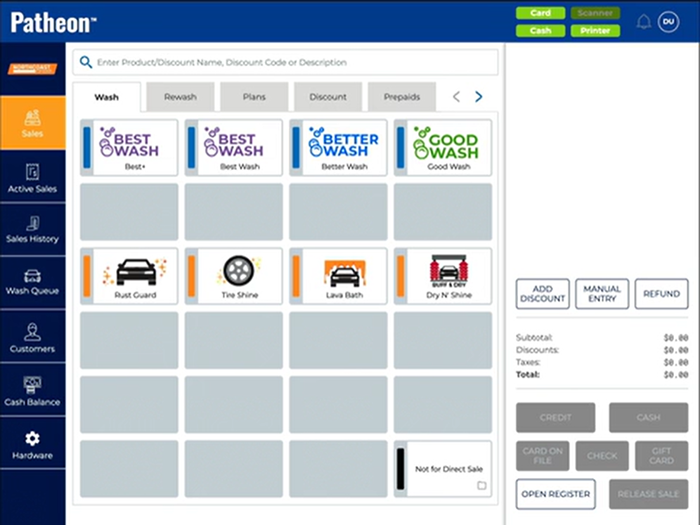
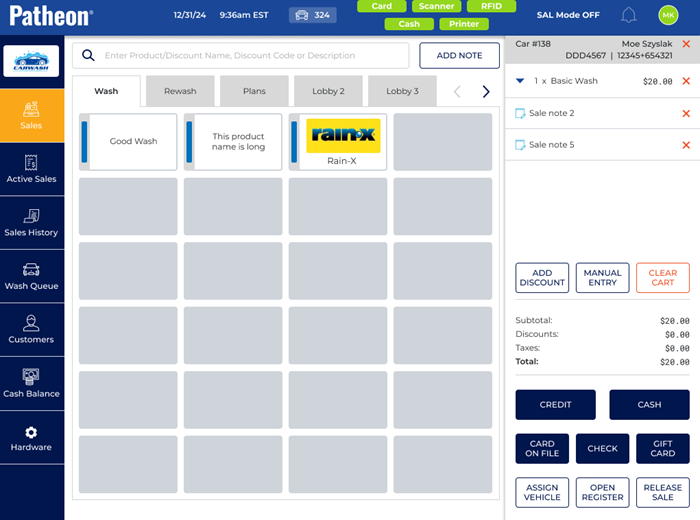
- Select an item to add to the sale. The item is added to the cart and the function is enabled.
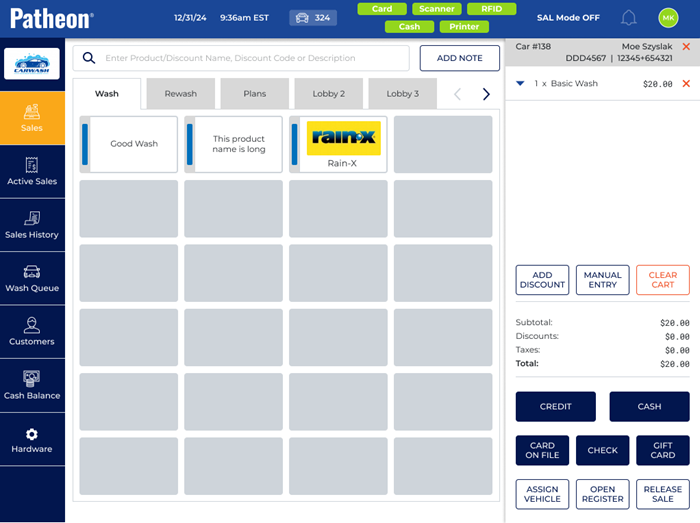
- Select . A Preset | Custom dialog opens.
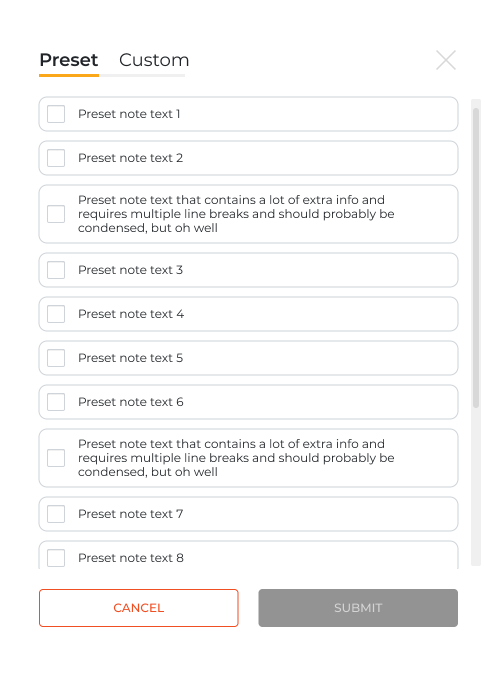
- To add a preset note, select it. A check mark displays next to the selected message.
- To add a custom note, select Custom. The Custom tab opens.
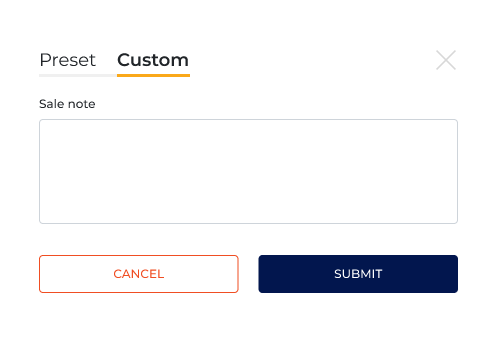
- In Sale note, enter the custom message text to print on the pre-receipt. Note: The Sale note field is limited to 140 characters.
- Select . The dialog closes and the note is added below the cart.
- Tender the sale. The pre-receipt prints with the sales note(s).