Configure Store and Forward Limits
Use these steps to enable, and configure per sale and all sales limits, for the credit card processing store and forward function. These settings are configured for each site, in the site's Site Details panel.
Warning: Use of the store and forward feature can create a risk of financial loss.
CardConnect
Use these steps to enable and then configure store and forward limits for kiosk terminal payment card readers at a site that uses CardConnect as its payment processor. Note that store and forward is only available for kiosk terminals, and these settings aren't available to be configured unless the store and forward feature is enabled for the site by DRB staff. An organization must complete the Patheon CardConnect Store and Forward agreement to request the feature to be enabled. After the feature is enabled, the site must configure the store and forward limits in Patheon Portal, using the following steps.
- Open Patheon Portal.
- Select Configuration.
- Select Sites. The Sites panel opens.
- Select the Name of the site the store and forward limits are being configured. The site's Site Overview panel opens.
- Select the edit icon (
 ) in the top right corner. The site's Site Details panel opens.
 - Navigate to the Currencies, Payment Processors and Methods section.
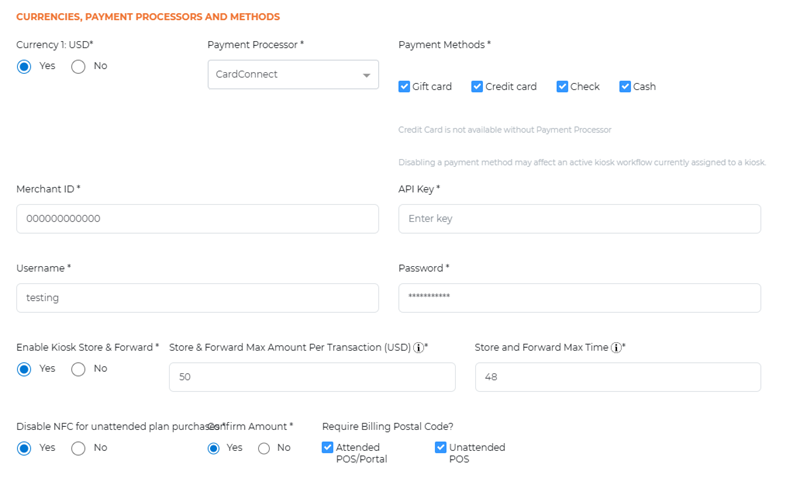
- In Enable Kiosk Store & Forward*, select Yes.
- In Store & Forward Max Amount Per Transaction (USD)*, enter the maximum amount per transaction that a customer can purchase when the payment card reader at a kiosk terminal is in store and forward mode. Tip: Set this to the price (after tax if applicable) of the site's highest priced wash package, for example, 50.
- In Store and Forward Max Time*, enter the maximum amount of time, in hours, that a payment card reader at a kiosk terminal can be in store and forward mode, uninterrupted, before it will stop accepting payment cards. After the configured time limit is met, new attempts to tender a sale at the card reader will be declined, and customers will need to tender sales with an alternative payment method, such as cash. Tip: Set this field to 48 or higher to support extended outages.
- Select . The changes are saved.
Worldpay
Use these steps to configure store and forward limits for a site that uses Worldpay as its payment processor.
- Open Patheon Portal.
- Select Configuration.
- Select Sites. The Sites panel opens.
- Select the Name of the site the store and forward limits are being configured. The site's Site Overview panel opens.
- Select the edit icon () in the top right corner. The site's Site Details panel opens.
- Navigate to the Currencies, Payment Processors and Methods section.
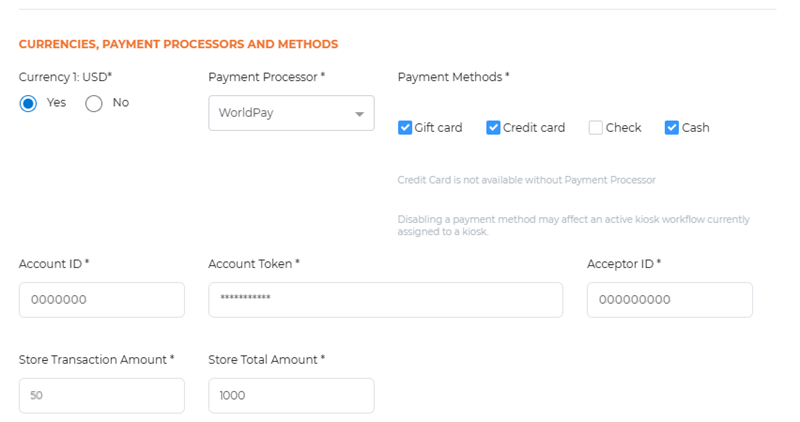
- In Store Transaction Amount*, enter the per transaction limit for store and forward processing. Tip: Set this to the price (after tax if applicable) of the site's highest priced wash package, for example, $50.
- In Store Total Amount*, enter the total transaction limit for store and forward processing. Tip: Set this to the maximum total amount that can be accepted while store-and-forward is active, for example, $1000.
- Select . The changes are saved.
Moneris
Use these steps to configure store and forward limits for a site that uses Moneris as its payment processor.
- Open Patheon Portal.
- Select Configuration.
- Select Sites. The Sites panel opens.
- Select the Name of the site the store and forward limits are being configured. The site's Site Overview panel opens.
- Select the edit icon () in the top right corner. The site's Site Details panel opens.
- Navigate to the Currencies, Payment Processors and Methods section.
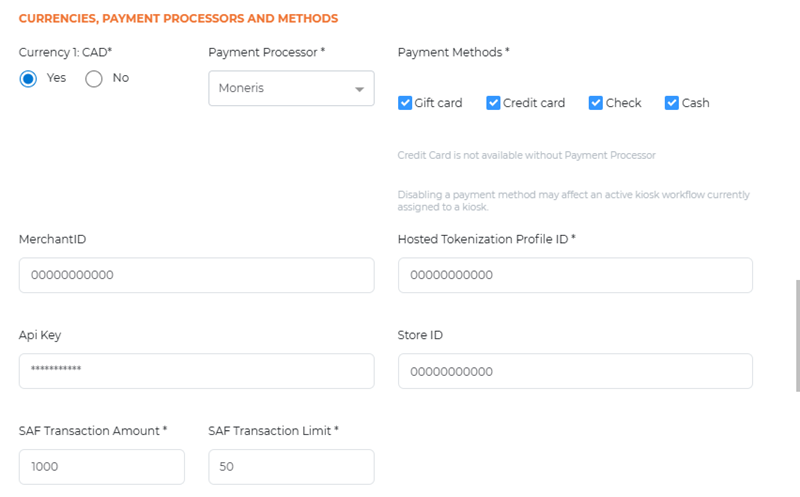
- In S&F Transaction Amount*, enter the total transaction limit (cumulative amount for all sales) that can be accepted for store and forward processing. Tip: Set this to the maximum total amount that can be accepted while store-and-forward is active, for example, $1000.
- In S&F Transaction Limit*, enter the per transaction limit that can be accepted for store and forward processing. Tip: Set this to the price (after tax if applicable) of the site's highest priced wash package, for example, $30.
- Select . The changes are saved.