Configure a Discounted Switch Plan Offer for EWA
Use these steps to configure a discounted switch plan offer for the EWA in Patheon Portal. The promotion is triggered when a customer's current plan is discontinued. The promotion displays a custom message and offers the customer a discounted option to switch to a suggested replacement plan.
Steps
Use the following steps to add and configure a discounted plan retention offer for EWA mobile app customers who have a discontinued plan.
- Log In to Patheon Portal.
- Select Promotions. The promotions panel opens.
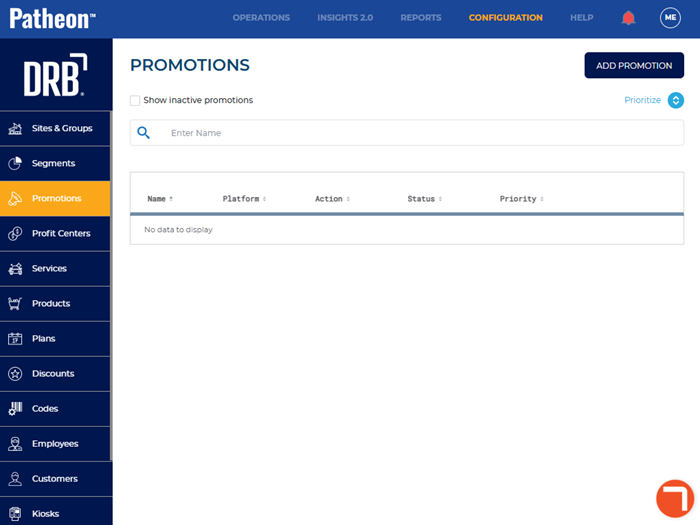
- Select . The Add promotion (1 Conditions) panel opens.
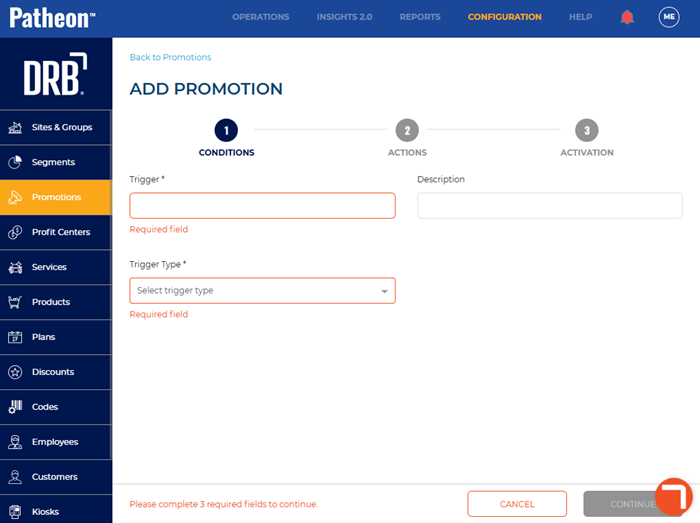
- In Trigger*, enter a name for the trigger, such as EWA Retention Offer.
- In Trigger Type*, select Plan discontinuation. The plan discontinuation trigger options open.
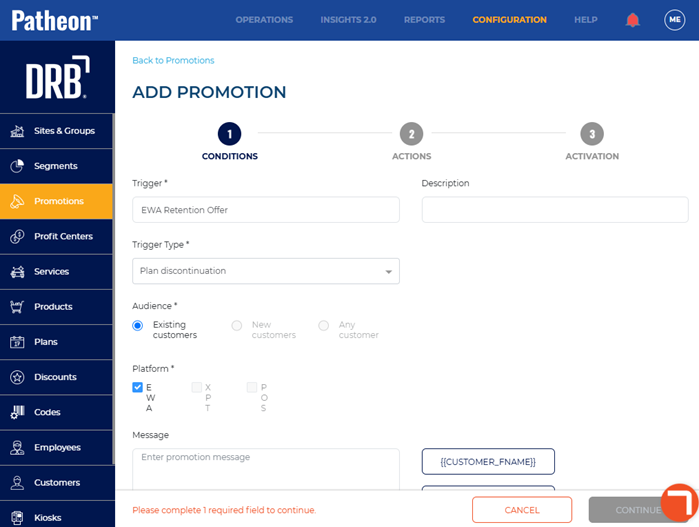
- In Message, enter the message to display when the discount is triggered. Note: To include customer or plan-specific information, select a message variable to insert it into the message.
- Navigate to the conditions section.
- Select Plans. The Plans options open.
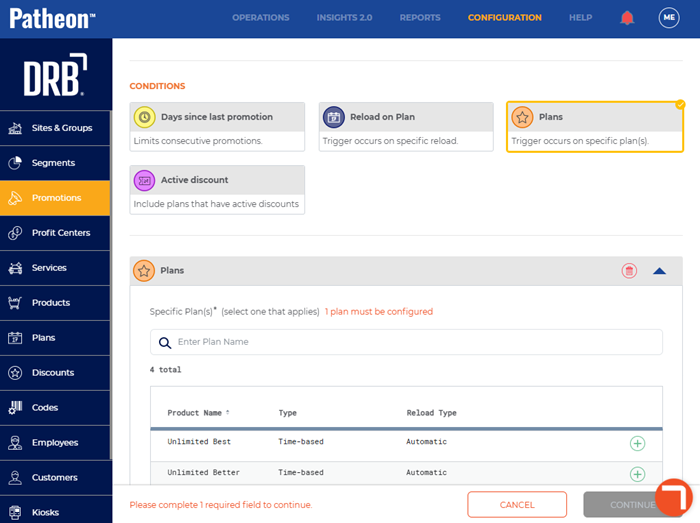
- Select the plan(s) that should trigger the discount.
- Select . The add promotion (2 actions) panel opens.
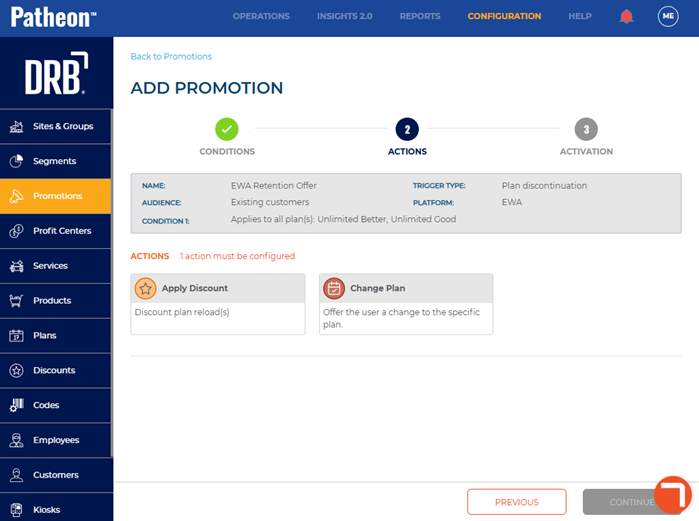
- Select Apply Discount. The Apply Discount options open.
- Select Change Plan. The Change Plan options open.
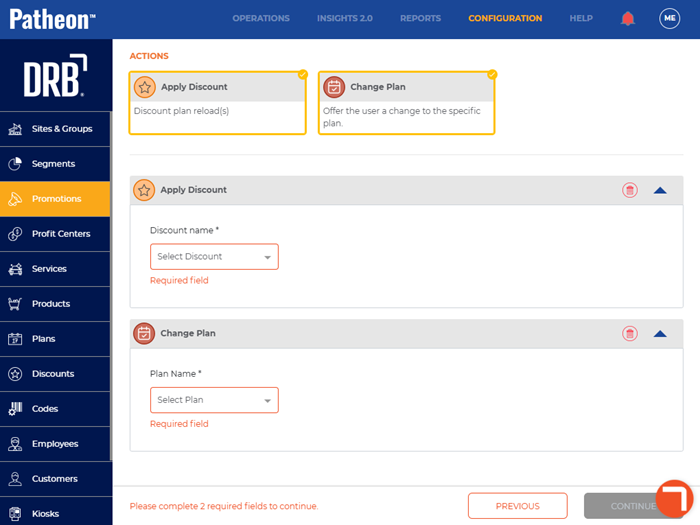
- In Discount name*, select the discount to apply. See Configure a Discount for an Active Wash Plan for steps to add and configure a discount for an active wash plan.
- In Plan Name*, select the plan to be suggested.
- Select . The add promotion (3 activation) panel opens.
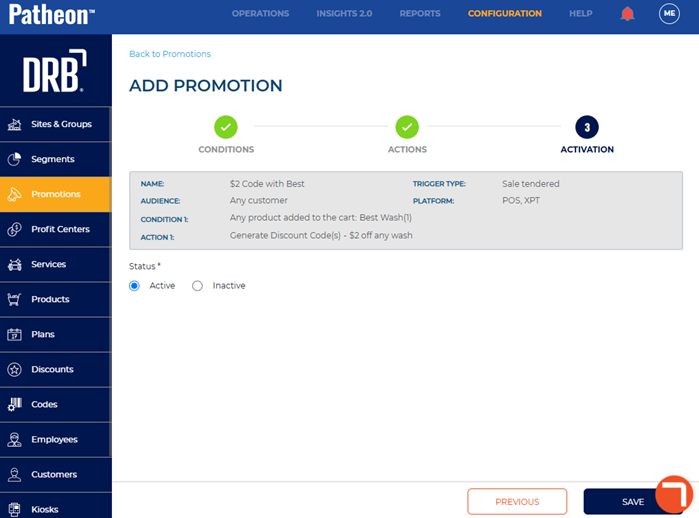
- Select . The promotions panel opens and the newly created promotion displays in the list.