Add a Kiosk Personalized Gift Card Upsell Screen
Use the steps below to create a kiosk workflow that allows customers redeeming a Time-Based Automatic Renewal (TBAR) plan (using the On Plan Redemption trigger) or a single wash (using the Product Selection {Wash Name} trigger) to add a gift card during the redemption flow.
See Kiosk Personalized Promotions to learn more about kiosk terminal personalized promotions.
Tools Required
- Kiosk terminal(s)
- Patheon Promotion Flows feature enabled. This feature is enabled by default for all organizations with license plate recognition.
Important Considerations
- Generic widgets cannot be added to upsell screens.
- These screens use standard templates that require a purchase widget and standard button options.
Configuration Steps
Create a Gift Card Upsell Promotion Flow
Use these steps to create a promotion workflow for the gift card upsell.
- Log In to Patheon Portal.
- Select Kiosks. The Flows List panel opens.
- Select Promotion Flows. The Promotion Flows panel opens.
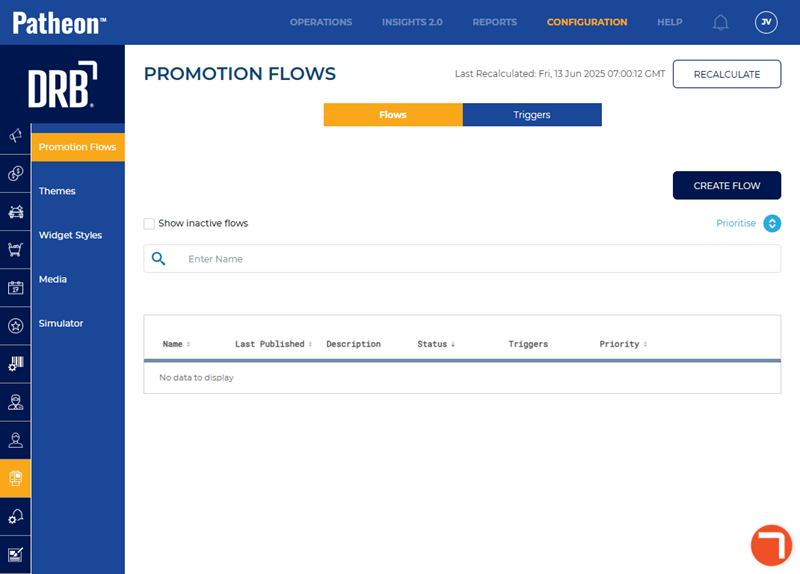
- Select . The Create Flow panel opens.
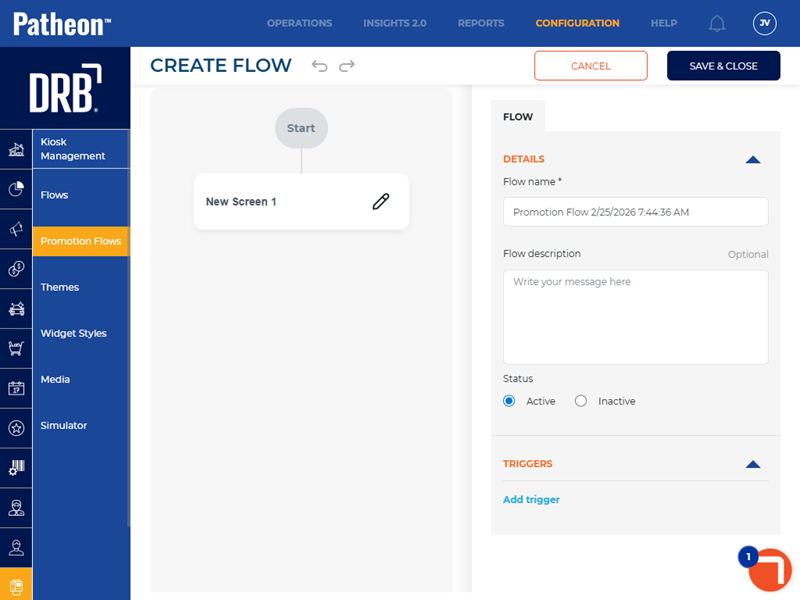
- In Flow name*, enter a name, such as, Gift Card Upsell.
- In Status, select Active.
- Navigate to the screen design panel.
- For New Screen 1, select Edit (
 ).The New Screen 1 panel opens.
- In Screen name*, enter a name for the screen, such as, TBAR Gift Card Upsell.
- In Screen type, select Upsell. A blank widget opens on the screen, as well as , , and widgets.
- Select the blank widget on the screen. The widget settings open.
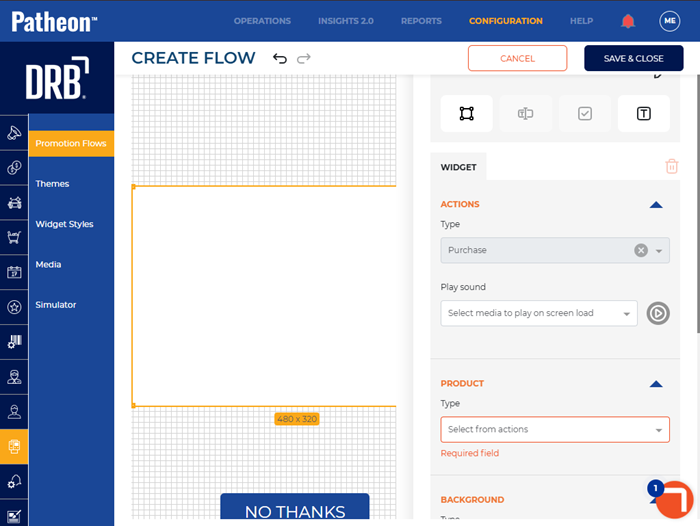
- Navigate to the product section.
- In Type, select Gift Card.
- In Gift Card, select desired gift card.
- Use the item name section, item price section, background section, and settings section to customize the widget.
- Select the Widget tool (
 ). A widget opens on the screen.
- Repeat to customize the widget for gift card upsells.
- Select the Text tool (
 ). A text box opens on the screen.
- Double-click the text box on the screen.
- Enter text, such as, Would you like to add a gift card?
- Use the style section and settings section to customize the text.
- Select Save.
- Navigate to the FLOW tab.
- Next to the FLOW tab, select Edit ().
- Navigate to the Triggers section.
- Select Add trigger. The Select Trigger* setting opens.
- In Select Trigger*, select On Plan Redemption or Product Selection {Wash Name}.
- Select
Publish the Promotion Flow
Use these steps to publish the promotion flow created in the above steps.
- Log In to Patheon Portal.
- Select Kiosks. The flows list panel opens.
- Select the TBAR Gift Card Upsell flow from the Flows list. This is the name of the flow created in previous steps. The workfloW Overview panel opens.
- Select the edit icon next to SITES. The activated sites panel opens.
- Select the sites for which the flow should be available.
- Select . The activated sites panel opens and the screen is activated for the selected sites.
- Select . The flow is published to the selected sites.