Add a Kiosk Personalized Loyalty Screen
Use the steps below to create a kiosk workflow that incentives frequent purchases by rewarding customers based on their visit frequency. When the customer is identified by a license plate reader, the alternative loyalty promotion is triggered and displayed for the customer. The customer can accept the loyalty promotion and proceed with the purchase, or decline it and proceed with the standard kiosk workflow.
Note: This configuration can be customized for different visit histories, for example, 5 washes of any kind in the past 30 days, 5 good washes in the past 60 days, 3 good washes in the past 90 days, 2 better washes in the past 90 days, etc.
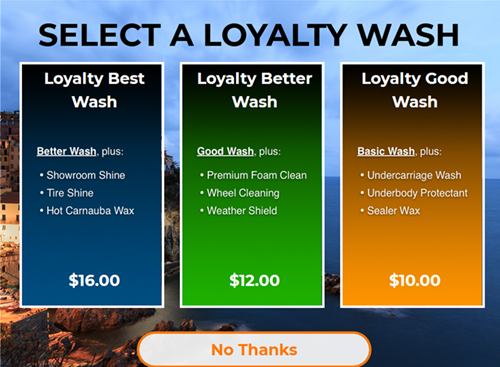
See Kiosk Personalized Promotions to learn more about kiosk terminal personalized promotions.
Tools Required
- License plate recognition
- Kiosk terminal(s)
- Patheon Promotion Flows feature enabled. This feature is enabled by default for all organizations with license plate recognition.
Configuration Steps
Create a Segment
Use the following steps to create a customer segment that tracks customer visits. In this example, we configure a segment for customers who purchased a single wash in the last 7 days.
- Log In to Patheon Portal.
- Select Configuration. The Configuration page opens.
- Select Segments. The Segments panel opens.
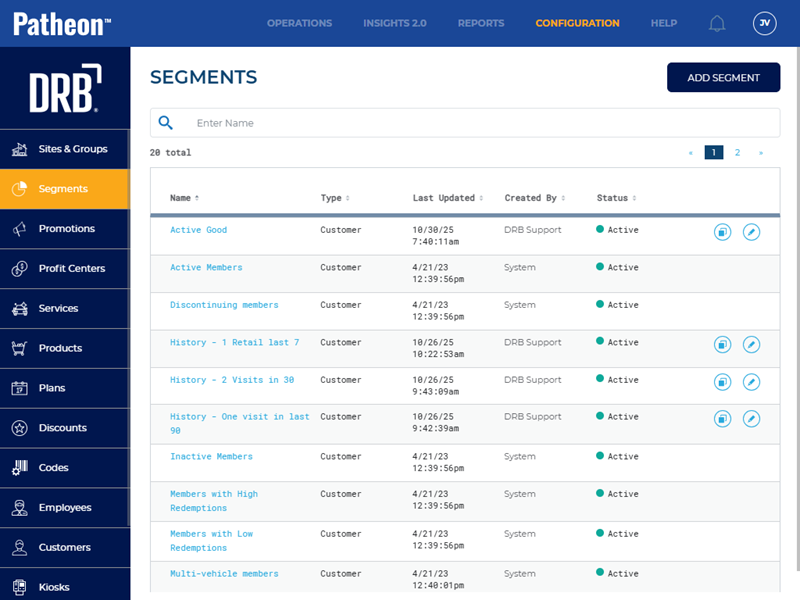
- Select . The Add Segment panel opens.
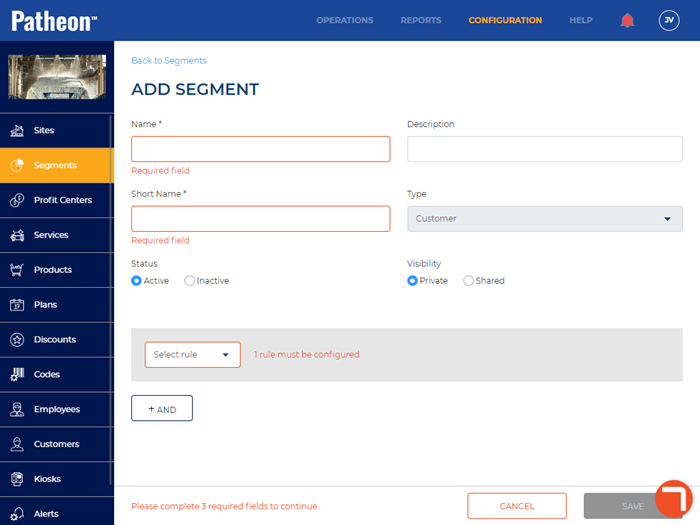
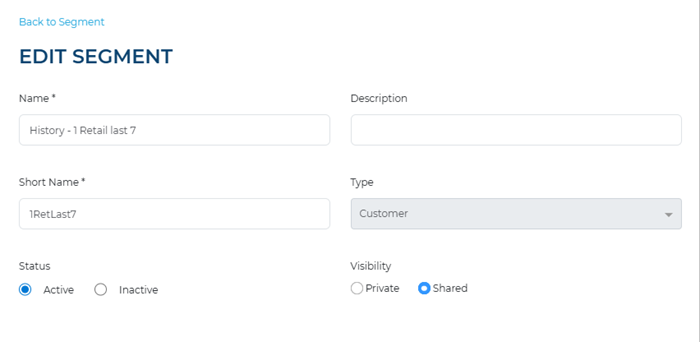
- In Name*, enter a name for the segment, such as, History - 1 Retail Last 7.
- In Short Name*, enter short name for the segment, such as, 1RetLast7.
- In Status, select Active.
- In Visibility, select Shared.
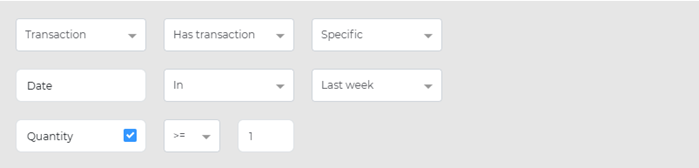
- In Select rule, select Transaction. The Has transaction, Specific, Date, Today, and Quantity settings open.
- Select Has transaction.
- Select Specific.
- Select Date.
- Select In.
- Select Last week.
- Select Quantity. The >= and quantity value settings open.
- Select >=.
- In the quantity value setting, enter 1. The Select condition setting opens.
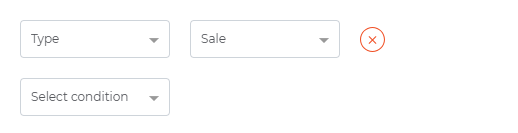
- Select Type.
- Select Sale.
- Select . The customer segment is saved.
Create a Trigger
Use the following steps to create an On customer recognition trigger for the History - 1 Retail Last 7 customer segment configured in the previous steps.
- Log In to Patheon Portal.
- Select Configuration. The Configuration page opens.
- Select Kiosks. The Flows List panel opens.
- Select Promotion Flows. The Promotion Flows panel opens.
- Select Triggers. The Triggers panel opens.
- Select . The Create Trigger panel opens.
- In Name*, enter a name, such as, History - 1 Retail Last 7.
- In Type, select On customer recognition.
- In Audience, select Existing customers.
- Navigate to the Conditions section.
- Select Segment. A Segment section opens.
- In Choose segment*, select History - 1 Retail Last 7. This is the name of the segment created in the previous steps.
- In Status, select Active.
- Select .
Duplicate Wash
Use the following steps to duplicate the washes you want to offer for the loyalty promotion.
- Log In to Patheon Portal.
- Select Configuration. The Configuration page opens.
- Select Products. The products panel opens.
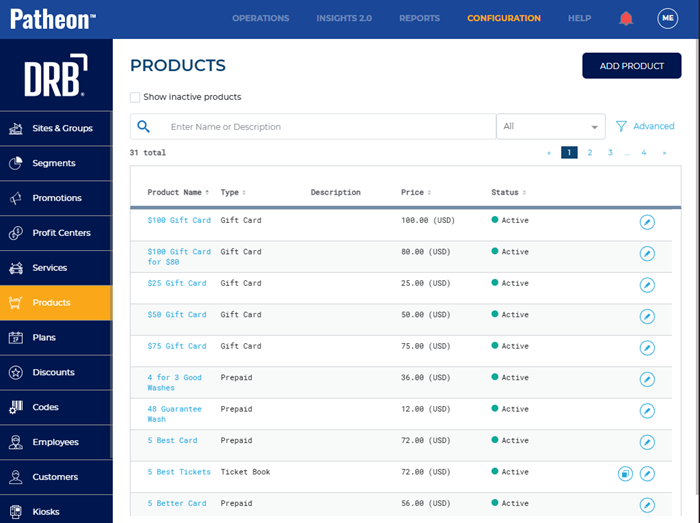
- Navigate to the wash you want to offer for the loyalty promotion.
- Select duplicate (
 ). The product details panel opens.
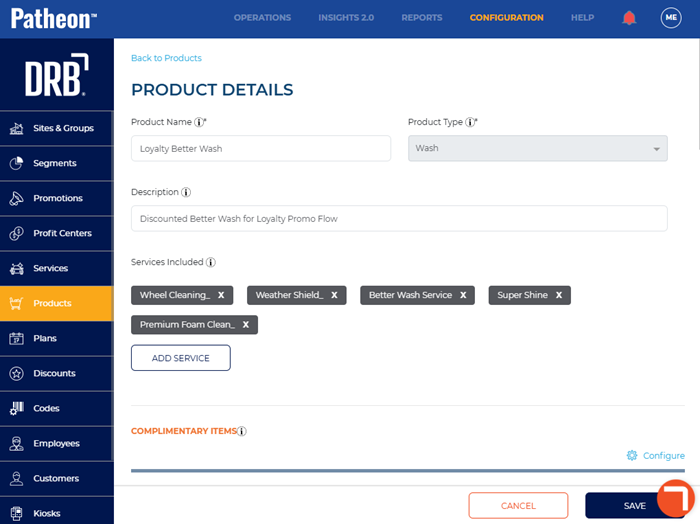
 - In Product Name*, enter a name for the wash, such as, Loyalty Better Wash.
- In Description, enter a description for the wash, such as Discounted Better Wash for Loyalty Promo Flow.
- Navigate to the pricing & tax section.
- In Price (USD)*, enter a discount price for the loyalty wash.
- Navigate to the Visibility section.
- In Show on POS and Kiosk Staff Screen, select No.
- Select . The wash is saved and the products panel opens.
- Repeat for each wash you want to offer for the loyalty promotion.
Create a Loyalty Promotion Flow
- Log In to Patheon Portal.
- Select Configuration. The Configuration page opens.
- Select Kiosks. The Flows List panel opens.
- Select Promotion Flows. The Promotion Flows panel opens.
- Select . The Create Flow panel opens.
- Navigate to the tab.
- Navigate to the Details section.
- In Flow name*, enter Retail Loyalty.
- In Status, select Active.
- Navigate to the Triggers section.
- Select Add trigger. The Select Trigger* setting opens.
- In Select Trigger*, select History - 1 Retail Last 7. This is the name of the trigger created in the previous steps.
- Navigate to the screen design panel.
- For New Screen 1, select Edit. The New Screen 1 panel opens.
- Navigate to the tab.
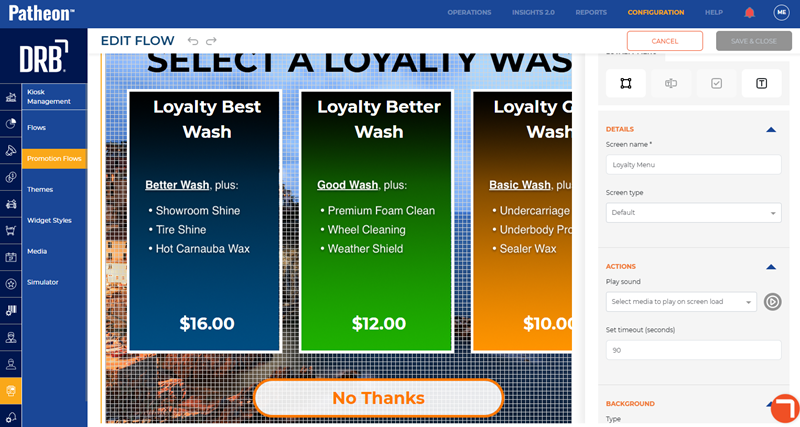
- In Screen name*, enter a name, such as, Loyalty Menu.
- Select the Text tool (
 ). A text box opens on the screen.
 - Double click the text box on the screen.
- Enter text, such as, Save $2 off our normal pricing by visiting weekly.
- Select the Widget tool (
 ). A widget opens on the screen.
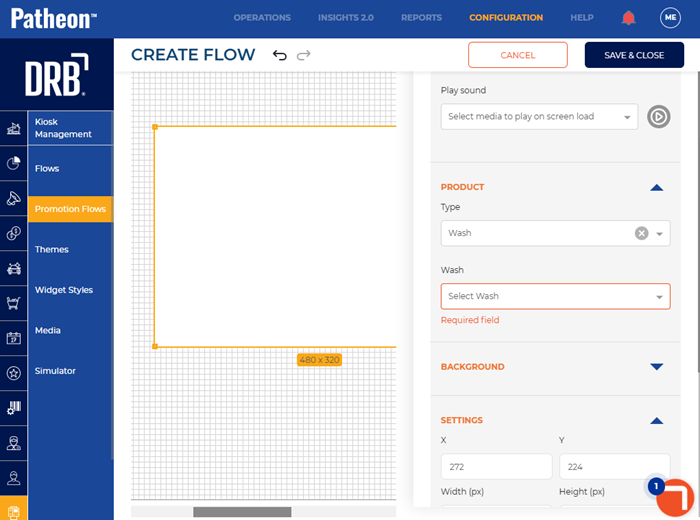
 - Navigate to the Actions section.
- In Type, select Purchase. The product section opens.
- In Type, select Wash.
- In Wash, select desired wash.
- Navigate to the navigation section.
- In Navigate to, select Payment flow or Upsell screen.
- Repeat the widget-creation process for each additional wash option you want to display on the kiosk screen.
- Select the Widget tool (). A widget opens on the screen.
- Navigate to the Actions section.
- In Type, select Select.
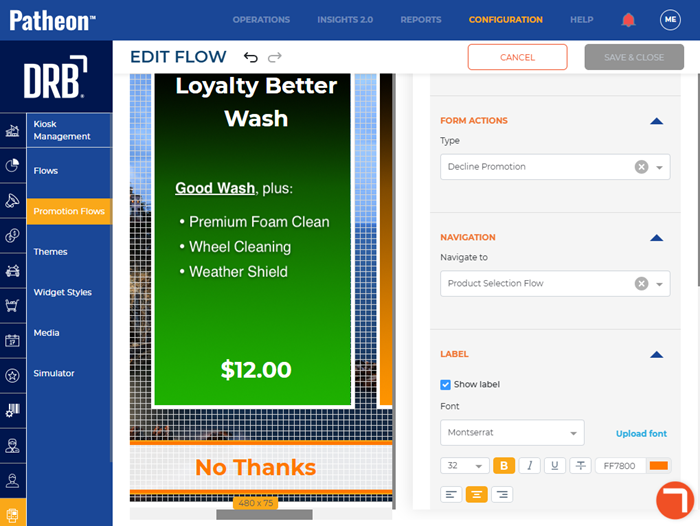
- Navigate to the form actions section.
- In Type, select Decline Promotion.
- Navigate to the navigation section.
- In Navigate to, select Product Selection Flow.
- Use the Details section, Actions section, and Background section to configure the new loyalty screen.
- Select . The Promotion Flows panel opens.
Publish Flow
- Log In to Patheon Portal.
- Select Kiosks. The flows list panel opens.
- Select the Loyalty Menu from the Flows list. The workfloW Overview panel opens.
- Select the edit icon next to SITES. The activated sites panel opens.
- Select the sites for which the screen should be available.
- Select . The activated sites panel opens and the screen is activated for the selected sites.
- Select . The screen is published to the selected sites.