Add a Kiosk Personalized TBAR Redemption A-la-Carte Upsell Screen
Use the steps below to create a kiosk workflow that allows customers redeeming a Time-based Automatic Renewal (TBAR) plan to add one-time a-la-carte options during the redemption flow and pay the difference. This workflow can be used to present available add-ons at redemption and collect the additional amount due as part of the kiosk experience.
See Kiosk Personalized Promotions to learn more about kiosk terminal personalized promotions.
Tools Required
- Kiosk terminal(s)
- Patheon Promotion Flows feature enabled. This feature is enabled by default for all organizations with license plate recognition.
Important Considerations
- Generic widgets cannot be added to upsell screens.
- These screens use standard templates that require a purchase widget and standard button options.
Configuration Steps
Use the following steps to create and configure the promotion workflow.
Create a Plan Member Segment
Use these steps to create a segment to identify TBAR wash plan members. Note: While these steps create a segment for Unlimited Good wash plan members (as an example), additional segments can be created, one for Unlimited Better plan members and one for Unlimited Best plan members if the upsell options are different based on plan. Alternatively, a single, segment that identifies all TBAR plan members can be created if the same upsell options are offered to all TBAR plan members, regardless of plan.
- Log In to Patheon Portal.
- Select Segments. The segments panel opens.
- Select . The add segment panel opens.

- In Name*, enter a name for the segment, such as TBAR A-la-Carte Upsell.
- In Short Name*, enter a shorter unique name to identify the segment, such as TBARUpsell. Note: Max length is 16.
- In Select rule, select Plan.
- In Has plan, select Has plan.
- In Any, select Specific.
- In Select condition, select Name.
- In Select plan, select the plan name, for example, Unlimited Good.
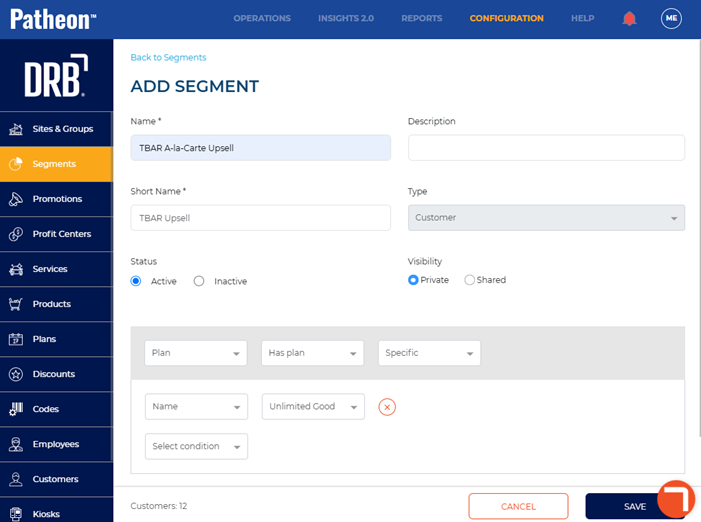
- Select . The segments panel opens and the new segment appears in the Segments list.
Create an Upsell Trigger
Use these steps to create a trigger for the TBAR a-la-carte upsell screen.
- Log In to Patheon Portal.
- Select Kiosks. The Flows List panel opens.
- Select Promotion Flows. The Promotion Flows panel opens.
- Select Triggers. The Triggers panel opens.
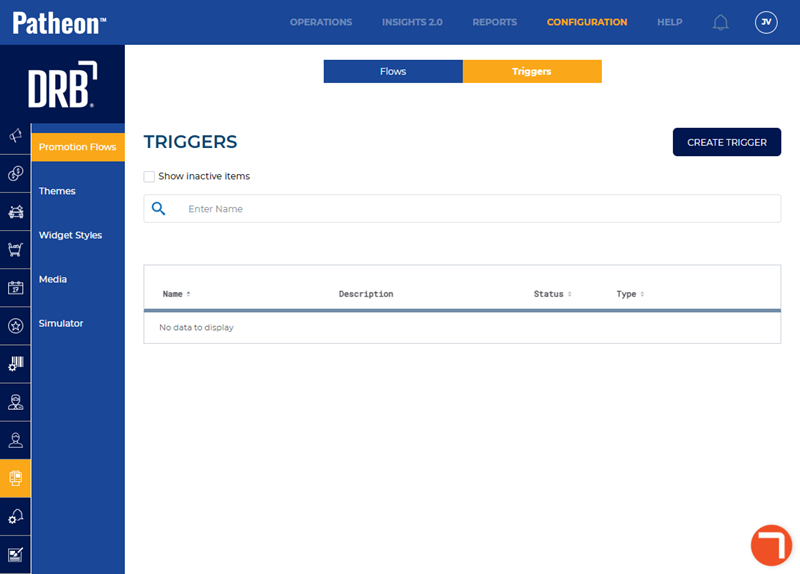
- Select . The Create Trigger panel opens.
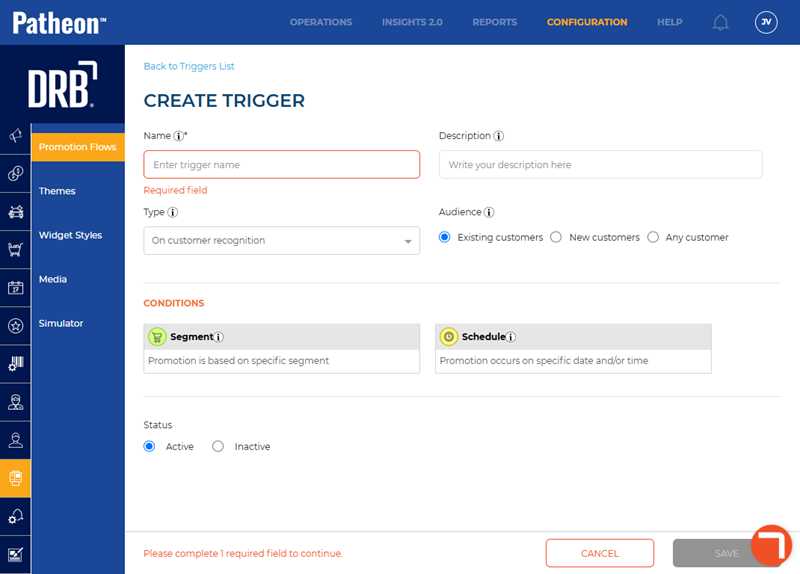
- In Name*, enter a name for the trigger, such as TBAR Upsell.
- In Type, select On plan redemption.
- Navigation to the conditions section.
- Select Segment.
- In Choose segment*, select the name of the segment created above, for example, TBAR A-la-Carte Upsell.
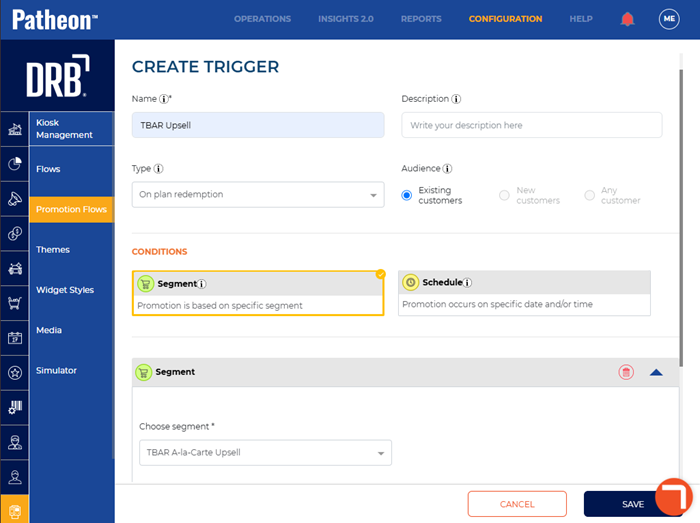
- Select . The triggers panel opens and the new trigger appears in the Triggers list.
Create an Upsell Promotion Flow
Use these steps to create a promotion workflow for the TBAR a-la-carte upsell.
- Log In to Patheon Portal.
- Select Kiosks. The Flows List panel opens.
- Select Promotion Flows. The Promotion Flows panel opens.
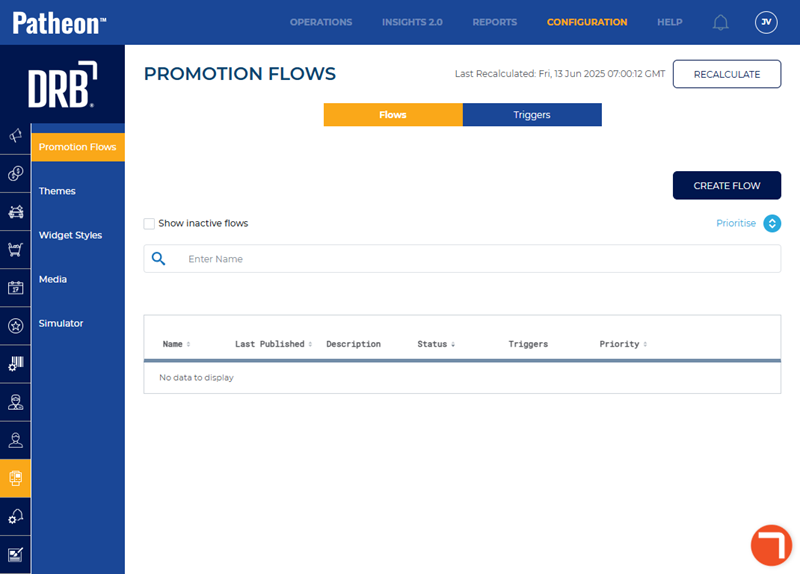
- Select . The Create Flow panel opens.
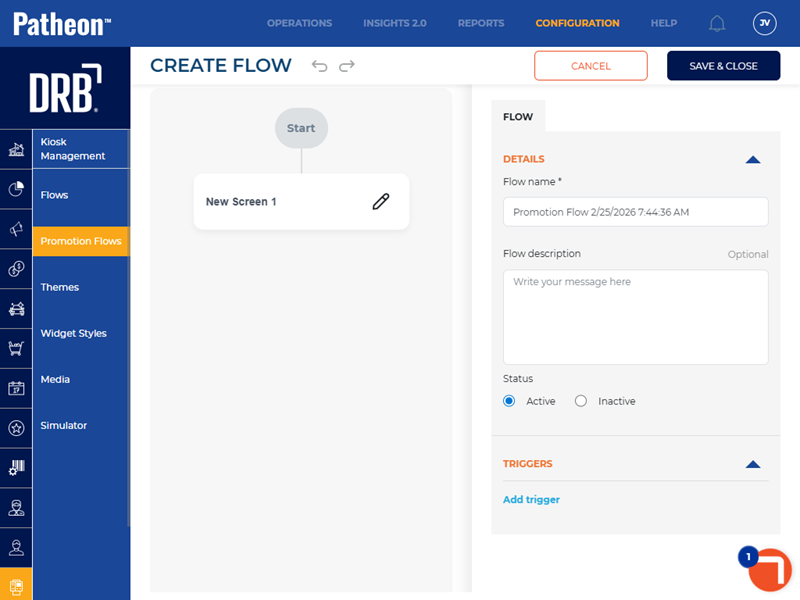
- Navigate to the tab.
- Navigate to the Details section.
- In Flow name*, enter a name, such as, TBAR A-la-Carte Upsell.
- In Status, select Active.
- Navigate to the screen design panel.
- For New Screen 1, select Edit (
 ).The New Screen 1 panel opens.
 - In Screen name*, enter a name for the screen, such as, TBAR A-la-Carte Upsell.
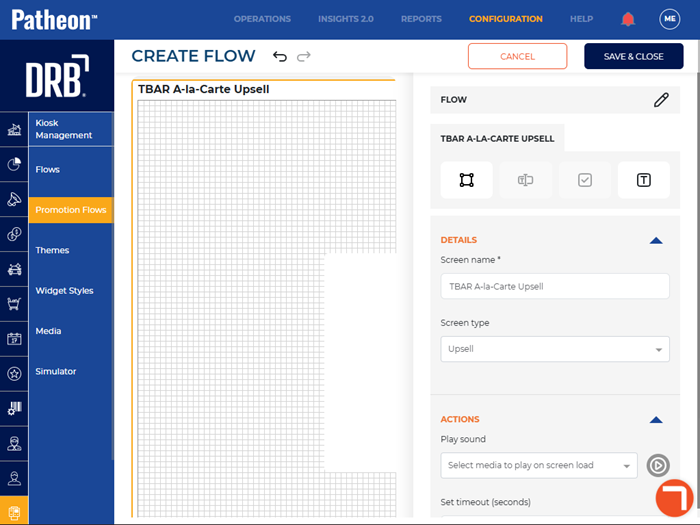
- In Screen type, select Upsell. A blank widget opens on the screen, as well as , , and widgets.
- Select the blank widget on the screen. The widget settings open.
- Navigate to the product section.
- In Type, select A la Carte.
- In A la Carte, select desired a la carte product.
- Use the item name section, item price section, background section, and settings section to customize the widget.
- Select the Widget tool (
 ). A widget opens on the screen.
 - Repeat to customize the widget for a la carte upsells.
- Select the Text tool (
 ). A text box opens on the screen.
 - Double-click the text box on the screen.
- Enter text, such as, Would you like to upgrade your wash?.
- Use the style section and settings section to customize the text.
- Select the widget. The widget settings open.
- Navigate to the navigation section.
- Select Add navigation. The a la carte options created for the previous widgets open. Note: Add custom navigation only if you want to offer customers a chance to save more by selecting a higher-tiered wash. This is not required if you're only offering simple a la carte options. If you want a simpler flow, you can also place plans or alternate washes on the same single page.
- Select Save.
- Navigate to the FLOW tab.
- Next to the FLOW tab, select Edit ().
- Navigate to the Triggers section.
- Select Add trigger. The Select Trigger* setting opens.
- In Select Trigger*, select TBAR Upsell. This is the name of the trigger created in the previous steps.
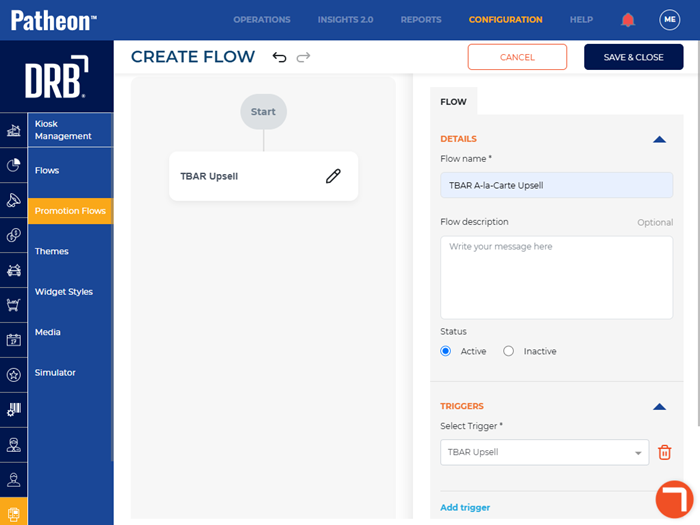
- Select .
Publish the Promotion Flow
- Log In to Patheon Portal.
- Select Kiosks. The flows list panel opens.
- Select the TBAR A-la-Carte Upsell flow from the Flows list. This is the name of the flow created in previous steps. The workfloW Overview panel opens.
- Select the edit icon next to SITES. The activated sites panel opens.
- Select the sites for which the flow should be available.
- Select . The activated sites panel opens and the screen is activated for the selected sites.
- Select . The flow is published to the selected sites.