Add a Kiosk Personalized Wash Upsell Screen
Use the steps below to create a kiosk workflow that offers a wash upsell based on the customer's a la carte item selection.
Note: Variations of this workflow configuration can alternatively be used to simply present multiple upsell screens after wash selection, before payment, that aren't necessarily based on a la carte selection.
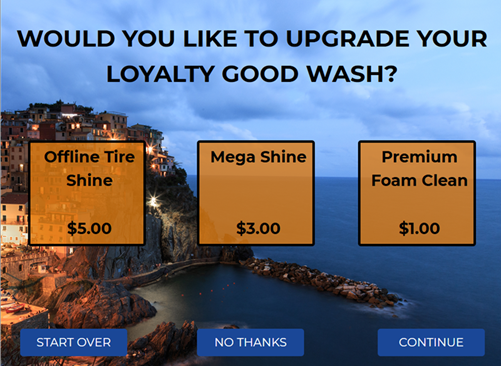
See Kiosk Personalized Promotions to learn more about kiosk terminal personalized promotions.
Tools Required
- Kiosk terminal(s)
- Patheon Promotion Flows feature enabled. This feature is enabled by default for all organizations with license plate recognition.
Note: Unlike some kiosk personalized promotion workflows, this one does not require license plate recognition.
Configuration Steps
Create a Product Selection Trigger
- Log In to Patheon Portal.
- Select Configuration. The Configuration page opens.
- Select Kiosks. The Flows List panel opens.
- Select Promotion Flows. The Promotion Flows panel opens.
- Select Triggers. The Triggers panel opens.
- Select . The Create Trigger panel opens.
- In Name*, enter a name for the trigger, such as, Product Selection - Good Wash.
- In Type, select On product selection.
- In Audience, select Any customer.
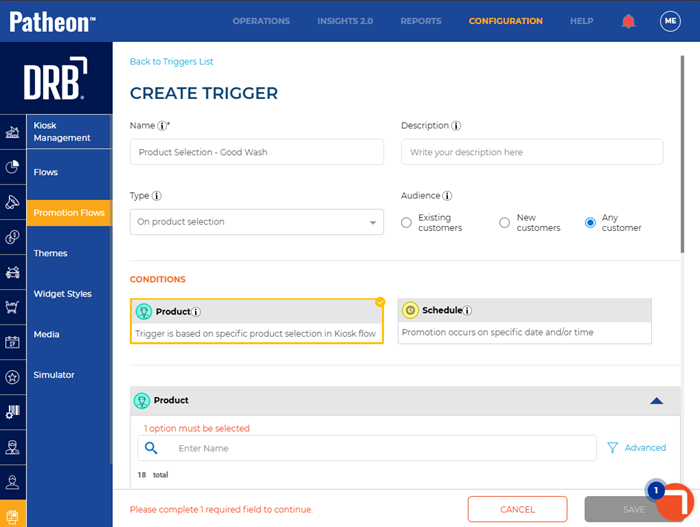
- Navigate to the Conditions section.
- Select Product. A Product section opens.
- Navigate to the product you want for the upsell choice and select add (
 ).
). - In Status, select Active.
- Select .
Create a Wash Upsell Flow for the Product Selection Trigger
Use the following steps to create a Wash Upsell promotion flow using the Product Selection - Good Wash trigger created in the previous steps.
- Log In to Patheon Portal.
- Select Configuration. The Configuration page opens.
- Select Kiosks. The Flows List panel opens.
- Select Promotion Flows. The Promotion Flows panel opens.
- Select . The Create Flow panel opens.
- Navigate to the tab.
- Navigate to the Details section.
- In Flow name*, enter a name for the flow, such as, Good Wash Upsell Flow.
- In Status, select Active.
- Navigate to the screen design panel.
- For New Screen 1, select Edit. The New Screen 1 panel opens.
- Navigate to the tab.
- In Screen name*, enter a name, such as, Good Wash Upsell Screen.
- In Screen type, select Upsell. A blank widget opens on the screen, as well as , , and widgets.
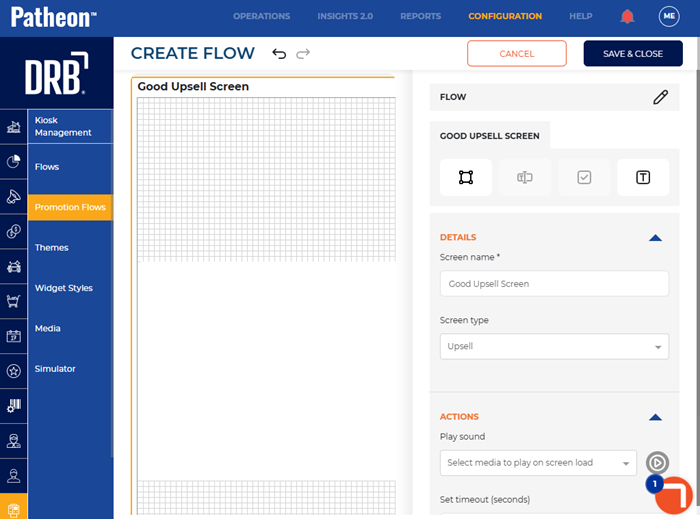
- Select the blank widget on the screen. The widget settings open.
- Navigate to the product section.
- In Type, select A la Carte.
- In A la Carte, select desired a la carte product.
- Use the item name section, item price section, background section, and settings section to customize the widget.
- Select the Widget tool (
 ). A widget opens on the screen.
 - Repeat steps 19-22 to customize the widget for a la carte upsells.
- Select the Text tool (
 ). A text box opens on the screen.
 - Double click the text box on the screen.
- Enter text, such as, Would you like to upgrade your wash?.
- Use the style section and settings section to customize the text.
- Select the widget. The widget settings open.
- Navigate to the navigation section.
- Select Add navigation. The a la carte options created for the previous widgets open. Note: Add custom navigation only if you want to offer customers a chance to save more by selecting a higher-tiered wash. This is not required if you're only offering simple a la carte options. If you want a simpler flow, you can also place plans or alternate washes on the same single page.
- Select the combination of upsell products required to be chosen by the customer to advance to the next screen. Products are enabled.
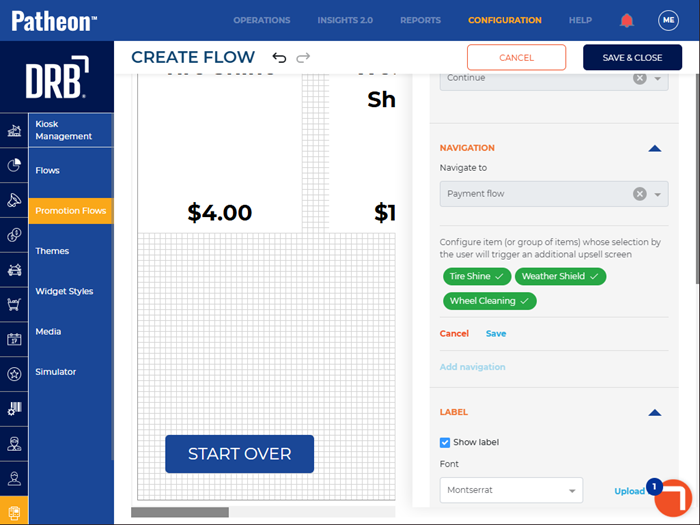
- Select Save.
- Navigate to FLOW.
- Select edit (
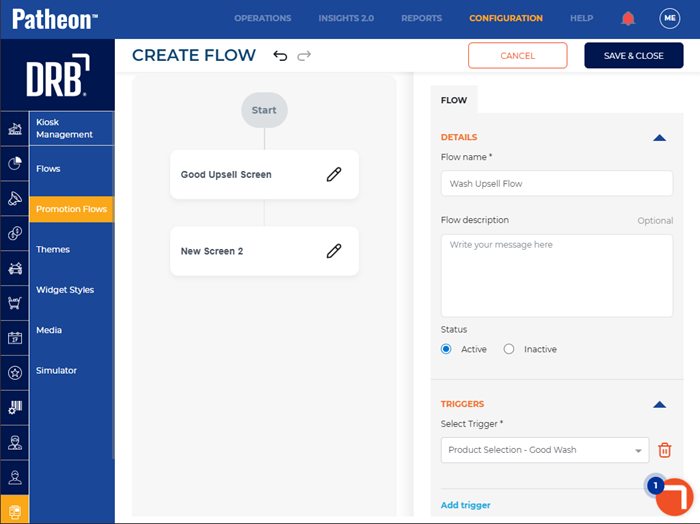
 ). The create flow panel opens with the Good Upsell Screen and New Screen 2.
 - Navigate to the Triggers section.
- Select Add trigger. The Select Trigger* setting opens.
- In Select Trigger*, select Product Selection - Good Wash. This is the name of the trigger created in the previous steps. New Screen 2 is added to the screen design panel.
Configure the Conditional Follow-Up Screen
Create New Screen 2 only if the customer selects all of the a la carte items offered on the Good Upsell Screen. In this example, the second screen presents a wash that includes all of those selected services, and potentially additional services, at a lower bundled price.
- For New Screen 2, select edit (). The New Screen 2 panel opens.
- In Screen name*, enter a name, such as, If All Selected.
- Select the blank widget on the screen. The widget settings open.
- Navigate to the product section.
- In Type, select Wash.
- In Wash, select the wash to offer as the upsell.
- Use the item name section, item price section, background section, and settings section to customize the widget.
- Select the Text tool (). A text box opens on the screen.
- Double click the text box on the screen.
- Enter text, such as, You could save $1 on the services you selected by purchasing our Better Wash below.
- Use the style section and settings section to customize the text.
- Select . The Promotion Flows panel opens.
Publish Wash Upsell Flow
- Log In to Patheon Portal.
- Select Kiosks. The flows list panel opens.
- Select the Wash Upsell Flow from the Flows list. This is the name of the flow created in previous steps. The workfloW Overview panel opens.
- Select the edit icon next to SITES. The activated sites panel opens.
- Select the sites for which the screen should be available.
- Select . The activated sites panel opens and the screen is activated for the selected sites.
- Select . The flow is published to the selected sites.