Create an Interior Vacuum Product
Use these steps to create an interior vacuum product in Patheon Portal. You can bundle interior products with washes, as well as create combination items. For this example, we are only creating the interior vacuum product.
Create the Service
Create the Product
- Log In to Patheon Portal.
- Select Products. The products panel opens.
- Select . The product details panel opens.
- In Product Name*, enter a name for the product, such as Interior Vacuum.
- In Product Type*, select Interior.
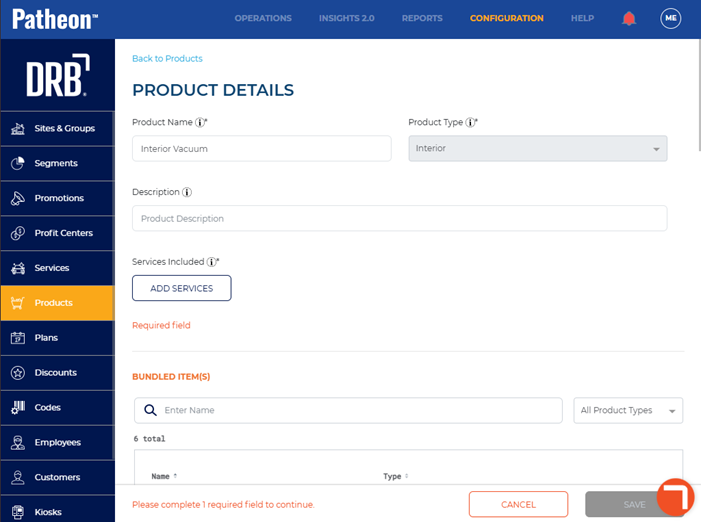
- In Services included*, select . The add services panel opens.
- Select the service(s) to add. In this example, we select Interior Vacuum.
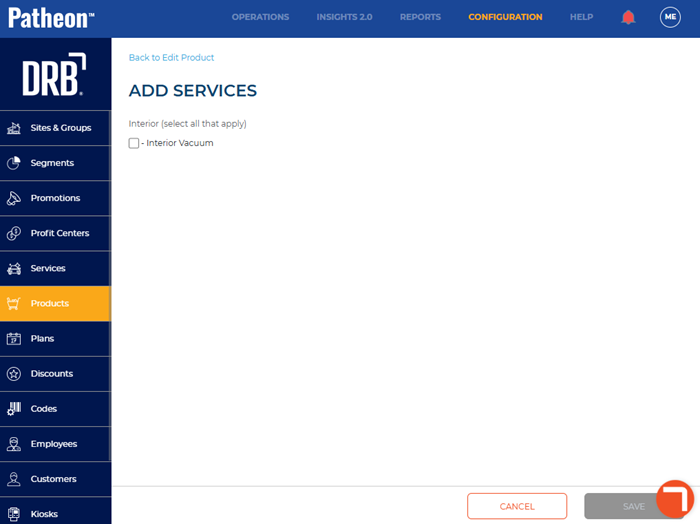
- Select . The product details panel opens.
- Navigate to the sales tax section.
- In Apply Tax Code(s)*, select Yes.
- From the Tax Codes list, select the appropriate tax code, such as Car Detailing Services.
- Navigate to the pricing & tax section.
- In Tax Inclusive Price*, select Yes.
- In Open Price*, select No or Yes. Note: Select No if the product should be a flat price. Select Yes if the product should have a minimum and maximum price.
- If Open Price* is set to No, in Price (USD)*, enter the price of the product, such as 5 for $5 USD.
- If Open Price* is set to Yes, in Min. Price (USD)*, enter the minimum price, such as 3 for $3 USD.
- If Open Price* is set to Yes, in Max. Price (USD)*, enter the maximum price, such as 10 for $10 USD.
- In Profit Center 1*, select Wash.
- Select . The Product Added dialog opens.
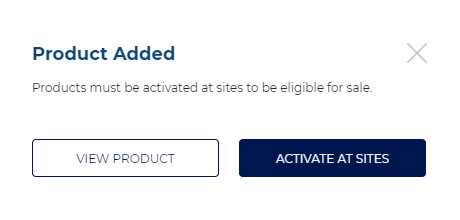
- Select . The activated sites panel opens.
- Select the sites where the product is available.
- Select . The Are you sure? dialog opens.
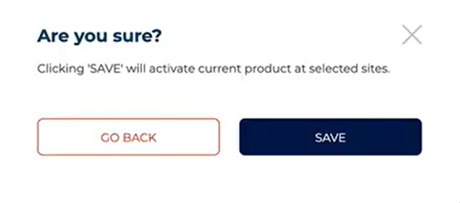
- Select . The product details panel opens.