Configure a Predefined Sales Note
Use these steps to configure a pre-defined sales note on Patheon Portal. These pre-defined sales notes can then be added to a transaction from the sales panel on a cashier terminal. Notes added to a sale print on pre-receipts, providing staff special instructions, do's and don'ts, or other customer-important details.
- Log In to Patheon Portal.
- Select Sale Notes Management. The sales note management panel opens.
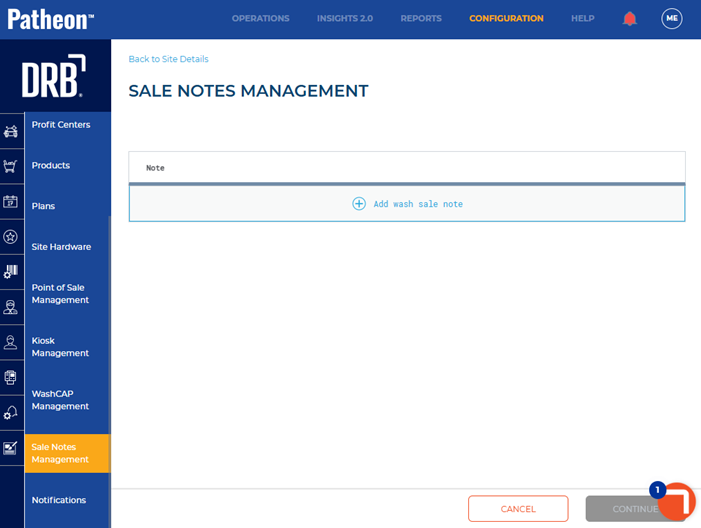
- Select Add wash sale note. The Note* field opens.
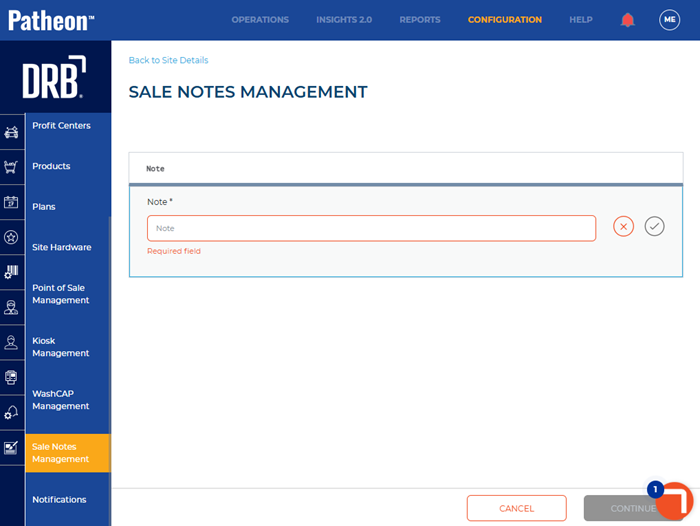
- In Note*, enter the sale note, for example, Advised customer of pre-existing vehicle condition prior to wash. Note: Sale notes cannot exceeded 140 characters.
- Select
 to save. The note displays in the sale notes management panel.
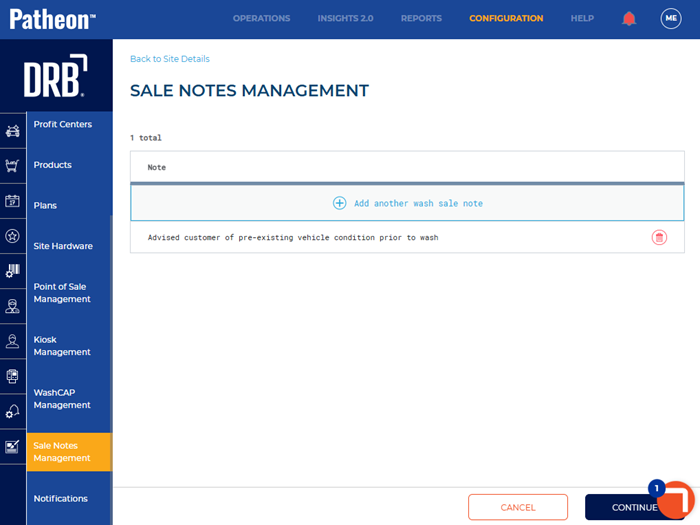
- Select . The publish changes panel opens.
- Select the site(s) for which the note should be published.
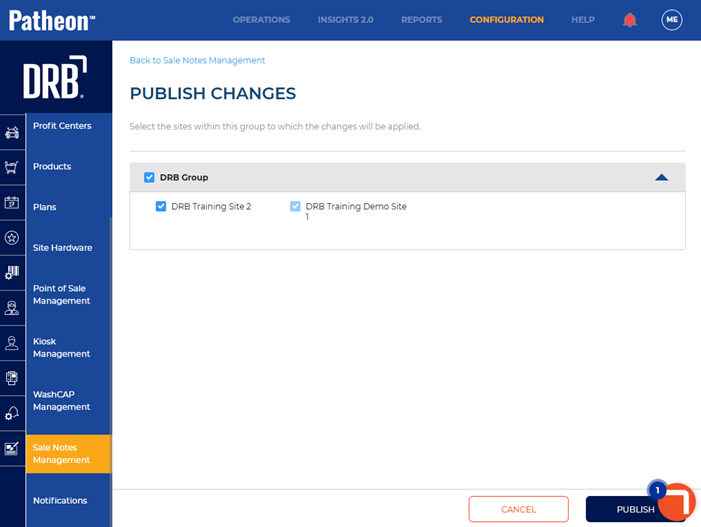
- Select . The sale notes management panel opens with the note Sale note changes have been published.