Navigate the Card Expiration Warning Screen
The Card Expiration Warning screen displays on the kiosk when a customer redeeming a plan has a credit card on file that has expired or is expiring soon. The customer can choose to update the card on file or dismiss the warning and proceed with the plan redemption. If a customer leaves the lane without exiting the Card Expiration Warning screen and the next customer sees information that is not theirs, the customer may select to restart the kiosk workflow.
Open Card Expiration Warning Screen
Use these steps to open the Card Expiration Warning screen from a customer's current workflow.
- Log In to Kiosk Staff Screen.
- Select Customer. The Customer panel opens.
- Select Vehicle Search. The Vehicle Search panel opens, with the tab selected by default.
- Select the tab. The tab opens.
- Select the search field. The onscreen keyboard opens.
- Use the onscreen keyboard to enter all or part of the customer's first name, last name, or first and last name.
- Select Enter. The keyboard closes and the system displays any customers that match.
- Select the customer from the list.
- Select Resume to return to the kiosk's current workflow.
- The Card Expiration Warning screen opens.
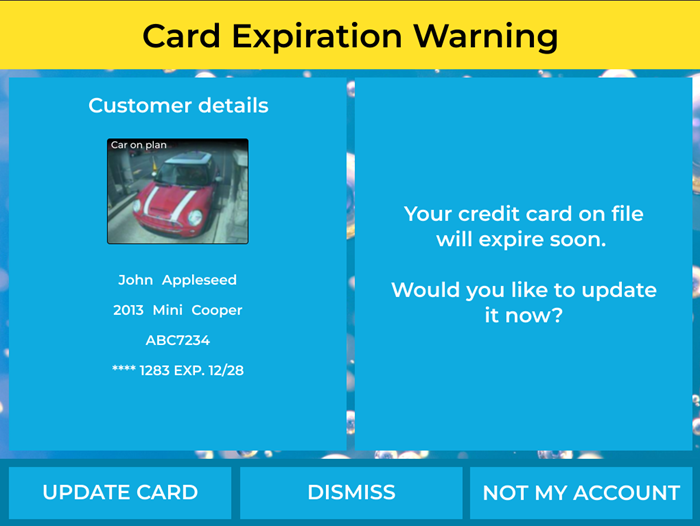
Update Card
Use these steps to update the card on file from the Card Expiration Warning screen.
- Select . The Credit Card Payment screen opens and the card reader is enabled.
- Direct the customer to continue and complete the plan redemption, if allowed.
Dismiss the Card Expiration Warning
Use these steps to dismiss the card expiration warning and to proceed with the plan redemption.
- Select . The Plan Redemption Promo flow opens.
- Select . If the plan can still be redeemed, the Please Wait/Pull Forward screen opens.
- Customer proceeds to the wash queue.
Restart Kiosk Workflow
Restart the kiosk workflow if the Card Expiration Warning screen remains open and displays a previous customer's information. This can occur if a vehicle backs out of the lane before the kiosk workflow resets.
Use these steps to restart the kiosk workflow from the Card Expiration Warning screen.
- Select . The Welcome screen opens and the customer session is reset.