Deactivate an Employee Role
Use these steps to deactivate a custom or default employee role. A deactivated employee role can be reactivated. When a role is deactivated, it becomes inactive and is hidden from employee role selection. If the employee role is the only role assigned to at least one employee, the employee role can't be deactivated, and an error message opens.
Note: Deactivating an employee role requires the appropriate permissions, and the following employee roles can't be deactivated: Patheon Administrator, Raw Data Developer, and Transactional API Developer.
- Log in to Patheon Portal.
- Select Configuration.
- Select Employees. The Employees panel opens.
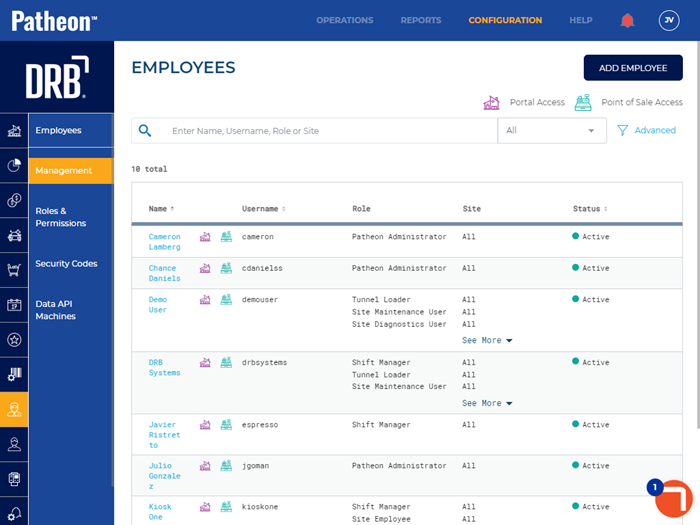
- Select Roles & Permissions. The Roles & Permissions panel opens.
- Select the desired role name to deactivate. The role details panel opens.
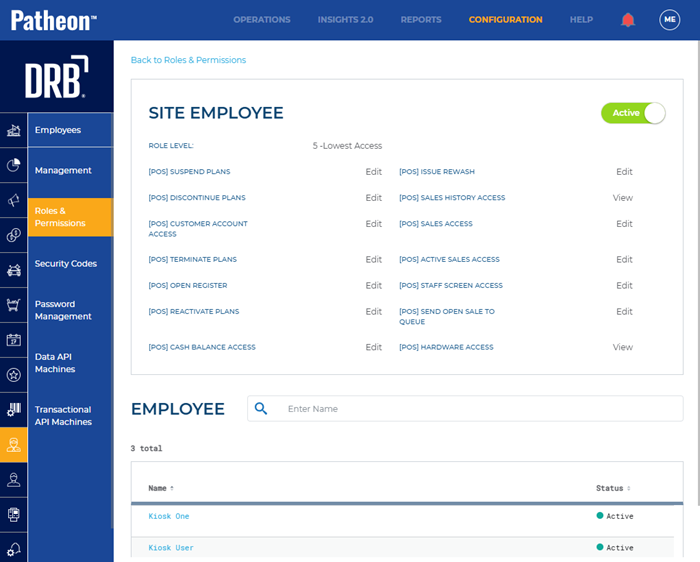
- Select the Active toggle to switch it to Inactive. The Are you sure? dialog opens.
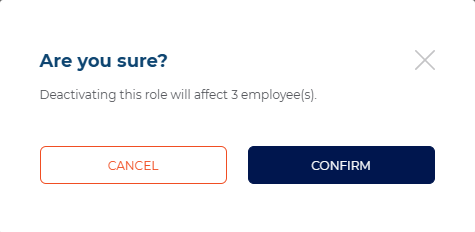
- Select . The roles & permissions panel opens and the role status now shows as Inactive.