Reactivate an Employee Role
Use these steps to reactivate an inactive (deactivated) custom or default employee role. An active employee role can be deactivated.
Note: Reactivating an employee role requires the appropriate permissions.
- Log in to Patheon Portal.
- Select Configuration.
- Select Employees. The Employees panel opens.
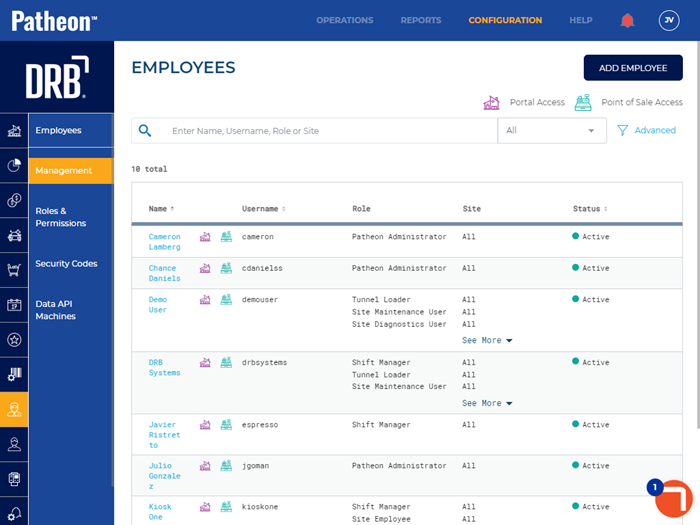
- Select Roles & Permissions. The Roles & Permissions panel opens.
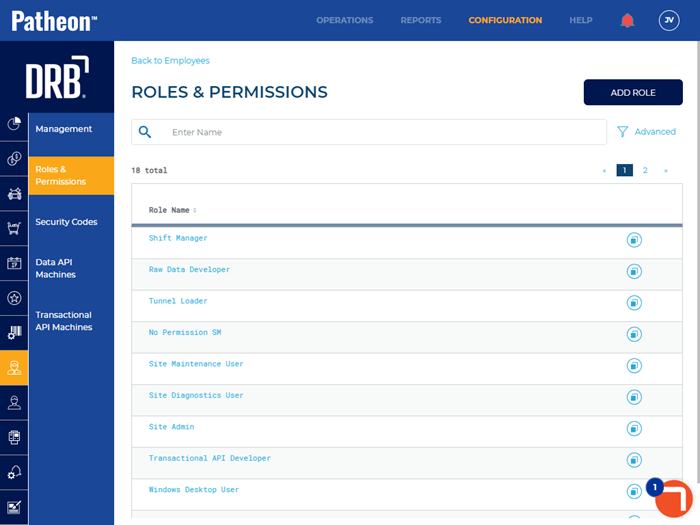
- Select Show inactive roles. The inactive roles display on the roles & permissions panel.
- Select the desired role name to reactivate. The role details panel opens.
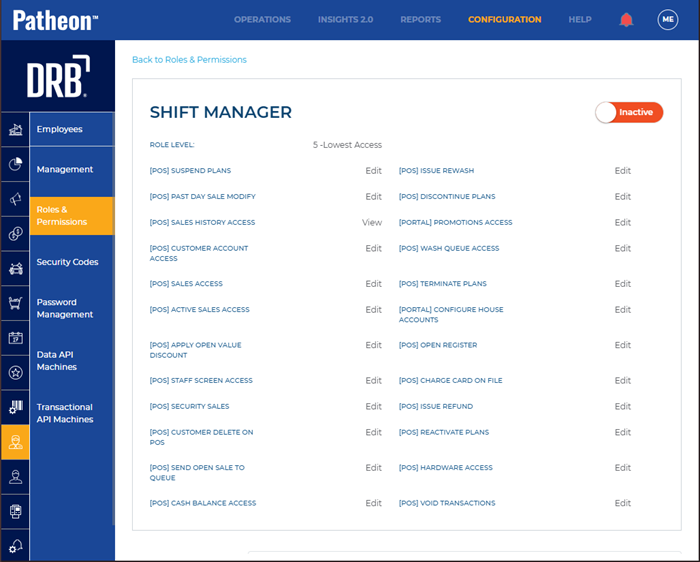
- Select the Inactive toggle to switch it to Active. The roles & permissions panel opens and the role status now shows as Active.