Sell a Prepaid
Use the following steps to sell a prepaid card.
See also: Sell a Gift Card and Sell a Gift Card from a Tablet Terminal
- Sign in to the cashier application.
- Select Sales. The Sales panel opens.
- Select . The Manual Entry dialog opens.
- Select . The cashier terminal barcode scanner activates.
- Scan the prepaid barcode. The Code* field displays the prepaid code. Alternatively, type the prepaid code in the Code* field.
- Select . The Manual Entry dialog closes and the Assign Card Type panel opens with the barcode value in the Code* field.
- In the Type* field, select Prepaid Card. Do not select Gift Card; it's used to sell a gift card.
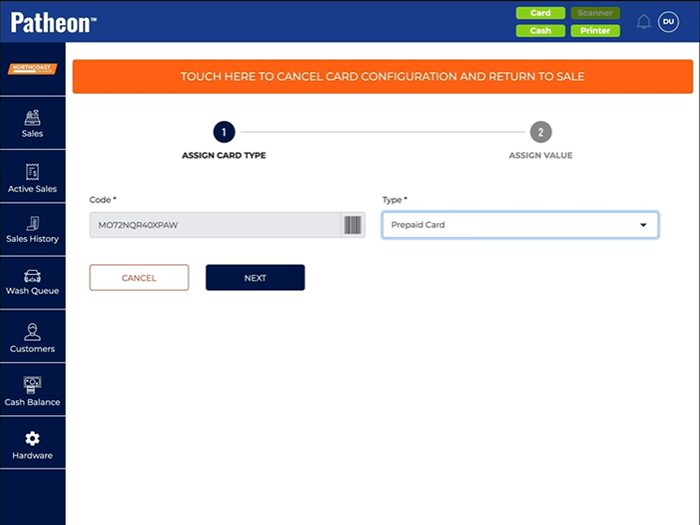
- Select . The Assign Card Type panel closes and the Assign Value panel opens.
- In the Value* field, select the prepaid product to assign to the card. Only prepaid products are listed; gift card products are not listed.
- Select . The Assign Value panel closes and the Sales panel opens with the prepaid product in the cart and a Redeem now? toggle set to Yes.
- If you do not want to redeem the prepaid product immediately, select the Redeem now? toggle to set it to No.
- Note: The prepaid code is not activated and assigned to the selected prepaid product until the sale is tendered. If the prepaid product is removed from the cart before the sale is tendered, the prepaid code is NOT activated and can still be sold and activated for any prepaid (or gift card) product.
- Tender the sale. The prepaid code is activated and if the Redeem now? toggle is set to Yes, the vehicle is added to the wash queue.